This page describes how to suspend a Cloud Deploy delivery pipeline.
You can *suspend* a delivery pipeline. Suspending a pipeline means that it can
no longer be used for the following:
- Create a release
- Promote a release
- Roll back a release
- Redeploy a release
- Approve or reject a rollout
Here are some possible reasons for suspending a delivery pipeline:
- There's a problem with a release and you want to prevent further action on
that pipeline until the problem is found.
- Your organization observes a holiday freeze, for example during peak holiday
shopping season.
To suspend a delivery pipeline:
1. In the delivery pipeline configuration file, include the following property:
suspended: true
This property goes at the top level, as shown:
apiVersion: deploy.cloud.google.com/v1
kind: DeliveryPipeline
metadata:
Name: my-app
description: main application pipeline
suspended: true
serialPipeline:
stages:
- targetId: dev
profiles: []
- targetId: staging
profiles: []
- targetId: prod
profiles: []
2. Register the delivery pipeline:
gcloud deploy apply --file=PIPELINE_CONFIG --region=REGION --project=PROJECT_ID
Where:
- PIPELINE_CONFIG
Is the name of the delivery pipeline configuration file, typically
`clouddeploy.yaml`. This is required.
- REGION
Is the name of the region in which the delivery pipeline was created, for
example `us-central1`. This is required.
- PROJECT_ID
Is the project ID of the project in which the delivery pipeline was
created. This is required.
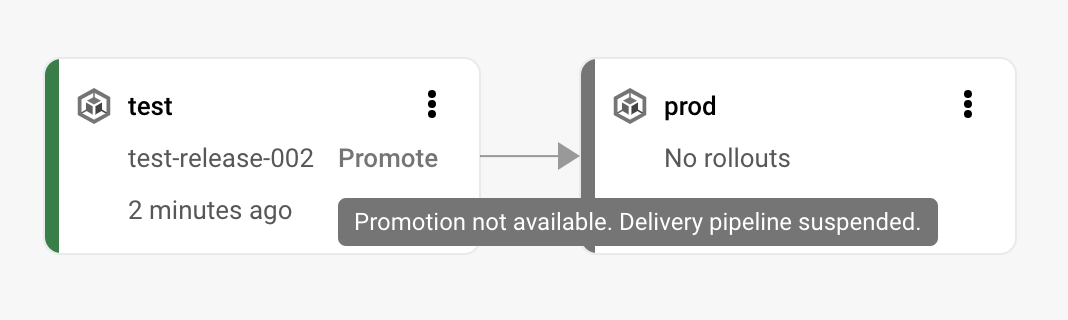
The delivery pipeline is now in a suspended state, which prevents release
creation, promotion, rollback and redeploy, and rollout approval.
## Rollouts from suspended delivery pipelines
If there are any rollouts in progress or queued when you suspend a delivery
pipeline, those rollouts continue to completion---they are not
canceled. However, because you can't create or promote a release, no new
rollouts can be created using that pipeline until it's [resumed](https://docs.cloud.google.com/deploy/docs/suspend-pipeline#resume_a_suspended_delivery_pipeline).
## IAM permissions required for suspending a pipeline
The IAM permissions required for suspending a delivery pipeline
are included in the following roles:
- roles/clouddeploy.admin
- roles/clouddeploy.operator
- roles/clouddeploy.developer
## Resume a suspended delivery pipeline
To re-enable a suspended delivery pipeline:
1. In the delivery pipeline configuration file, remove the property
`suspended: true`, or set it to `false`.
2. Apply the configuration:
gcloud deploy apply --file=PIPELINE_CONFIG --region=REGION --project=PROJECT_ID
## Find out what pipelines are suspended
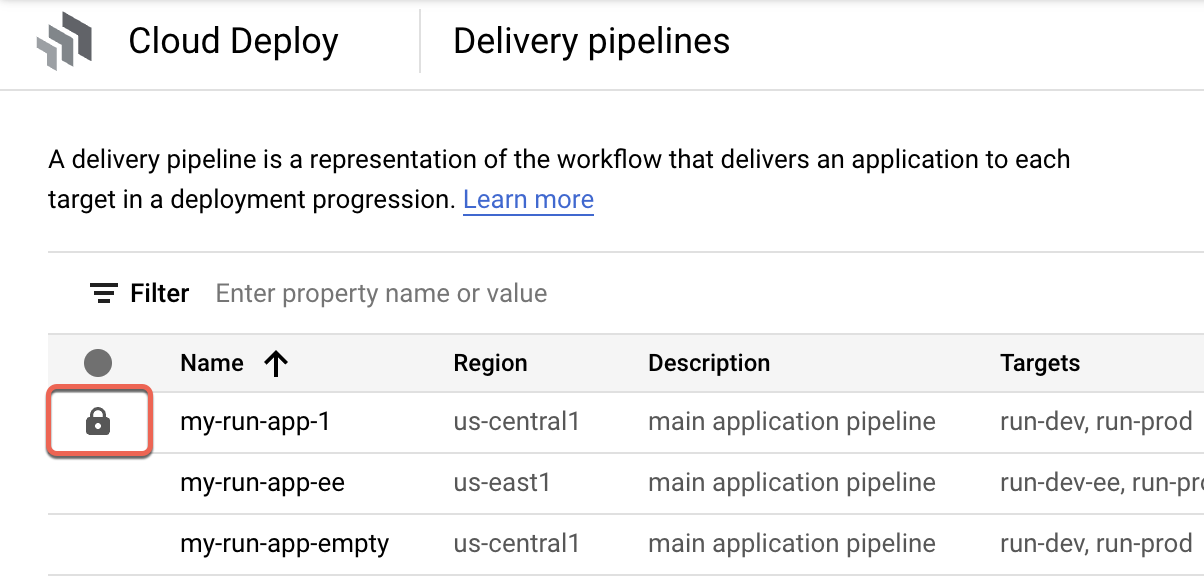
Any delivery pipelines that are locked are shown with a lock icon next to the
name in the Google Cloud console **Delivery pipelines** view:
## What's next
- Find out how to [view a delivery pipeline](https://docs.cloud.google.com/deploy/docs/view-pipeline)
that's already in use.
- Learn how to [update a delivery pipeline](https://docs.cloud.google.com/deploy/docs/update-pipeline).
- Find out how to [delete a delivery pipeline](https://docs.cloud.google.com/deploy/docs/delete-pipeline).
- Learn how to [use service notifications](https://docs.cloud.google.com/deploy/docs/subscribe-deploy-notifications)