This document describes the information that you can find on the Cloud Deploy
**Release details** page in Google Cloud console, including the following:
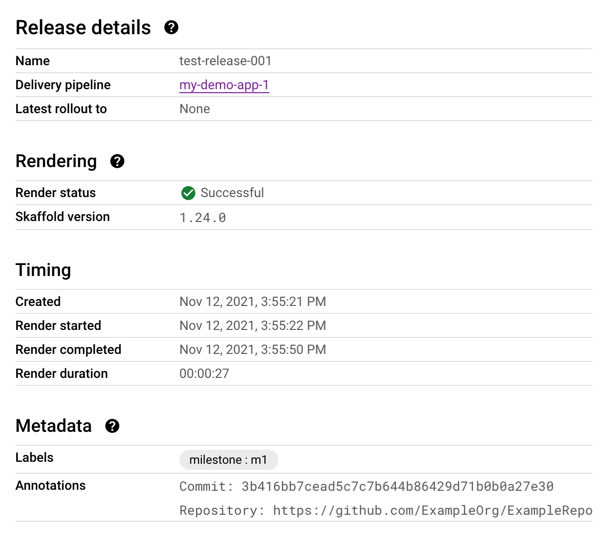
- Metadata and other information about the release:
- [Rollouts](https://docs.cloud.google.com/deploy/docs/view-release#viewing_rollouts)
You can view a list of rollouts for this release, and click a rollout to
[view rollout details](https://docs.cloud.google.com/deploy/docs/view-release#viewing_rollouts).
- [Release artifacts](https://docs.cloud.google.com/deploy/docs/view-release#viewing_release_artifacts)
- The rendering source, which was archived when the release was first created.
- The names of all build artifacts, such as the container image that was deployed.
- Rendered artifacts, including the rendered `manifest.yaml` and the rendered `skaffold.yaml` that was used for this release.
You can also [view a diff](https://docs.cloud.google.com/deploy/docs/view-release#viewing_diffs) of different versions of the rendered
manifests and `skaffold.yaml` files.
## View rollouts
1. From the **Release details** page, select the **Rollouts** tab.
2. Click the name of the rollout that you want to view.
The rollout details are displayed over the page. These details include links
to render logs, deployment logs, and target artifacts (`manifest.yaml` and
`skaffold.yaml`).
The Rollout page is displayed. The **Summary** shows rollout metadata and status.

The **Phases** tab shows the [phases](https://docs.cloud.google.com/deploy/docs/terminology#phase) and
[jobs](https://docs.cloud.google.com/deploy/docs/terminology#job) in the rollout. From here you can
[perform actions on the rollout](https://docs.cloud.google.com/deploy/docs/deployment-strategies/manage-rollout),
such as advance phases, terminate job runs, and more.

> [!NOTE]
> **Note:** you can also view rollouts by selecting the **Rollouts** tab on the **Delivery pipeline details** page and clicking on a rollout listed in the table.
## View release artifacts
The **Release details** page includes an **Artifacts** tab, listing build
artifacts, target artifacts (manifests and Skaffold configs), and the rendering
source for those target artifacts.
From this page, you can do the following:
- Download the rendering source archive file.
- Click through to see the render logs for the target artifacts.
- View the rendered target artifacts themselves.
### View rendered manifests and diffs, with release inspector
In Google Cloud console, you can compare different versions of some of your
release artifacts. You can view a diff of the following types of artifacts:
- Rendered manifests
- Rendered `skaffold.yaml` configuration files
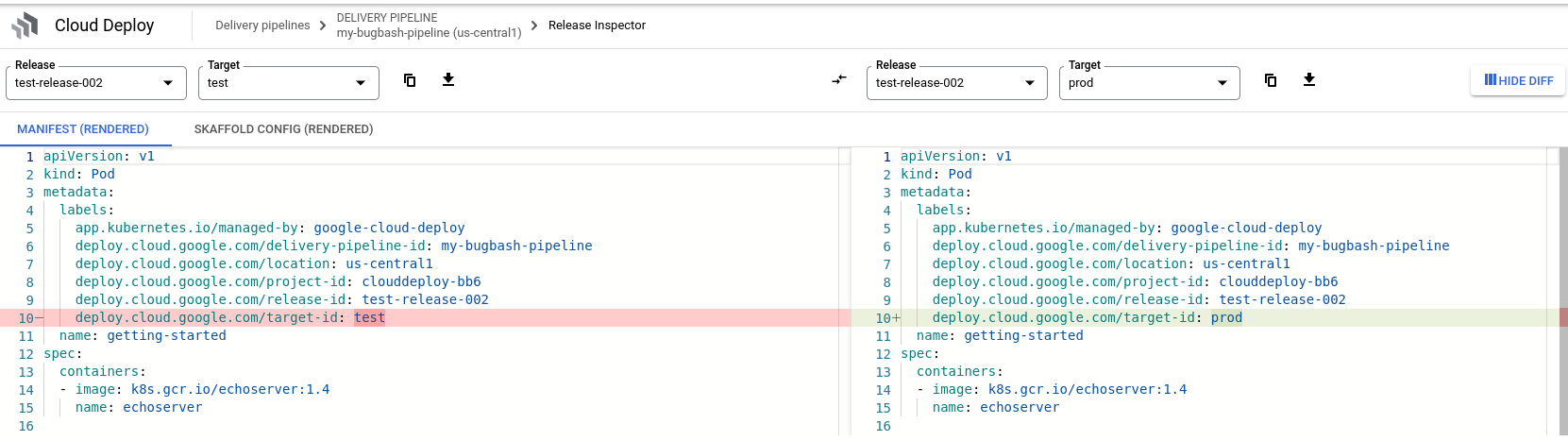
To view a diff:
1. In the Google Cloud console, navigate to the Cloud Deploy
**Delivery pipelines** page to view your delivery pipelines.
[Open the Delivery pipelines page](https://console.cloud.google.com/deploy/delivery-pipelines)
2. Click the delivery pipeline that's managing the release you want to
inspect.
3. On the **Delivery pipeline details** page, make sure the **Releases** tab is
selected, and click the name of the release you want to inspect.
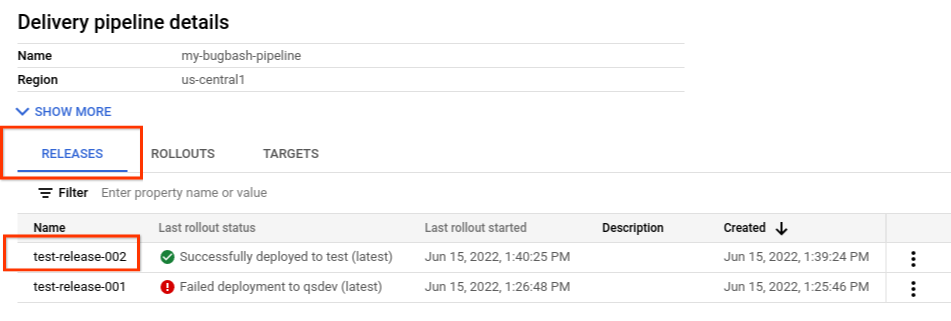
4. On the **Release details** page, click the **Artifacts** tab.
5. In the **Target artifacts** list, click the **View artifacts** link for the
artifact that you want to inspect.
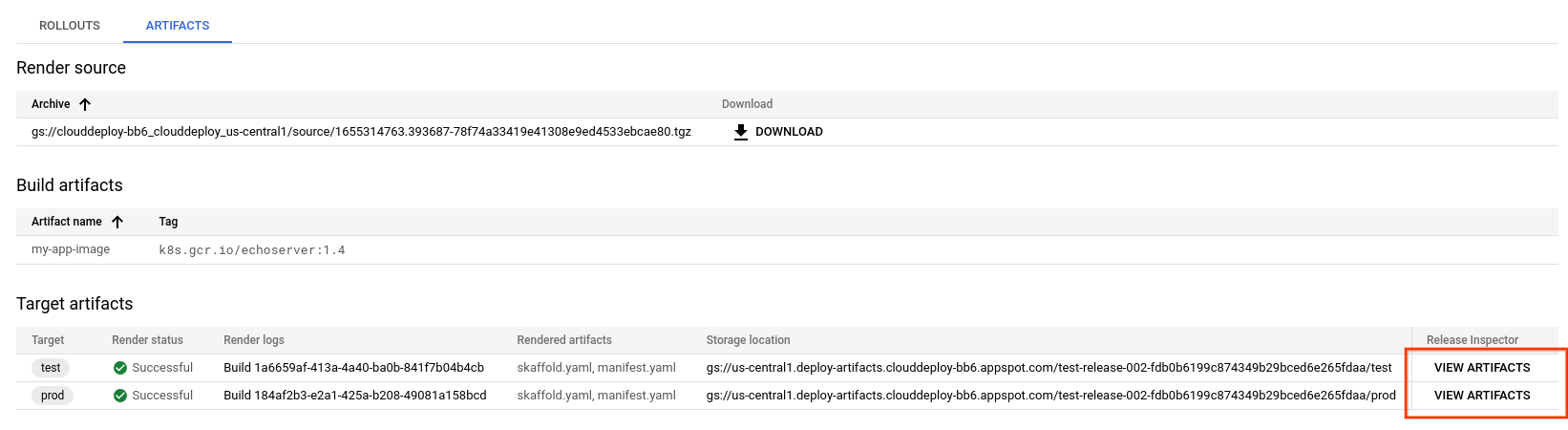
6. Select the **Manifest** tab or the **Skaffold config** tab.
7. Click **Show diff**.
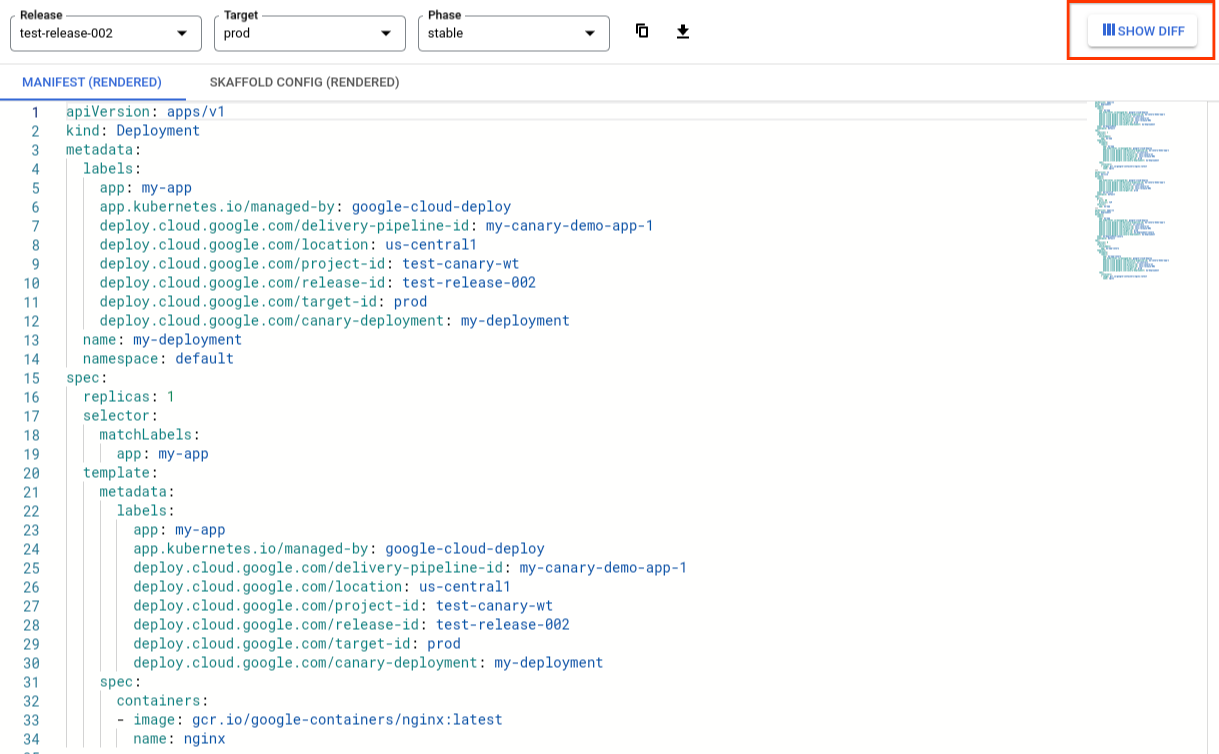
The release inspector shows the same version of the artifact on both sides.
8. For each artifact shown, choose the release name, target name, phase name, or
all, if necessary.
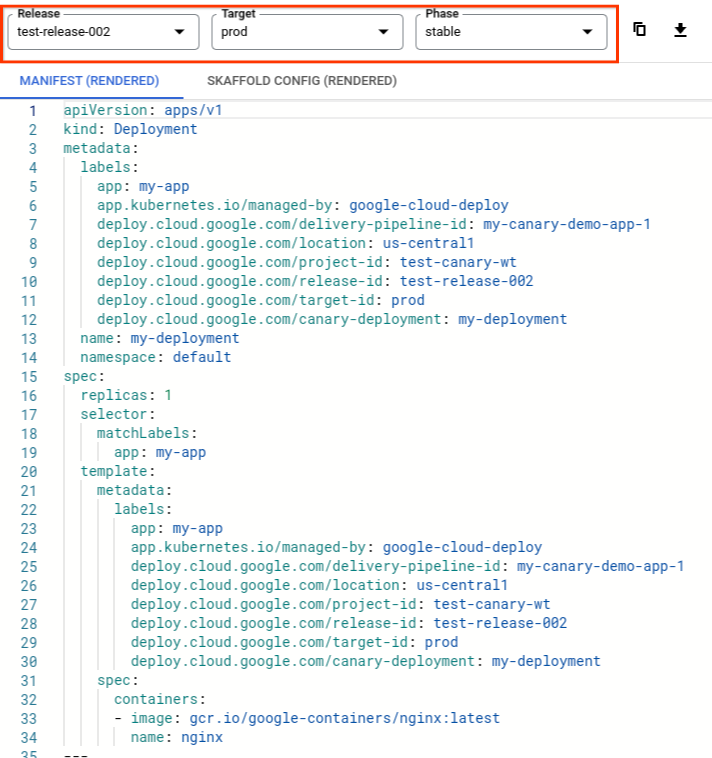
This way you can choose which version of the artifact to compare on each side,
by release and by target. For example, you can choose the same release for
each, and compare the manifest for that release but for different targets.
The differences between the selected artifacts are highlighted.
### View rendered artifacts in the Cloud Storage bucket
The Cloud Storage bucket that stores your rendered release artifacts is
shown on, and linked from, the **Artifacts** tab on the release details page:
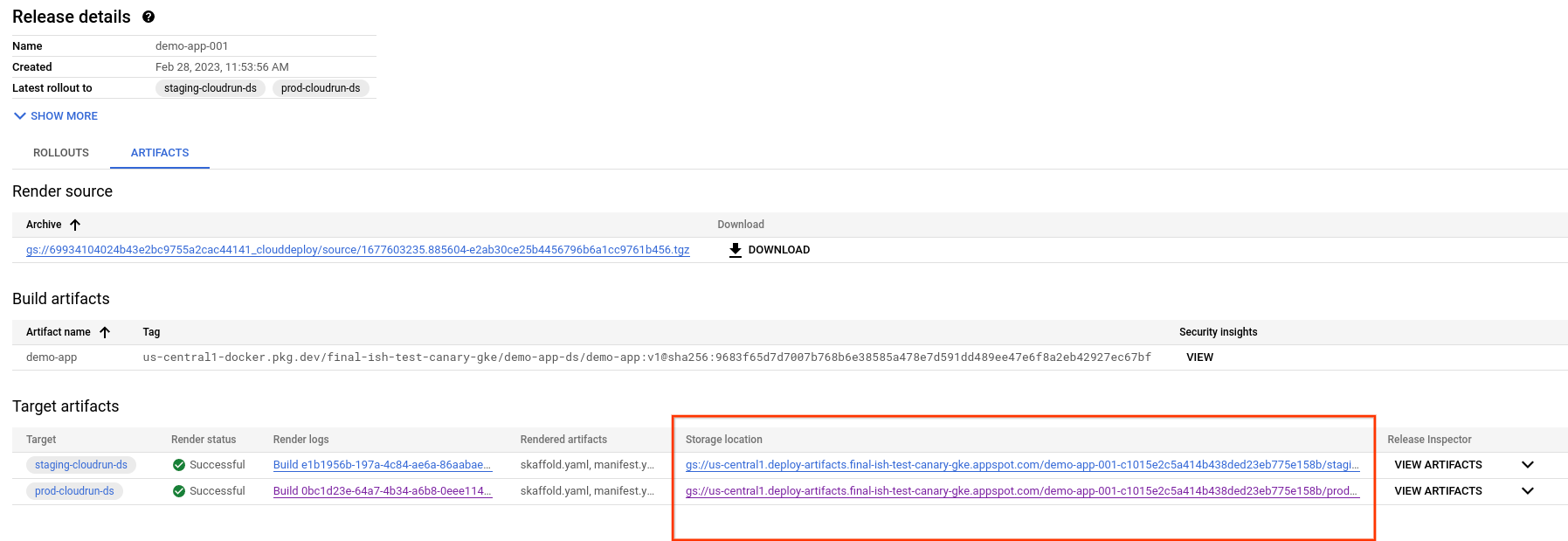
1. On the release details page, select the **Artifacts** tab.
2. In the **Target artifacts** table, find the target whose artifacts you want
to view, and click the corresponding link in the **Storage location** column.
The Cloud Storage bucket details are shown, for the specific target.
The bucket contains rendered artifacts for each phase of the rollout:
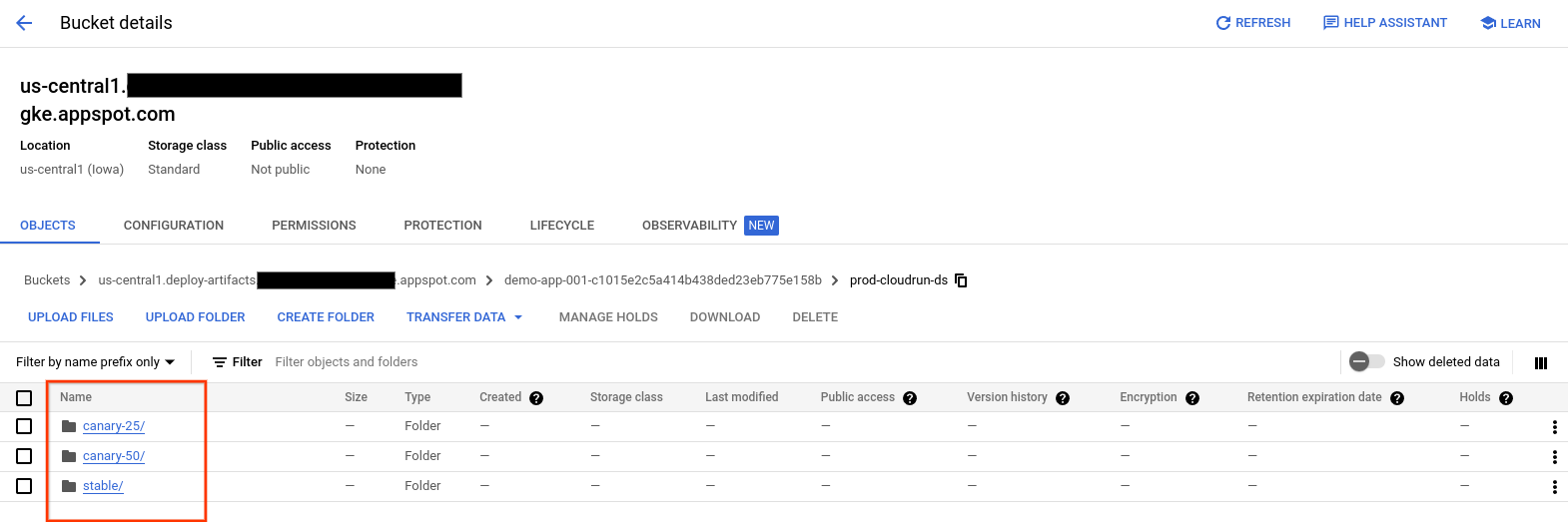
3. Click on the phase whose rendered artifacts you want to view,
The available artifacts for that phase are listed:

4. Click on the artifact you want to view to see its contents.