You can use Enterprise Document OCR as part of Document AI to detect and
extract text and layout information from various documents. With configurable
features, you can tailor the system to meet specific document-processing
requirements.
## Overview
You can use Enterprise Document OCR for tasks such as data entry based on
algorithms or machine learning and improving and verifying data accuracy. You
can also use Enterprise Document OCR to handle tasks like the following:
- **Digitizing text:** Extract text and layout data from documents for search, rules-based, document-processing pipelines, or custom-model creation.
- **Using large language model applications:** Use LLMs' contextual understanding and OCR's text and layout extraction capabilities to automate questions and answers. Unlock insights from data, and streamline workflows.
- **Archiving:** Digitize paper documents into machine-readable text to improve document accessibility.
### Choosing the best OCR for your use case
| **Solution** | **Product** | **Description** | **Use case** |
|---|---|---|---|
| Document AI | [Enterprise Document OCR](https://docs.cloud.google.com/document-ai/docs/enterprise-document-ocr#processor_options) | Specialized model for document use cases. Advanced features include image-quality score, language hints, and rotation correction. | Recommended when extracting text from documents. Use cases include PDFs, scanned documents as images, or Microsoft DocX files. |
| Document AI | [OCR add ons](https://docs.cloud.google.com/document-ai/docs/enterprise-document-ocr#ocr_add_ons) | Premium features for specific requirements. Only compatible with Enterprise Document OCR version 2.0 and later. | Need to detect and recognize math formulas, receive font-style information, or enable checkbox extraction. |
| Cloud Vision API | [Text detection](https://docs.cloud.google.com/vision/docs/ocr) | Globally available REST API based on Google Cloud standard OCR model. Default quota of 1,800 requests per minute. | General text-extraction use cases that require low latency and high capacity. |
| Cloud Vision | [OCR Google Distributed Cloud (Deprecated)](https://docs.cloud.google.com/vision/on-prem) | [Google Cloud Marketplace](https://cloud.google.com/marketplace/) application that can be deployed as a container to any GKE cluster using GKE Enterprise. | To meet data residency or compliance requirements. |
### Detection and extraction
Enterprise Document OCR can detect blocks, paragraphs, lines, words, and
symbols from PDFs and images, as well as deskew documents for better accuracy.
Supported layout detection and extraction attributes:
| **Printed text** | **Handwriting** | **Paragraph** | **Block** | **Line** | **Word** | **Symbol-level** | **Page number** |
|---|---|---|---|---|---|---|---|
| Default | Default | Default | Default | Default | Default | Configurable | Default |
Configurable Enterprise Document OCR features include the following:
- **Extract embedded or native text from digital PDFs:** This feature extracts
text and symbols exactly as they appear in the source documents, even for
rotated texts, extreme font sizes or styles, and partially hidden text.
- **Rotation correction:** Use Enterprise Document OCR to preprocess
document images to correct rotation issues that can affect extraction quality or
processing.
- **Image-quality score:** Receive quality metrics that can help with document
routing. Image-quality score provides you with page-level quality metrics in
eight dimensions, including blurriness, the presence of smaller-than-usual
fonts, and glare.
- **Specify page range:** Specifies the range of the pages in an input
document for OCR. This saves the spending and processing time over unneeded
pages.
- **Language detection:** Detects the languages used in the extracted texts.
- **Language and handwriting hints:** Improve accuracy by providing the OCR
model a language or handwriting hint based on the known characteristics of your
dataset.
To learn how to enable OCR configurations, see
[Enable OCR configurations](https://docs.cloud.google.com/document-ai/docs/process-documents-ocr#advanced_ocr_options_rest).
### OCR add ons
Enterprise Document OCR offers optional analysis capabilities which can be enabled
on individual processing requests as needed.
The following add-on capabilities are available for the Stable
`pretrained-ocr-v2.0-2023-06-02` and `pretrained-ocr-v2.1-2024-08-07` versions,
and Release Candidate `pretrained-ocr-v2.1.1-2025-01-31` version.
- **Math OCR** : Identify and extract formulas from documents in [LaTeX](https://www.latex-project.org/) format.
- **Checkbox extraction**: Detect checkboxes and extract their status (marked/unmarked) in Enterprise Document OCR response.
- **Font style detection**: Identify word-level font properties including font type, font style, handwriting, weight, and color.
To learn how to enable the listed add-ons, see
[Enable OCR add ons](https://docs.cloud.google.com/document-ai/docs/enterprise-document-ocr#ocr-add-ons-descr).
### Supported file formats
Enterprise Document OCR supports PDF, GIF, TIFF, JPEG, PNG, BMP, and WebP
file formats. For more information, see [Supported files](https://docs.cloud.google.com/document-ai/docs/file-types).
Enterprise Document OCR also supports
[DocX](https://en.wikipedia.org/wiki/Office_Open_XML) files
up to 15 pages in sync and 30 pages in async. To make a quota increase request
(QIR), follow the steps to
[request a quota adjustment](https://docs.cloud.google.com/docs/quotas/view-manage#requesting_higher_quota).
DocX support is in private preview. To request access, contact your Google account
team.
### Advanced versioning
Advanced versioning is in [Preview](https://cloud.google.com/products#product-launch-stages). Upgrades
to the underlying AI/ML OCR models might lead to changes in OCR behavior. If
strict consistency is required, use a *frozen model version* to pin behavior to
a legacy OCR model for up to 18 months. This ensures the same image to OCR
function result. See the table about [processor versions](https://docs.cloud.google.com/document-ai/docs/enterprise-document-ocr#processor_versions).
### Processor versions
The following processor versions are compatible with this feature. For more
information, see [Managing processor versions](https://docs.cloud.google.com/document-ai/docs/manage-processor-versions).
| Version ID | Release channel | Description |
|---|---|---|
| `pretrained-ocr-v1.2-2022-11-10` | Stable | Frozen model version of v1.0: Model files, configurations, and binaries of a version snapshot frozen in a container image for up to 18 months. |
| `pretrained-ocr-v2.0-2023-06-02` | Stable | Production-ready model specialized for document use cases. Includes access to all OCR add-ons. |
| `pretrained-ocr-v2.1-2024-08-07` | Stable | The main areas of improvement for v2.1 are: better printed text recognition, more precise checkbox detection and more accurate reading order. |
| `pretrained-ocr-v2.1.1-2025-01-31` | Release candidate | v2.1.1 is similar to V2.1, and is available in all regions except: `US`, `EU`, and `asia-southeast1`. |
## Use Enterprise Document OCR to process documents
This quickstart introduces you to Enterprise Document OCR. It shows you how to
optimize document OCR results for your workflow by enabling or disabling any of
the available OCR configurations.
## Create an Enterprise Document OCR processor
First, create an Enterprise Document OCR processor. For more information, see [creating and managing processors](https://docs.cloud.google.com/document-ai/docs/create-processor#create-processor).
## OCR configurations
All OCR configurations can be enabled by setting the respective fields in [`ProcessOptions.ocrConfig`](https://docs.cloud.google.com/document-ai/docs/reference/rest/v1/ProcessOptions#OcrConfig) in the [`ProcessDocumentRequest`](https://docs.cloud.google.com/document-ai/docs/reference/rest/v1/projects.locations.processors/process#body.request_body.FIELDS.process_options) or [`BatchProcessDocumentsRequest`](https://docs.cloud.google.com/document-ai/docs/reference/rest/v1/projects.locations.processors/batchProcess#body.request_body.FIELDS.process_options).
For more information, refer to [Send a processing request](https://docs.cloud.google.com/document-ai/docs/send-request).
### Image-quality analysis
**Intelligent document-quality analysis** uses machine learning to perform quality assessment of a document based on the readability of its content.
This quality assessment is returned as a quality score `[0, 1]`, where `1` means perfect quality.
If the quality score detected is lower than `0.5`, a list of negative quality reasons (sorted by the likelihood) is also returned.
Likelihood greater than `0.5` is considered a positive detection.
If the document is considered to be defective, the API returns the following eight document defect types:
- `quality/defect_blurry`
- `quality/defect_noisy`
- `quality/defect_dark`
- `quality/defect_faint`
- `quality/defect_text_too_small`
- `quality/defect_document_cutoff`
- `quality/defect_text_cutoff`
- `quality/defect_glare`
There are some limitations with the current document-quality analysis:
- It can return false positive detections with digital documents with no defects. The feature is best used on scanned or photographed documents.
- Glare defects are local. Their presence might not hinder overall document readability.
### Input
Enable by setting [`ProcessOptions.ocrConfig.enableImageQualityScores`](https://docs.cloud.google.com/document-ai/docs/reference/rest/v1/ProcessOptions#OcrConfig.FIELDS.enable_image_quality_scores) to `true` in the processing request.
This additional feature adds latency comparable to OCR processing to the process call.
{
"rawDocument": {
"mimeType": "MIME_TYPE",
"content": "IMAGE_CONTENT"
},
"processOptions": {
"ocrConfig": {
"enableImageQualityScores": true
}
}
}
### Output
The defect detection results appear in [`Document.pages[].imageQualityScores[]`](https://docs.cloud.google.com/document-ai/docs/reference/rest/v1/Document#Page.FIELDS.image_quality_scores).
{
"pages": [
{
"imageQualityScores": {
"qualityScore": 0.7811847,
"detectedDefects": [
{
"type": "quality/defect_document_cutoff",
"confidence": 1.0
},
{
"type": "quality/defect_glare",
"confidence": 0.97849524
},
{
"type": "quality/defect_text_cutoff",
"confidence": 0.5
}
]
}
}
]
}
Refer to [Sample processor output](https://docs.cloud.google.com/document-ai/docs/output#processor_doc-ocr) for full output examples.
### Language hints
The OCR processor supports language hints that you define to improve OCR engine performance.
Applying a language hint allows for OCR to optimize for a selected language instead of an inferred language.
### Input
Enable by setting [`ProcessOptions.ocrConfig.hints[].languageHints[]`](https://docs.cloud.google.com/document-ai/docs/reference/rest/v1/ProcessOptions#Hints.FIELDS.language_hints) with a list of [BCP-47](https://www.rfc-editor.org/info/bcp47) language codes.
{
"rawDocument": {
"mimeType": "MIME_TYPE",
"content": "IMAGE_CONTENT"
},
"processOptions": {
"ocrConfig": {
"hints": {
"languageHints": ["en", "es"]
}
}
}
}
Refer to [Sample processor output](https://docs.cloud.google.com/document-ai/docs/output#processor_doc-ocr) for full output examples.
### Symbol detection
Populate data at the symbol (or individual letter) level in the document response.
### Input
Enable by setting [`ProcessOptions.ocrConfig.enableSymbol`](https://docs.cloud.google.com/document-ai/docs/reference/rest/v1/ProcessOptions#OcrConfig.FIELDS.enable_symbol) to `true` in the processing request.
{
"rawDocument": {
"mimeType": "MIME_TYPE",
"content": "IMAGE_CONTENT"
},
"processOptions": {
"ocrConfig": {
"enableSymbol": true
}
}
}
### Output
If this feature is enabled, the field [`Document.pages[].symbols[]`](https://docs.cloud.google.com/document-ai/docs/reference/rest/v1/Document#Page.FIELDS.symbols) is populated.
Refer to [Sample processor output](https://docs.cloud.google.com/document-ai/docs/output#processor_doc-ocr) for full output examples.
### Built-in PDF parsing
Extract embedded text from digital PDF files. When enabled, if there is digital text, the built-in digital PDF model is automatically used. If there is non-digital text, the optical OCR model is automatically used. The user receives both text results merged together.
### Input
Enable by setting [`ProcessOptions.ocrConfig.enableNativePdfParsing`](https://docs.cloud.google.com/document-ai/docs/reference/rest/v1/ProcessOptions#OcrConfig.FIELDS.enable_native_pdf_parsing) to `true` in the processing request.
{
"rawDocument": {
"mimeType": "MIME_TYPE",
"content": "IMAGE_CONTENT"
},
"processOptions": {
"ocrConfig": {
"enableNativePdfParsing": true
}
}
}
### Character-in-the-box detection
By default, Enterprise Document OCR has a detector enabled to improve text-extraction quality of characters that sit within a box. Here is an example:
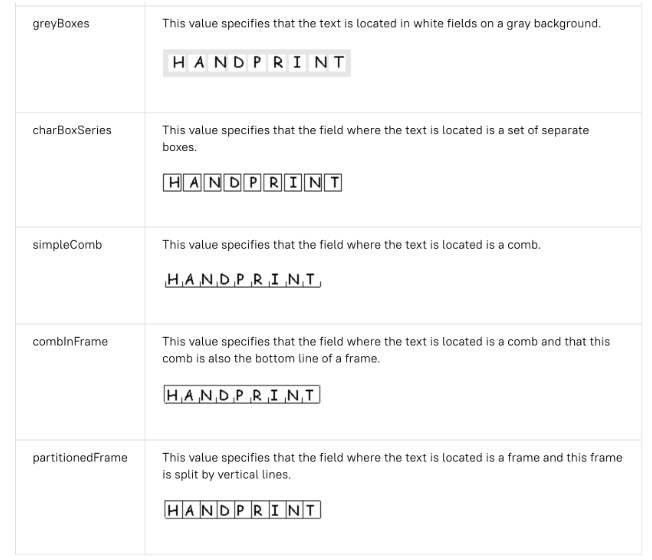
If you're experiencing OCR quality issues with characters inside boxes, you can disable it.
> [!NOTE]
> **Note:** This feature is only available for processor versions 2.0 and later.
### Input
Disable by setting [`ProcessOptions.ocrConfig.disableCharacterBoxesDetection`](https://docs.cloud.google.com/document-ai/docs/reference/rest/v1/ProcessOptions#OcrConfig.FIELDS.disable_character_boxes_detection) to `true` in the processing request.
{
"rawDocument": {
"mimeType": "MIME_TYPE",
"content": "IMAGE_CONTENT"
},
"processOptions": {
"ocrConfig": {
"disableCharacterBoxesDetection": true
}
}
}
### Legacy layout
If you require a heuristics layout-detection algorithm, you can enable legacy layout, which serves as an alternative to the current ML-based, layout-detection algorithm. This is not the recommended configuration. Customers can choose the best suitable layout algorithm based on their document workflow.
> [!NOTE]
> **Note:** This feature might change the text ordering in [`Document.text`](https://docs.cloud.google.com/document-ai/docs/reference/rest/v1/Document#FIELDS.text).
### Input
Enable by setting [`ProcessOptions.ocrConfig.advancedOcrOptions`](https://docs.cloud.google.com/document-ai/docs/reference/rest/v1/ProcessOptions#OcrConfig.FIELDS.advanced_ocr_options) to `["legacy_layout"]` in the processing request.
{
"rawDocument": {
"mimeType": "MIME_TYPE",
"content": "IMAGE_CONTENT"
},
"processOptions": {
"ocrConfig": {
"advancedOcrOptions": ["legacy_layout"]
}
}
}
## Specify a page range
By default, OCR extracts text and layout information from all pages in the documents. You can select specific page numbers or page ranges and only extract text from those pages.
> [!NOTE]
> **Note:** This feature is only supported for [online processing](https://docs.cloud.google.com/document-ai/docs/send-request#online-process) (synchronous) requests.
There are three ways to configure this in [`ProcessOptions`](https://docs.cloud.google.com/document-ai/docs/reference/rest/v1/ProcessOptions):
- To only process the second and fifth page:
{
"individualPageSelector": {"pages": [2, 5]}
}
> [!NOTE]
> **Note:** Pages are 1-indexed.
- To only process the first three pages:
{
"fromStart": 3
}
- To only process the last four pages:
{
"fromEnd": 4
}
In the response, each [`Document.pages[].pageNumber`](https://docs.cloud.google.com/document-ai/docs/reference/rest/v1/Document#Page.FIELDS.page_number) corresponds the same pages specified in the request.
## OCR add ons uses
These Enterprise Document OCR optional analysis capabilities can be enabled
on individual processing requests as needed.
### Math OCR
Math OCR detects, recognizes, and extracts formulas, such as mathematical equations represented as [LaTeX](https://www.latex-project.org/) along with bounding box coordinates.
Here is an example of LaTeX representation:
- Image detected
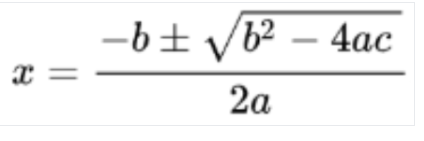
- Conversion to LaTeX

### Input
Enable by setting [`ProcessOptions.ocrConfig.premiumFeatures.enableMathOcr`](https://docs.cloud.google.com/document-ai/docs/reference/rest/v1/ProcessOptions#PremiumFeatures.FIELDS.enable_math_ocr) to `true` in the processing request.
{
"rawDocument": {
"mimeType": "MIME_TYPE",
"content": "IMAGE_CONTENT"
},
"processOptions": {
"ocrConfig": {
"premiumFeatures": {
"enableMathOcr": true
}
}
}
}
### Output
The Math OCR output appears in [`Document.pages[].visualElements[]`](https://docs.cloud.google.com/document-ai/docs/reference/rest/v1/Document#Page.FIELDS.visual_elements) with `"type": "math_formula"`.

"visualElements": [
{
"layout": {
"textAnchor": {
"textSegments": [
{
"endIndex": "46"
}
]
},
"confidence": 1,
"boundingPoly": {
"normalizedVertices": [
{
"x": 0.14662756,
"y": 0.27891156
},
{
"x": 0.9032258,
"y": 0.27891156
},
{
"x": 0.9032258,
"y": 0.8027211
},
{
"x": 0.14662756,
"y": 0.8027211
}
]
},
"orientation": "PAGE_UP"
},
"type": "math_formula"
}
]
You can check the full [`Document`](https://docs.cloud.google.com/document-ai/docs/reference/rest/v1/Document) JSON output in this [link](https://storage.googleapis.com/cloud-samples-data/documentai/SampleDocuments/OCR_PROCESSOR/pretrained-ocr-v2.0-2023-06-02_math_output.json) .
### Selection mark extraction
If enabled, the model attempts to extract all checkboxes and radio buttons in the document, along with bounding box coordinates.
### Input
Enable by setting [`ProcessOptions.ocrConfig.premiumFeatures.enableSelectionMarkDetection`](https://docs.cloud.google.com/document-ai/docs/reference/rest/v1/ProcessOptions#PremiumFeatures.FIELDS.enable_selection_mark_detection) to `true` in the processing request.
{
"rawDocument": {
"mimeType": "MIME_TYPE",
"content": "IMAGE_CONTENT"
},
"processOptions": {
"ocrConfig": {
"premiumFeatures": {
"enableSelectionMarkDetection": true
}
}
}
}
### Output
The checkbox output appears in [`Document.pages[].visualElements[]`](https://docs.cloud.google.com/document-ai/docs/reference/rest/v1/Document#Page.FIELDS.visual_elements) with `"type": "unfilled_checkbox"` or `"type": "filled_checkbox"`.

"visualElements": [
{
"layout": {
"confidence": 0.89363575,
"boundingPoly": {
"vertices": [
{
"x": 11,
"y": 24
},
{
"x": 37,
"y": 24
},
{
"x": 37,
"y": 56
},
{
"x": 11,
"y": 56
}
],
"normalizedVertices": [
{
"x": 0.017488075,
"y": 0.38709676
},
{
"x": 0.05882353,
"y": 0.38709676
},
{
"x": 0.05882353,
"y": 0.9032258
},
{
"x": 0.017488075,
"y": 0.9032258
}
]
}
},
"type": "unfilled_checkbox"
},
{
"layout": {
"confidence": 0.9148201,
"boundingPoly": ...
},
"type": "filled_checkbox"
}
],
You can check the full [`Document`](https://docs.cloud.google.com/document-ai/docs/reference/rest/v1/Document) JSON output in this [link](https://storage.googleapis.com/cloud-samples-data/documentai/SampleDocuments/OCR_PROCESSOR/pretrained-ocr-v2.0-2023-06-02_checkbox_output.json) .
> [!NOTE]
> **Note:** Math OCR and selection mark detection are mutually exclusive add-ons. They can't be enabled at the same time.
### Font-style detection
With font-style detection enabled, Enterprise Document OCR extracts font attributes, which can be used for better post-processing.
At the token (word) level, the following attributes are detected:
- Handwriting detection
- Font style
- Font size
- Font type
- Font color
- Font weight
- Letter spacing
- Bold
- Italic
- Underlined
- Text color ([RGBa](https://en.wikipedia.org/wiki/RGBA_color_model))
- Background color ([RGBa](https://en.wikipedia.org/wiki/RGBA_color_model))
### Input
Enable by setting [`ProcessOptions.ocrConfig.premiumFeatures.computeStyleInfo`](https://docs.cloud.google.com/document-ai/docs/reference/rest/v1/ProcessOptions#PremiumFeatures.FIELDS.compute_style_info) to `true` in the processing request.
{
"rawDocument": {
"mimeType": "MIME_TYPE",
"content": "IMAGE_CONTENT"
},
"processOptions": {
"ocrConfig": {
"premiumFeatures": {
"computeStyleInfo": true
}
}
}
}
### Output
The font-style output appears in [`Document.pages[].tokens[].styleInfo`](https://docs.cloud.google.com/document-ai/docs/reference/rest/v1/Document#Token.FIELDS.style_info) with type [`StyleInfo`](https://docs.cloud.google.com/document-ai/docs/reference/rest/v1/Document#styleinfo).

"tokens": [
{
"styleInfo": {
"fontSize": 3,
"pixelFontSize": 13,
"fontType": "SANS_SERIF",
"bold": true,
"fontWeight": 564,
"textColor": {
"red": 0.16862746,
"green": 0.16862746,
"blue": 0.16862746
},
"backgroundColor": {
"red": 0.98039216,
"green": 0.9882353,
"blue": 0.99215686
}
}
},
...
]
You can check the full [`Document`](https://docs.cloud.google.com/document-ai/docs/reference/rest/v1/Document) JSON output in this [link](https://storage.googleapis.com/cloud-samples-data/documentai/SampleDocuments/OCR_PROCESSOR/pretrained-ocr-v2.0-2023-06-02_font_output.json) .
## Convert document objects to Vision AI API format
The [Document AI Toolbox](https://docs.cloud.google.com/document-ai/docs/toolbox) includes a tool that converts the Document AI API [`Document`](https://docs.cloud.google.com/document-ai/docs/reference/rest/v1/Document) format to the Vision AI [`AnnotateFileResponse`](https://docs.cloud.google.com/vision/docs/reference/rest/v1/BatchAnnotateFilesResponse#AnnotateFileResponse) format, enabling users to compare the responses between the document OCR processor and Vision AI API. Here is some [sample code](https://docs.cloud.google.com/document-ai/docs/toolbox#vision-conversion).
Known discrepancies between the Vision AI API response and Document AI API response and converter:
- The Vision AI API response populates only `vertices` for image requests, and populates only `normalized_vertices` for PDF requests. The Document AI response and the converter populates both `vertices` and `normalized_vertices`.
- The Vision AI API response populates the `detected_break` in the last symbol of the word. The Document AI API response and the converter populates `detected_break` in the word and the last symbol of the word.
- The Vision AI API response always populates symbols fields. By default, the Document AI response does not populate symbols fields. To make sure the Document AI response and the converter get symbols fields populated, set the `enable_symbol` feature as detailed.
## Code samples
The following code samples demonstrate how to send a processing request enabling OCR configurations and add ons, then read and print the fields to the terminal:
### REST
Before using any of the request data,
make the following replacements:
- LOCATION: your processor's [location](https://docs.cloud.google.com/document-ai/docs/regions), for example:
- `us` - United States
- `eu` - European Union
- PROJECT_ID: Your Google Cloud project ID.
- PROCESSOR_ID: the ID of your custom processor.
- PROCESSOR_VERSION: the processor version identifier. Refer to [Select a processor version](https://docs.cloud.google.com/document-ai/docs/manage-processor#select_a_processor_version) for more information. For example:
- `pretrained-TYPE-vX.X-YYYY-MM-DD`
- `stable`
- `rc`
- skipHumanReview: A boolean to disable human review (Supported by [Human-in-the-Loop processors](https://docs.cloud.google.com/document-ai/docs/hitl#processors_supported) only.)
- `true` - skips human review
- `false` - enables human review (default)
- MIME_TYPE^†^: One of the valid [MIME type](https://docs.cloud.google.com/document-ai/docs/file-types) options.
- IMAGE_CONTENT^†^: One of the valid Inline document content, represented as a stream of bytes. For JSON representations, the base64 encoding (ASCII string) of your binary image data. This string should look similar to the following string:
- `/9j/4QAYRXhpZgAA...9tAVx/zDQDlGxn//2Q==`
Visit the [Base64 encode](https://docs.cloud.google.com/document-ai/docs/base64) topic for more information.
- FIELD_MASK: Specifies which fields to include in the `Document` output. This is a comma-separated list of fully qualified names of fields in `https://developers.google.com/protocol-buffers/docs/reference/google.protobuf#google.protobuf.FieldMask` format.
- Example: `text,entities,pages.pageNumber`
- OCR configurations
- ENABLE_NATIVE_PDF_PARSING: (Boolean) Extracts embedded text from PDFs, if available.
- ENABLE_IMAGE_QUALITY_SCORES: (Boolean) Enables intelligent document quality scores.
- ENABLE_SYMBOL: (Boolean) Includes symbol (letter) OCR information.
- DISABLE_CHARACTER_BOXES_DETECTION: (Boolean) Turn off character box detector in OCR engine.
- LANGUAGE_HINTS: List of [BCP-47](https://www.rfc-editor.org/info/bcp47) language codes to use for OCR.
- ADVANCED_OCR_OPTIONS: A list of advanced OCR options to further fine-tune OCR behavior. Current valid values are:
- `legacy_layout`: a heuristics layout detection algorithm, which serves as an alternative to the current ML-based layout detection algorithm.
- Premium OCR add ons
- ENABLE_SELECTION_MARK_DETECTION: (Boolean) Turn on selection mark detector in OCR engine.
- COMPUTE_STYLE_INFO (Boolean) Turn on font identification model and return font style information.
- ENABLE_MATH_OCR: (Boolean) Turn on the model that can extract LaTeX math formulas.
- INDIVIDUAL_PAGES: A list of individual pages to process.
- Alternatively, provide field [`fromStart`](https://docs.cloud.google.com/document-ai/docs/reference/rest/v1/ProcessOptions#FIELDS.from_start) or [`fromEnd`](https://docs.cloud.google.com/document-ai/docs/reference/rest/v1/ProcessOptions#FIELDS.from_end) to process a specific quantity of pages from the beginning or end of the document.
† This content can also be specified using base64-encoded content in the
[`inlineDocument`](https://docs.cloud.google.com/document-ai/docs/reference/rest/v1/projects.locations.processors/process) object.
HTTP method and URL:
```
POST https://LOCATION-documentai.googleapis.com/v1/projects/PROJECT_ID/locations/LOCATION/processors/PROCESSOR_ID/processorVersions/PROCESSOR_VERSION:process
```
Request JSON body:
```
{
"skipHumanReview": skipHumanReview,
"rawDocument": {
"mimeType": "MIME_TYPE",
"content": "IMAGE_CONTENT"
},
"fieldMask": "FIELD_MASK",
"processOptions": {
"ocrConfig": {
"enableNativePdfParsing": ENABLE_NATIVE_PDF_PARSING,
"enableImageQualityScores": ENABLE_IMAGE_QUALITY_SCORES,
"enableSymbol": ENABLE_SYMBOL,
"disableCharacterBoxesDetection": DISABLE_CHARACTER_BOXES_DETECTION,
"hints": {
"languageHints": [
"LANGUAGE_HINTS"
]
},
"advancedOcrOptions": ["ADVANCED_OCR_OPTIONS"],
"premiumFeatures": {
"enableSelectionMarkDetection": ENABLE_SELECTION_MARK_DETECTION,
"computeStyleInfo": COMPUTE_STYLE_INFO,
"enableMathOcr": ENABLE_MATH_OCR,
}
},
"individualPageSelector" {
"pages": [INDIVIDUAL_PAGES]
}
}
}
```
To send your request, choose one of these options:
#### curl
> [!NOTE]
> **Note:** The following command assumes that you have logged in to the `gcloud` CLI with your user account by running [`gcloud init`](https://docs.cloud.google.com/sdk/gcloud/reference/init) or [`gcloud auth login`](https://docs.cloud.google.com/sdk/gcloud/reference/auth/login) , or by using [Cloud Shell](https://docs.cloud.google.com/shell/docs), which automatically logs you into the `gcloud` CLI . You can check the currently active account by running [`gcloud auth list`](https://docs.cloud.google.com/sdk/gcloud/reference/auth/list).
Save the request body in a file named `request.json`,
and execute the following command:
```
curl -X POST \
-H "Authorization: Bearer $(gcloud auth print-access-token)" \
-H "Content-Type: application/json; charset=utf-8" \
-d @request.json \
"https://LOCATION-documentai.googleapis.com/v1/projects/PROJECT_ID/locations/LOCATION/processors/PROCESSOR_ID/processorVersions/PROCESSOR_VERSION:process"
```
#### PowerShell
> [!NOTE]
> **Note:** The following command assumes that you have logged in to the `gcloud` CLI with your user account by running [`gcloud init`](https://docs.cloud.google.com/sdk/gcloud/reference/init) or [`gcloud auth login`](https://docs.cloud.google.com/sdk/gcloud/reference/auth/login) . You can check the currently active account by running [`gcloud auth list`](https://docs.cloud.google.com/sdk/gcloud/reference/auth/list).
Save the request body in a file named `request.json`,
and execute the following command:
```
$cred = gcloud auth print-access-token
$headers = @{ "Authorization" = "Bearer $cred" }
Invoke-WebRequest `
-Method POST `
-Headers $headers `
-ContentType: "application/json; charset=utf-8" `
-InFile request.json `
-Uri "https://LOCATION-documentai.googleapis.com/v1/projects/PROJECT_ID/locations/LOCATION/processors/PROCESSOR_ID/processorVersions/PROCESSOR_VERSION:process" | Select-Object -Expand Content
```
If the request is successful, the server returns a `200 OK` HTTP status code and the
response in JSON format. The response body contains an instance of
`https://docs.cloud.google.com/document-ai/docs/reference/rest/v1/Document`.
### Python
For more information, see the
[Document AI Python API
reference documentation](https://docs.cloud.google.com/python/docs/reference/documentai/latest).
To authenticate to Document AI, set up Application Default Credentials.
For more information, see
[Set up authentication for a local development environment](https://docs.cloud.google.com/docs/authentication/set-up-adc-local-dev-environment).
from typing import Optional, Sequence
from google.api_core.client_options import ClientOptions
from google.cloud import documentai
# TODO(developer): Uncomment these variables before running the sample.
# project_id = "YOUR_PROJECT_ID"
# location = "YOUR_PROCESSOR_LOCATION" # Format is "us" or "eu"
# processor_id = "YOUR_PROCESSOR_ID" # Create processor before running sample
# processor_version = "rc" # Refer to https://cloud.google.com/document-ai/docs/manage-processor-versions for more information
# file_path = "/path/to/local/pdf"
# mime_type = "application/pdf" # Refer to https://cloud.google.com/document-ai/docs/file-types for supported file types
def process_document_ocr_sample(
project_id: str,
location: str,
processor_id: str,
processor_version: str,
file_path: str,
mime_type: str,
) -> None:
# Optional: Additional configurations for Document OCR Processor.
# For more information: https://cloud.google.com/document-ai/docs/enterprise-document-ocr
process_options = documentai.https://docs.cloud.google.com/python/docs/reference/documentai/latest/google.cloud.documentai_v1.types.ProcessOptions.html(
ocr_config=documentai.https://docs.cloud.google.com/python/docs/reference/documentai/latest/google.cloud.documentai_v1.types.OcrConfig.html(
enable_native_pdf_parsing=True,
enable_image_quality_scores=True,
enable_symbol=True,
# OCR Add Ons https://cloud.google.com/document-ai/docs/ocr-add-ons
premium_features=documentai.https://docs.cloud.google.com/python/docs/reference/documentai/latest/google.cloud.documentai_v1.types.OcrConfig.html.https://docs.cloud.google.com/python/docs/reference/documentai/latest/google.cloud.documentai_v1.types.OcrConfig.PremiumFeatures.html(
compute_style_info=True,
enable_math_ocr=False, # Enable to use Math OCR Model
enable_selection_mark_detection=True,
),
)
)
# Online processing request to Document AI
document = process_document(
project_id,
location,
processor_id,
processor_version,
file_path,
mime_type,
process_options=process_options,
)
text = https://docs.cloud.google.com/python/docs/reference/documentai-toolbox/latest/google.cloud.documentai_toolbox.wrappers.document.html.https://docs.cloud.google.com/python/docs/reference/documentai-toolbox/latest/google.cloud.documentai_toolbox.wrappers.page._BasePageElement.html#google_cloud_documentai_toolbox_wrappers_page__BasePageElement_text
print(f"Full document text: {https://docs.cloud.google.com/python/docs/reference/documentai-toolbox/latest/google.cloud.documentai_toolbox.wrappers.page._BasePageElement.html#google_cloud_documentai_toolbox_wrappers_page__BasePageElement_text}\n")
print(f"There are {len(https://docs.cloud.google.com/python/docs/reference/documentai-toolbox/latest/google.cloud.documentai_toolbox.wrappers.document.html.pages)} page(s) in this document.\n")
for page in https://docs.cloud.google.com/python/docs/reference/documentai-toolbox/latest/google.cloud.documentai_toolbox.wrappers.document.html.pages:
print(f"Page {https://docs.cloud.google.com/python/docs/reference/documentai-toolbox/latest/google.cloud.documentai_toolbox.wrappers.page.html.page_number}:")
print_page_dimensions(https://docs.cloud.google.com/python/docs/reference/documentai-toolbox/latest/google.cloud.documentai_toolbox.wrappers.page.html.dimension)
print_detected_languages(https://docs.cloud.google.com/python/docs/reference/documentai-toolbox/latest/google.cloud.documentai_toolbox.wrappers.page.html.detected_languages)
print_blocks(https://docs.cloud.google.com/python/docs/reference/documentai-toolbox/latest/google.cloud.documentai_toolbox.wrappers.page.html.blocks, text)
print_paragraphs(https://docs.cloud.google.com/python/docs/reference/documentai-toolbox/latest/google.cloud.documentai_toolbox.wrappers.page.html.paragraphs, text)
print_lines(https://docs.cloud.google.com/python/docs/reference/documentai-toolbox/latest/google.cloud.documentai_toolbox.wrappers.page.html.lines, text)
print_tokens(https://docs.cloud.google.com/python/docs/reference/documentai-toolbox/latest/google.cloud.documentai_toolbox.wrappers.page.html.tokens, text)
if https://docs.cloud.google.com/python/docs/reference/documentai-toolbox/latest/google.cloud.documentai_toolbox.wrappers.page.html.symbols:
print_symbols(https://docs.cloud.google.com/python/docs/reference/documentai-toolbox/latest/google.cloud.documentai_toolbox.wrappers.page.html.symbols, text)
if https://docs.cloud.google.com/python/docs/reference/documentai-toolbox/latest/google.cloud.documentai_toolbox.wrappers.page.html.image_quality_scores:
print_image_quality_scores(https://docs.cloud.google.com/python/docs/reference/documentai-toolbox/latest/google.cloud.documentai_toolbox.wrappers.page.html.image_quality_scores)
if https://docs.cloud.google.com/python/docs/reference/documentai-toolbox/latest/google.cloud.documentai_toolbox.wrappers.page.html.visual_elements:
print_visual_elements(https://docs.cloud.google.com/python/docs/reference/documentai-toolbox/latest/google.cloud.documentai_toolbox.wrappers.page.html.visual_elements, text)
def print_page_dimensions(dimension: documentai.Document.Page.https://docs.cloud.google.com/python/docs/reference/documentai/latest/google.cloud.documentai_v1.types.Document.Page.Dimension.html) -> None:
print(f" Width: {str(dimension.width)}")
print(f" Height: {str(dimension.height)}")
def print_detected_languages(
detected_languages: Sequence[documentai.Document.Page.https://docs.cloud.google.com/python/docs/reference/documentai/latest/google.cloud.documentai_v1.types.Document.Page.DetectedLanguage.html],
) -> None:
print(" Detected languages:")
for lang in detected_languages:
print(f" {lang.language_code} ({lang.confidence:.1%} confidence)")
def print_blocks(blocks: Sequence[documentai.Document.Page.Block], text: str) -> None:
print(f" {len(blocks)} blocks detected:")
first_block_text = layout_to_text(blocks[0].layout, text)
print(f" First text block: {repr(first_block_text)}")
last_block_text = layout_to_text(blocks[-1].layout, text)
print(f" Last text block: {repr(last_block_text)}")
def print_paragraphs(
paragraphs: Sequence[documentai.Document.Page.Paragraph], text: str
) -> None:
print(f" {len(paragraphs)} paragraphs detected:")
first_paragraph_text = layout_to_text(paragraphs[0].layout, text)
print(f" First paragraph text: {repr(first_paragraph_text)}")
last_paragraph_text = layout_to_text(paragraphs[-1].layout, text)
print(f" Last paragraph text: {repr(last_paragraph_text)}")
def print_lines(lines: Sequence[documentai.Document.Page.Line], text: str) -> None:
print(f" {len(lines)} lines detected:")
first_line_text = layout_to_text(lines[0].layout, text)
print(f" First line text: {repr(first_line_text)}")
last_line_text = layout_to_text(lines[-1].layout, text)
print(f" Last line text: {repr(last_line_text)}")
def print_tokens(tokens: Sequence[documentai.Document.Page.Token], text: str) -> None:
print(f" {len(tokens)} tokens detected:")
first_token_text = layout_to_text(tokens[0].layout, text)
first_token_break_type = tokens[0].detected_break.type_.name
print(f" First token text: {repr(first_token_text)}")
print(f" First token break type: {repr(first_token_break_type)}")
if tokens[0].style_info:
print_style_info(tokens[0].style_info)
last_token_text = layout_to_text(tokens[-1].layout, text)
last_token_break_type = tokens[-1].detected_break.type_.name
print(f" Last token text: {repr(last_token_text)}")
print(f" Last token break type: {repr(last_token_break_type)}")
if tokens[-1].style_info:
print_style_info(tokens[-1].style_info)
def print_symbols(
symbols: Sequence[documentai.Document.Page.Symbol], text: str
) -> None:
print(f" {len(symbols)} symbols detected:")
first_symbol_text = layout_to_text(symbols[0].layout, text)
print(f" First symbol text: {repr(first_symbol_text)}")
last_symbol_text = layout_to_text(symbols[-1].layout, text)
print(f" Last symbol text: {repr(last_symbol_text)}")
def print_image_quality_scores(
image_quality_scores: documentai.Document.Page.https://docs.cloud.google.com/python/docs/reference/documentai/latest/google.cloud.documentai_v1.types.Document.Page.ImageQualityScores.html,
) -> None:
print(f" Quality score: {image_quality_scores.quality_score:.1%}")
print(" Detected defects:")
for detected_defect in image_quality_scores.detected_defects:
print(f" {detected_defect.type_}: {detected_defect.confidence:.1%}")
def print_style_info(style_info: documentai.Document.Page.Token.https://docs.cloud.google.com/python/docs/reference/documentai/latest/google.cloud.documentai_v1.types.Document.Page.Token.StyleInfo.html) -> None:
"""
Only supported in version `pretrained-ocr-v2.0-2023-06-02`
"""
print(f" Font Size: {style_info.font_size}pt")
print(f" Font Type: {style_info.font_type}")
print(f" Bold: {style_info.bold}")
print(f" Italic: {style_info.italic}")
print(f" Underlined: {style_info.underlined}")
print(f" Handwritten: {style_info.handwritten}")
print(
f" Text Color (RGBa): {style_info.text_color.red}, {style_info.text_color.green}, {style_info.text_color.blue}, {style_info.text_color.alpha}"
)
def print_visual_elements(
visual_elements: Sequence[documentai.Document.Page.https://docs.cloud.google.com/python/docs/reference/documentai/latest/google.cloud.documentai_v1.types.Document.Page.VisualElement.html], text: str
) -> None:
"""
Only supported in version `pretrained-ocr-v2.0-2023-06-02`
"""
checkboxes = [x for x in visual_elements if "checkbox" in x.type]
math_symbols = [x for x in visual_elements if x.type == "math_formula"]
if checkboxes:
print(f" {len(checkboxes)} checkboxes detected:")
print(f" First checkbox: {repr(checkboxes[0].type)}")
print(f" Last checkbox: {repr(checkboxes[-1].type)}")
if math_symbols:
print(f" {len(math_symbols)} math symbols detected:")
first_math_symbol_text = layout_to_text(math_symbols[0].layout, text)
print(f" First math symbol: {repr(first_math_symbol_text)}")
def process_document(
project_id: str,
location: str,
processor_id: str,
processor_version: str,
file_path: str,
mime_type: str,
process_options: Optional[documentai.https://docs.cloud.google.com/python/docs/reference/documentai/latest/google.cloud.documentai_v1.types.ProcessOptions.html] = None,
) -> documentai.Document:
# You must set the `api_endpoint` if you use a location other than "us".
client = documentai.https://docs.cloud.google.com/python/docs/reference/documentai/latest/google.cloud.documentai_v1.services.document_processor_service.DocumentProcessorServiceClient.html(
client_options=ClientOptions(
api_endpoint=f"{location}-documentai.googleapis.com"
)
)
# The full resource name of the processor version, e.g.:
# `projects/{project_id}/locations/{location}/processors/{processor_id}/processorVersions/{processor_version_id}`
# You must create a processor before running this sample.
name = client.https://docs.cloud.google.com/python/docs/reference/documentai/latest/google.cloud.documentai_v1.services.document_processor_service.DocumentProcessorServiceClient.html#google_cloud_documentai_v1_services_document_processor_service_DocumentProcessorServiceClient_processor_version_path(
project_id, location, processor_id, processor_version
)
# Read the file into memory
with open(file_path, "rb") as image:
image_content = image.read()
# Configure the process request
request = documentai.https://docs.cloud.google.com/python/docs/reference/documentai/latest/google.cloud.documentai_v1.types.ProcessRequest.html(
name=name,
raw_document=documentai.https://docs.cloud.google.com/python/docs/reference/documentai/latest/google.cloud.documentai_v1.types.RawDocument.html(content=image_content, mime_type=mime_type),
# Only supported for Document OCR processor
process_options=process_options,
)
result = client.https://docs.cloud.google.com/python/docs/reference/documentai/latest/google.cloud.documentai_v1.services.document_processor_service.DocumentProcessorServiceClient.html#google_cloud_documentai_v1_services_document_processor_service_DocumentProcessorServiceClient_process_document(request=request)
# For a full list of `Document` object attributes, reference this page:
# https://cloud.google.com/document-ai/docs/reference/rest/v1/Document
return result.https://docs.cloud.google.com/python/docs/reference/documentai-toolbox/latest/google.cloud.documentai_toolbox.wrappers.document.html
def layout_to_text(layout: documentai.Document.Page.https://docs.cloud.google.com/python/docs/reference/documentai/latest/google.cloud.documentai_v1.types.Document.Page.Layout.html, text: str) -> str:
"""
Document AI identifies text in different parts of the document by their
offsets in the entirety of the document"s text. This function converts
offsets to a string.
"""
# If a text segment spans several lines, it will
# be stored in different text segments.
return "".join(
text[int(segment.start_index) : int(segment.end_index)]
for segment in layout.text_anchor.text_segments
)
## What's next
- Review the [processors list](https://docs.cloud.google.com/document-ai/docs/processors-list).
- Separate documents into readable chunks with [Layout Parser](https://docs.cloud.google.com/document-ai/docs/layout-parse-chunk).
- Create a [custom classifier](https://docs.cloud.google.com/document-ai/docs/custom-classifier).