> [!CAUTION]
> **Caution** : Document AI Warehouse is deprecated and will no longer be available on Google Cloud after January 16, 2025. To safeguard your data, migrate any documents currently saved in Document AI Warehouse to an alternative like Cloud Storage. Verify that your data migration is completed before the discontinuation date to prevent any data loss. See [Deprecations](https://docs.cloud.google.com/document-warehouse/docs/deprecations) for details.
> [!WARNING]
>
> **Preview**
>
>
> This feature is
>
> subject to the "Pre-GA Offerings Terms" in the General Service Terms section of the
> [Service Specific
> Terms](https://docs.cloud.google.com/terms/service-terms#1).
>
> Pre-GA features are available "as is" and might have limited support.
>
> For more information, see the
> [launch stage descriptions](https://cloud.google.com/products/#product-launch-stages).
> [!NOTE]
> This feature is subject to the [Data Processing and Security
> Terms](https://cloud.google.com/terms/data-processing-terms) and the [GenAI Trusted Tester Terms of Service](https://cloud.google.com/trustedtester/aitos).
> [!NOTE]
> **Note:** You can **report suspected abuse** of the service or any generated output that contains inappropriate material or inaccurate information [through this form](https://support.google.com/code/contact/cloud_platform_report).
You can manage your documents with folders in Google Cloud console.
## Create a folder
After creating a folder schema, you can create a folder with the schema.
1. On the [documents page](https://console.cloud.google.com/ai/docai-warehouse/documents),
click **New Folder**.
2. Add a **Display name** , select a **Folder schema** , then click **Submit** to
create the folder.
## Delete folders
You can delete folders from a browser table page.
1. Go to the [documents page](https://console.cloud.google.com/ai/docai-warehouse/documents).
2. Select one or more folders from the table, then click **Delete**.

3. A **Confirm** dialog should appear asking for your confirmation.
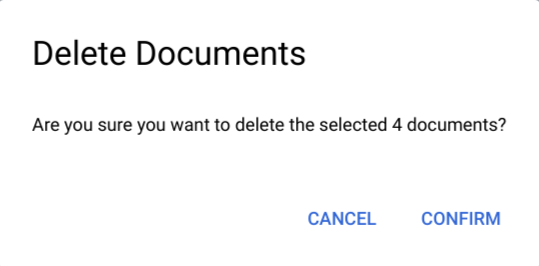
4. Click **Confirm**, and the folders should be deleted and removed from the table.
## Move a document to a folder
You can move a document to a new folder.
1. On the [documents page](https://console.cloud.google.com/ai/docai-warehouse/documents), click
the document that you want to move.
2. Click **Move** , then select a **destination folder** on the left panel and click
**Move**.
