> [!CAUTION]
> **Caution** : Document AI Warehouse is deprecated and will no longer be available on Google Cloud after January 16, 2025. To safeguard your data, migrate any documents currently saved in Document AI Warehouse to an alternative like Cloud Storage. Verify that your data migration is completed before the discontinuation date to prevent any data loss. See [Deprecations](https://docs.cloud.google.com/document-warehouse/docs/deprecations) for details.
This guide provides all required setup steps to start using Document AI Warehouse.
## About the Google Cloud console
The [Google Cloud console](https://console.cloud.google.com/) is a web UI used to provision, configure, manage, and
monitor systems that use Google Cloud products. You use the
Google Cloud console to set up and manage Document AI Warehouse
resources.
## Create a project
To use services provided by Google Cloud, you must create a *project*.
A project organizes all your Google Cloud resources. A project consists of
the following components:
- A set of collaborators
- Enabled APIs (and other resources)
- Monitoring tools
- Billing information
- Authentication and access controls
You can create one project, or you can create multiple projects. You can use
your projects to organize your Google Cloud resources in a [resource
hierarchy](https://docs.cloud.google.com/resource-manager/docs/cloud-platform-resource-hierarchy). For more
information about projects, see the [Resource Manager
documentation](https://docs.cloud.google.com/resource-manager/docs/creating-managing-projects).
In the Google Cloud console, on the project selector page,
select or create a Google Cloud project.
**Roles required to select or create a project**
- **Select a project**: Selecting a project doesn't require a specific IAM role---you can select any project that you've been granted a role on.
- **Create a project** : To create a project, you need the Project Creator role (`roles/resourcemanager.projectCreator`), which contains the `resourcemanager.projects.create` permission. [Learn how to grant
roles](https://docs.cloud.google.com/iam/docs/granting-changing-revoking-access).
[Go to project selector](https://console.cloud.google.com/projectselector2/home/dashboard)
## Enable billing
A billing account defines who pays for a given set of resources. Billing
accounts can be linked to one or more projects. Project usage is charged to the
linked billing account. You can configure billing when you create a project. For
more information, see the [Billing documentation](https://docs.cloud.google.com/billing/docs).
[Verify that billing is enabled for your Google Cloud project](https://docs.cloud.google.com/billing/docs/how-to/verify-billing-enabled#confirm_billing_is_enabled_on_a_project).
## Provision and initialize the service
Before using Document AI Warehouse for the first time, you must provision and
initialize the resources associated with your project on the [Document AI Warehouse
Provisioning page](https://console.cloud.google.com/ai/document-warehouse).
If you want to provision the resources, you must be granted the **Content Warehouse Admin** and **Service Usage Admin**
roles of the project.
> [!NOTE]
> **Note:** The provisioning and initialization is only done once for a project. Redoing the process won't have an effect.
### Provisioning steps
1. Choose a region.
On the provisioning page, select the **region** that you want to enable.
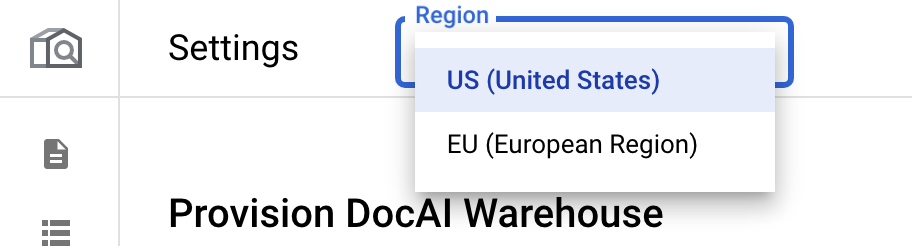
Each region is independent. Therefore, if you want to use more than one region,
provision each region separately.
2. Enable the core API. {:#enable-core-api}:
Click **Enable**. This enables the Document AI Warehouse APIs on
your project.

After the API is enabled, click **Next**.
3. Provision the instance.
This step provisions the resource for your project in the Document AI Warehouse
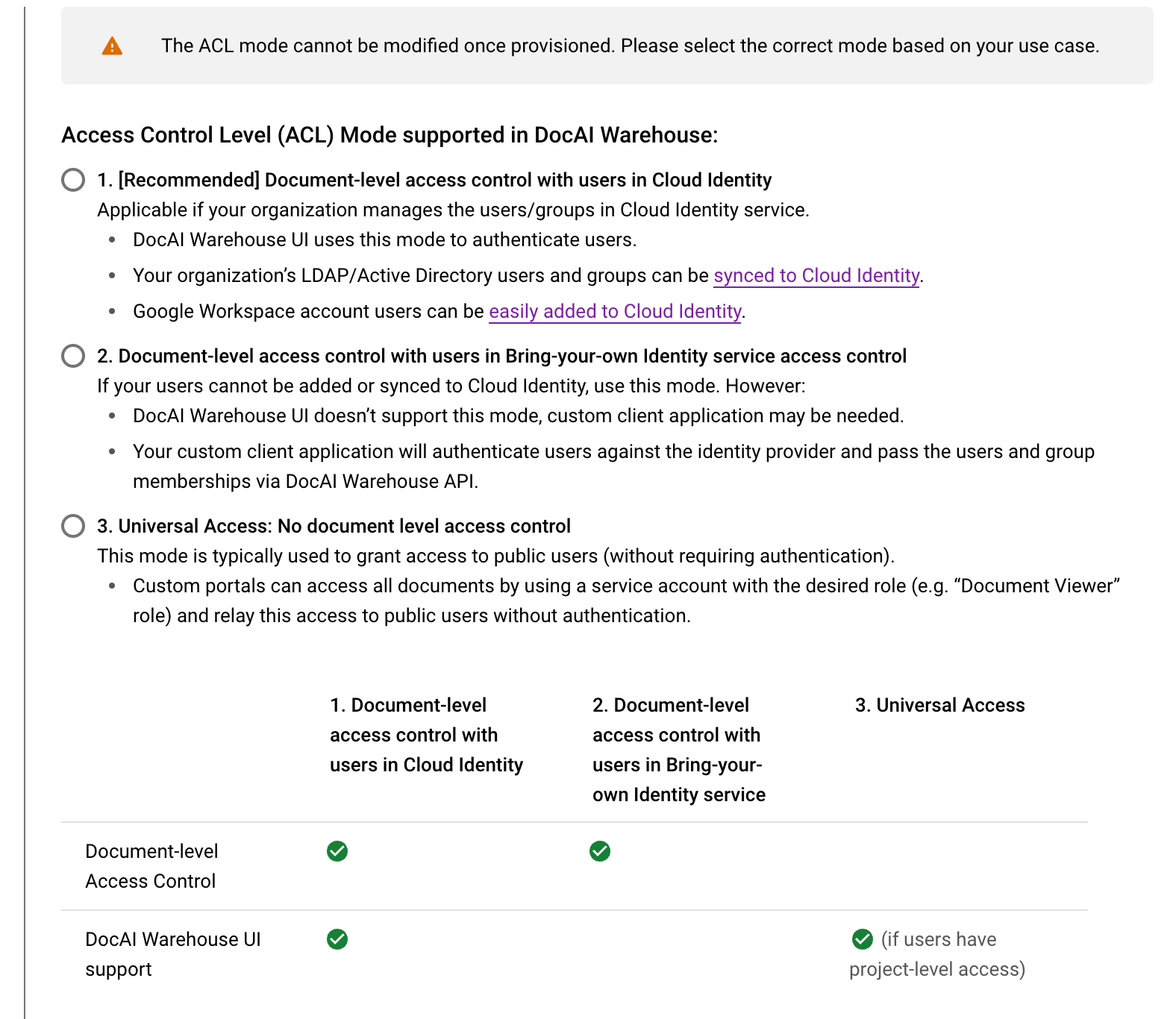
service. You must choose from among three access control modes. Carefully
review them to select the right modes for your use case. For more
information, see the [access control mode page](https://docs.cloud.google.com/document-warehouse/docs/manage-access-control).
1. Select an access control (ACL) mode.
> [!WARNING]
> **Warning:** The ACL mode can't be modified after it's provisioned. Select the correct mode based on your use case.
- \[Recommended\] Document-level access control with users in
Cloud Identity.
This is applicable if your organization manages users or groups in the
Cloud Identity service.
- Document AI Warehouse interface supports this mode to authenticate users.
- Your organization's LDAP and Active Directory users and groups can
be [synced to
Cloud Identity](https://cloud.google.com/architecture/identity/federating-gcp-with-active-directory-introduction).
- Google Workspace users can be [easily
added to
Cloud Identity](https://support.google.com/cloudidentity/answer/7384506).
- Document-level access control with users in Bring-your-own Identity
service access control.
If your users can't be added or synced to Cloud Identity, use
this mode. However:
- The Document AI Warehouse interface doesn't support this mode; a custom client application might be needed.
- Your custom client application authenticates users against the identity provider and passes the users and group memberships using the Document AI Warehouse API.
- Universal access: No document-level access control.
- The Document AI Warehouse interface supports this mode to authenticate users.
- This mode is typically used to grant access to public users without requiring authentication.
- Custom portals can access all documents by using a service account with the desired role (for example, the Document Viewer role) and can relay this access to public users without authentication.
|---|---|---|---|
| | **Document-level access control with users in Cloud Identity** | **Document-level access control with users in Bring-your-own Identity service access control** | **Universal access** |
| **Document-level access** | Yes | Yes | No |
| **Document AI Warehouse UI support** | Yes | No | Yes (if users have project-level access) |
2. Enable questioning and answering:
Check **Question \& Answering** if you want to enable GenAI search in
your project. See [GenAI Search](https://docs.cloud.google.com/document-warehouse/docs/llm-search)
for more information, including how to get allowlisted to use the feature.
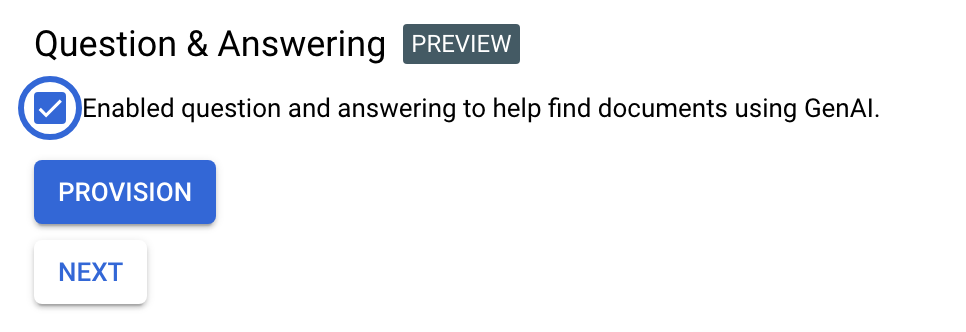
4. Trigger provisioning:
Click **Provision** to start provisioning your project. It will take a while
(3-5 mins) to set up the instance.
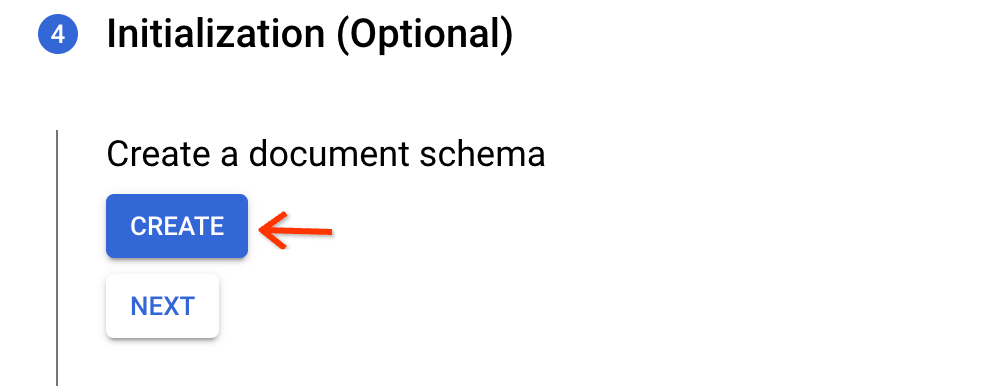
5. Create a default schema.
Click **Create** in the initialization step. This creates a default schema
that can be used for OCR-extracted PDFs or TXT files. It contains the raw
text field for indexing but doesn't contain properties.
6. View instance:
This finalizes your provision process. If your project uses document-level
access control, proceed to the [next section](https://docs.cloud.google.com/document-warehouse/docs/quickstart#project-permissions)
to set up project-level permissions.
If you are in the [allowlist to Google Cloud console UI features](https://docs.cloud.google.com/document-warehouse/docs/gcc-intro#allowlisting), you can click **Get
Started** to start using Document AI Warehouse in the Google Cloud console.
If you aren't in the allowlist to Google Cloud console UI features, you can proceed
to [configure the web application](https://docs.cloud.google.com/document-warehouse/docs/administer-warehouse)
to learn how to set up the Document AI Warehouse web application.

7. Configure the required permissions in IAM for your users.
If document-level access control is enabled, then project-level permissions and IAM permissions are required. See [required
permissions](https://docs.cloud.google.com/document-warehouse/docs/quickstart#required-permissions) for
more details.
### Set up project-level permissions
If your project enables document-level access control (Option 1 in [ACL mode
selection](https://docs.cloud.google.com/document-warehouse/docs/quickstart#acl-modes)), you must grant your administrator account
as well as your users project-level permissions.
To do that, in the final view after provisioning, go to **Project Permissions**:
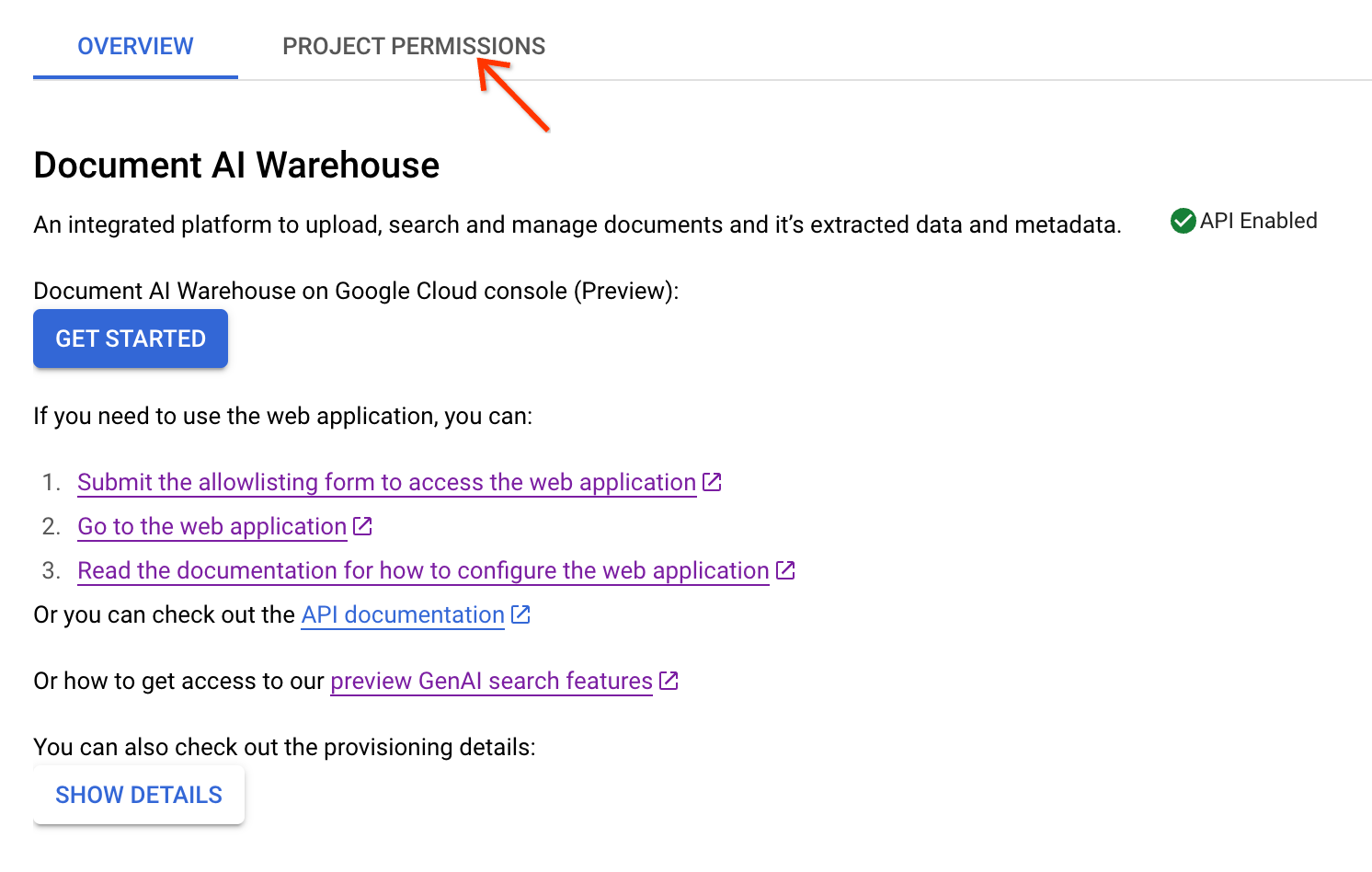
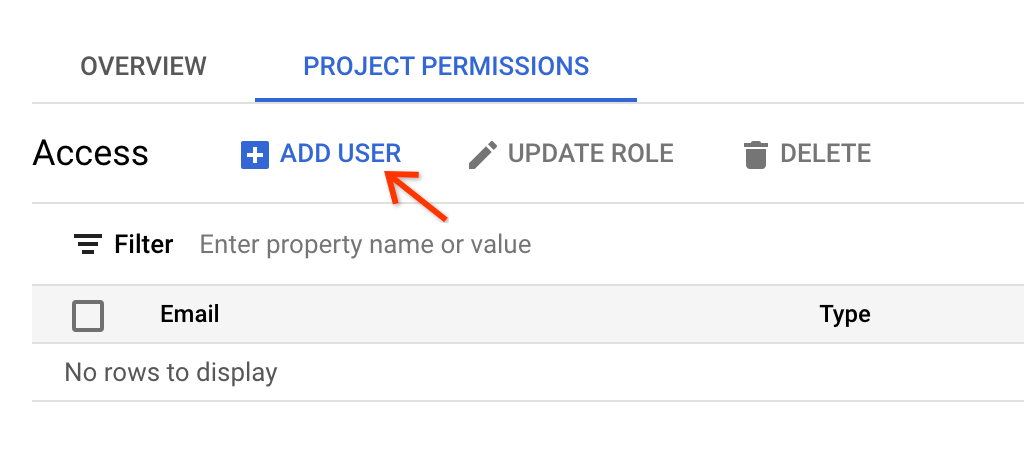
Follow the steps below to add your admin account as a **Document Admin**:
1. Click **Add User**
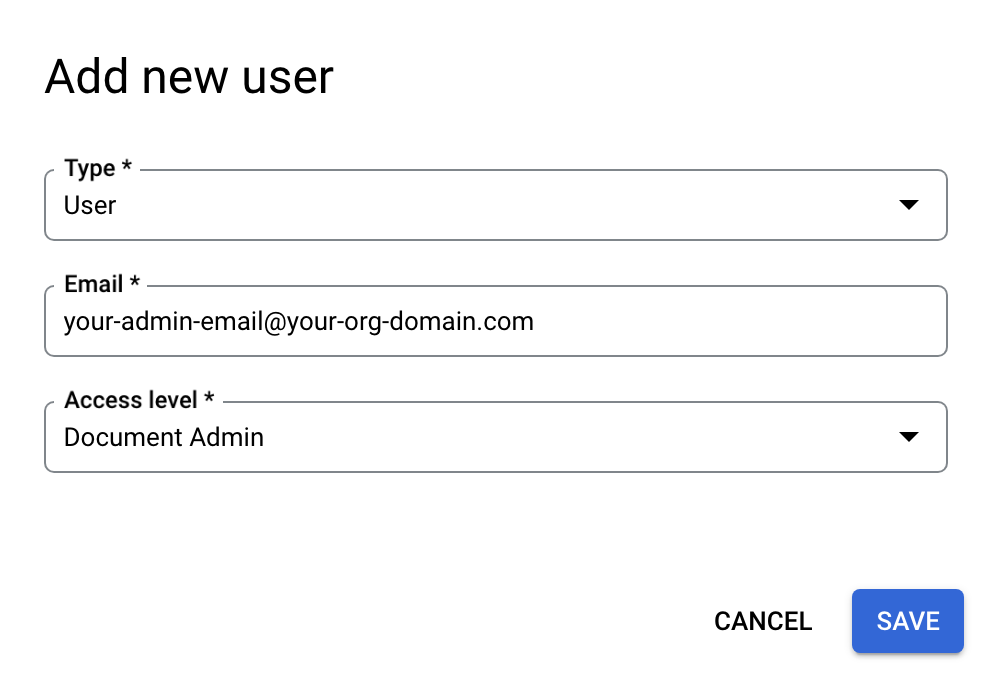
2. Enter your admin's email, and choose **Document Admin** as the access level.
Click **Save**.
3. For other users, you can add them as:
1. **Document Admin**: A role with full access to all of the documents in
the project, including uploading documents and viewing/editing/deleting
all documents regardless of the document owners. In addition, document
admins can change the permissions of all the documents.
2. **Document Editor**: A role with viewing and editing permissions to all
documents, but isn't able to create and delete documents in the project
and can't change permissions of documents..
3. **Document Viewer**: A role with only the viewing permissions to all
documents. Document viewers can't create, edit, delete, or change
permissions of documents.
4. **Document Creator**: A role with only document uploading permissions.
Document creators have full permissions to the documents they
upload, but have no other permissions to any other documents unless they
get explicit permissions for those documents.
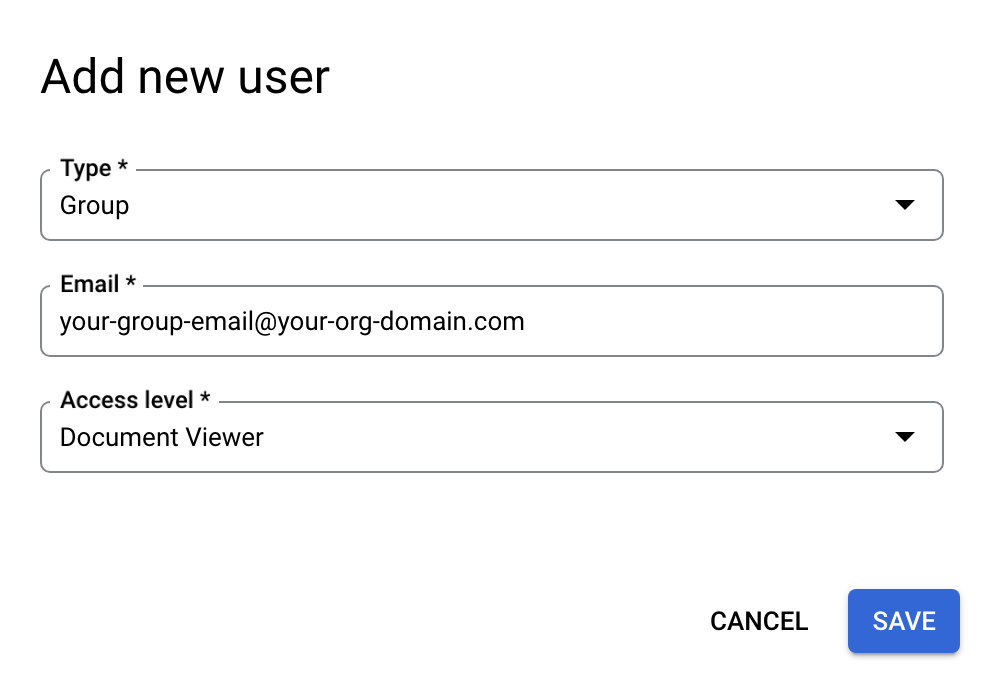
4. The email can be either a single user email or a group email. Choose
**Group** in the **Type** field when specifying a group email.
> [!NOTE]
> **Note:** Document AI Warehouse does not support subgroups access expansion. If permissions are granted to the group, users must be direct children within a group.
### Required permissions
In Document AI Warehouse, we have an independent ACL system on top of the
IAM. For document-level ACL projects, you need to get additional
project-level permissions in Document AI Warehouse's ACL system. For universal access projects, only IAM permissions are required.
Here are summary tables for required permissions:
#### Document-ACL projects
| User type | IAM role | Document AI Warehouse's project-level permissions |
|---|---|---|
| Admin users | **Content Warehouse Admin** | Document Admin |
| Normal users | **Content Warehouse document Schema Viewer** | Document Creator/Editor/Viewer, depending on the intended permissions |
> [!NOTE]
> **Note:** See [Set up project-level permissions](https://docs.cloud.google.com/document-warehouse/docs/quickstart#project-permissions) for how to set up project-level permissions.
#### Universal access projects
| User type | IAM role |
|---|---|
| Admin users | 1. **Content Warehouse Admin** 2. **Content Warehouse document admin** |
| Normal users | 1. **Content Warehouse document Schema Viewer** 2. **Content Warehouse document creator/viewer/editor**, depending on the intended permissions |
##### IAM roles for universal access projects
| Role Title | Role name | Purpose |
|---|---|---|
| **Content Warehouse document creator** | `contentwarehouse.documentCreator` | Creating documents |
| **Content Warehouse document viewer** | `contentwarehouse.documentViewer` | Viewing any documents |
| **Content Warehouse document editor** | `contentwarehouse.documentEditor` | Editing any documents (does not include creating and deleting) |
| **Content Warehouse document admin** | `contentwarehouse.documentAdmin` | Managing any documents (including creating and deleting) |
| **Content Warehouse Admin** | `contentwarehouse.admin` | Managing any documents as well as schemas and rules |
See [IAM roles and
permissions](https://docs.cloud.google.com/document-warehouse/docs/roles-and-permissions) for further
details.
## Set up the access token (for calling the API from the command line)
To call the Document AI Warehouse API with command line tools, follow these steps.
### Use the service account key file in your environment
### Install and initialize the Google Cloud CLI (optional)
The [gcloud CLI](https://docs.cloud.google.com/sdk/gcloud) provides a set of tools that you can
use to manage resources and applications hosted on Google Cloud.
The following link provides instructions:
[Install](https://docs.cloud.google.com/sdk/docs/install) the Google Cloud CLI.
After installation,
[initialize](https://docs.cloud.google.com/sdk/docs/initializing) the Google Cloud CLI by running the following command:
```bash
gcloud init
```
If you're using an external identity provider (IdP), you must first
[sign in to the gcloud CLI with your federated identity](https://docs.cloud.google.com/iam/docs/workforce-log-in-gcloud).
### Generate the access token
If you have set up authentication in previous steps, you can use the
Google Cloud CLI to test your authentication environment. Execute the following
command and verify that no error occurs and that credentials are returned:
AUTH_TOKEN=$(gcloud auth application-default print-access-token --scopes=https://www.googleapis.com/auth/cloud-platform)
Expect that the `AUTH_TOKEN` is set, for example:
$ echo $AUTH_TOKEN
ya29.c.b0AXv0zTPvXmEMZXCe781qL0Y3r1EKnw3k4DJcoWGZkyWKx-nMNVQVErQ3ge6XA2RXsTU1tf_SMLgeWC6xwS51tP8QZhbypuGczBzMgKWYExwATHt3Vn553edl8tmqCMjROgdQjCDd8i7as-236r4d8gNwKsR192gNgNw_0zzs0MPyNVmqydpfmpj8yBwJI5QWna1331GTGKgd3Ia16fTzAHrZC_GkcO0wJPo....................................................................................................................................................................................................................................................................................................................................................................................................................................................................................................................................................................................................................................................................................................................................................................................................................
> [!NOTE]
> **Note:** The access token is valid for 1 hour by default. You need to generate a new access token if the one you use expires.
### Test the calling the Document AI Warehouse API
The `AUTH_TOKEN` is used by all Document AI Warehouse API REST samples to authenticate
API calls. For example, the following command retrieves all the document schemas
you defined that are associated with your project (for most cases, use "us" as
the location):
```bash
curl --header "Authorization: Bearer $AUTH_TOKEN" https://contentwarehouse.googleapis.com/v1/projects/PROJECT_NUMBER>/locations/LOCATION/documentSchemas
```
## Code Samples
### Java
For more information, see the
[Document AI Warehouse Java API
reference documentation](https://docs.cloud.google.com/java/docs/reference/google-cloud-contentwarehouse/latest/overview).
To authenticate to Document AI Warehouse, set up Application Default Credentials.
For more information, see
[Set up authentication for a local development environment](https://docs.cloud.google.com/docs/authentication/set-up-adc-local-dev-environment).
public class QuickStart {
public static void main(String[] args)
throws IOException, InterruptedException, ExecutionException, TimeoutException {
// TODO(developer): Replace these variables before running the sample.
String projectId = "your-project-id";
String location = "your-region"; // Format is "us" or "eu".
String userId = "your-user-id"; // Format is user:
quickStart(projectId, location, userId);
}
public static void quickStart(String projectId, String location, String userId)
throws IOException, InterruptedException, ExecutionException, TimeoutException {
String projectNumber = getProjectNumber(projectId);
String endpoint = "contentwarehouse.googleapis.com:443";
if (!"us".equals(location)) {
endpoint = String.format("%s-%s", location, endpoint);
}
DocumentSchemaServiceSettings documentSchemaServiceSettings =
DocumentSchemaServiceSettings.newBuilder().setEndpoint(endpoint).build();
// Create a Schema Service client
try (DocumentSchemaServiceClient documentSchemaServiceClient =
DocumentSchemaServiceClient.create(documentSchemaServiceSettings)) {
/* The full resource name of the location, e.g.:
projects/{project_number}/locations/{location} */
String parent = LocationName.format(projectNumber, location);
/* Create Document Schema with Text Type Property Definition
* More detail on managing Document Schemas:
* https://cloud.google.com/document-warehouse/docs/manage-document-schemas */
DocumentSchema documentSchema = DocumentSchema.newBuilder()
.setDisplayName("My Test Schema")
.setDescription("My Test Schema's Description")
.addPropertyDefinitions(
PropertyDefinition.newBuilder()
.setName("test_symbol")
.setDisplayName("Searchable text")
.setIsSearchable(true)
.setTextTypeOptions(TextTypeOptions.newBuilder().build())
.build()).build();
// Define Document Schema request
CreateDocumentSchemaRequest createDocumentSchemaRequest =
CreateDocumentSchemaRequest.newBuilder()
.setParent(parent)
.setDocumentSchema(documentSchema).build();
// Create Document Schema
DocumentSchema documentSchemaResponse =
documentSchemaServiceClient.createDocumentSchema(createDocumentSchemaRequest);
// Create Document Service Client Settings
DocumentServiceSettings documentServiceSettings =
DocumentServiceSettings.newBuilder().setEndpoint(endpoint).build();
// Create Document Service Client and Document with relevant properties
try (DocumentServiceClient documentServiceClient =
DocumentServiceClient.create(documentServiceSettings)) {
TextArray textArray = TextArray.newBuilder().addValues("Test").build();
Document document = Document.newBuilder()
.setDisplayName("My Test Document")
.setDocumentSchemaName(documentSchemaResponse.getName())
.setPlainText("This is a sample of a document's text.")
.addProperties(
Property.newBuilder()
.setName(documentSchema.getPropertyDefinitions(0).getName())
.setTextValues(textArray)).build();
// Define Request Metadata for enforcing access control
RequestMetadata requestMetadata = RequestMetadata.newBuilder()
.setUserInfo(
UserInfo.newBuilder()
.setId(userId).build()).build();
// Define Create Document Request
CreateDocumentRequest createDocumentRequest = CreateDocumentRequest.newBuilder()
.setParent(parent)
.setDocument(document)
.setRequestMetadata(requestMetadata)
.build();
// Create Document
CreateDocumentResponse createDocumentResponse =
documentServiceClient.createDocument(createDocumentRequest);
System.out.println(createDocumentResponse.getDocument().getName());
System.out.println(documentSchemaResponse.getName());
}
}
}
private static String getProjectNumber(String projectId) throws IOException {
try (ProjectsClient projectsClient = ProjectsClient.create()) {
ProjectName projectName = ProjectName.of(projectId);
Project project = projectsClient.getProject(projectName);
String projectNumber = project.getName(); // Format returned is projects/xxxxxx
return projectNumber.substring(projectNumber.lastIndexOf("/") + 1);
}
}
}
### Node.js
For more information, see the
[Document AI Warehouse Node.js API
reference documentation](https://docs.cloud.google.com/nodejs/docs/reference/contentwarehouse/latest).
To authenticate to Document AI Warehouse, set up Application Default Credentials.
For more information, see
[Set up authentication for a local development environment](https://docs.cloud.google.com/docs/authentication/set-up-adc-local-dev-environment).
/**
* TODO(developer): Uncomment these variables before running the sample.
* const projectNumber = 'YOUR_PROJECT_NUMBER';
* const location = 'YOUR_PROJECT_LOCATION'; // Format is 'us' or 'eu'
* const userId = 'user:xxx@example.com'; // Format is "user:xxx@example.com"
*/
// Import from google cloud
const {DocumentSchemaServiceClient, DocumentServiceClient} =
require('https://docs.cloud.google.com/nodejs/docs/reference/contentwarehouse/latest/overview.html').v1;
const apiEndpoint =
location === 'us'
? 'contentwarehouse.googleapis.com'
: `${location}-contentwarehouse.googleapis.com`;
// Create service client
const schemaClient = new https://docs.cloud.google.com/nodejs/docs/reference/contentwarehouse/latest/overview.html({
apiEndpoint: apiEndpoint,
});
const serviceClient = new https://docs.cloud.google.com/nodejs/docs/reference/contentwarehouse/latest/overview.html({apiEndpoint: apiEndpoint});
// Get Document Schema
async function quickstart() {
// The full resource name of the location, e.g.:
// projects/{project_number}/locations/{location}
const parent = `projects/${projectNumber}/locations/${location}`;
// Initialize request argument(s)
const schemaRequest = {
parent: parent,
documentSchema: {
displayName: 'My Test Schema',
propertyDefinitions: [
{
name: 'testPropertyDefinitionName', // Must be unique within a document schema (case insensitive)
displayName: 'searchable text',
isSearchable: true,
textTypeOptions: {},
},
],
},
};
// Create Document Schema
const documentSchema =
await schemaClient.createDocumentSchema(schemaRequest);
const documentRequest = {
parent: parent,
document: {
displayName: 'My Test Document',
documentSchemaName: documentSchema[0].name,
plainText: "This is a sample of a document's text.",
properties: [
{
name: 'testPropertyDefinitionName',
textValues: {values: ['GOOG']},
},
],
},
requestMetadata: {userInfo: {id: userId}},
};
// Make Request
const response = serviceClient.createDocument(documentRequest);
// Print out response
response.then(
result => console.log(`Document Created: ${JSON.stringify(result)}`),
error => console.log(`error: ${error}`)
);
}
### Python
For more information, see the
[Document AI Warehouse Python API
reference documentation](https://docs.cloud.google.com/python/docs/reference/contentwarehouse/latest).
To authenticate to Document AI Warehouse, set up Application Default Credentials.
For more information, see
[Set up authentication for a local development environment](https://docs.cloud.google.com/docs/authentication/set-up-adc-local-dev-environment).
from google.cloud import contentwarehouse
# TODO(developer): Uncomment these variables before running the sample.
# project_number = 'YOUR_PROJECT_NUMBER'
# location = 'YOUR_PROJECT_LOCATION' # Format is 'us' or 'eu'
# user_id = "user:xxxx@example.com" # Format is "user:xxxx@example.com"
def quickstart(project_number: str, location: str, user_id: str) -> None:
# Create a Schema Service client
document_schema_client = contentwarehouse.https://docs.cloud.google.com/python/docs/reference/contentwarehouse/latest/google.cloud.contentwarehouse_v1.services.document_schema_service.DocumentSchemaServiceClient.html()
# The full resource name of the location, e.g.:
# projects/{project_number}/locations/{location}
parent = document_schema_client.https://docs.cloud.google.com/python/docs/reference/contentwarehouse/latest/google.cloud.contentwarehouse_v1.services.document_schema_service.DocumentSchemaServiceClient.html#google_cloud_contentwarehouse_v1_services_document_schema_service_DocumentSchemaServiceClient_common_location_path(
project=project_number, location=location
)
# Define Schema Property of Text Type
property_definition = contentwarehouse.https://docs.cloud.google.com/python/docs/reference/contentwarehouse/latest/google.cloud.contentwarehouse_v1.types.PropertyDefinition.html(
name="stock_symbol", # Must be unique within a document schema (case insensitive)
display_name="Searchable text",
is_searchable=True,
text_type_options=contentwarehouse.https://docs.cloud.google.com/python/docs/reference/contentwarehouse/latest/google.cloud.contentwarehouse_v1.types.TextTypeOptions.html(),
)
# Define Document Schema Request
create_document_schema_request = contentwarehouse.https://docs.cloud.google.com/python/docs/reference/contentwarehouse/latest/google.cloud.contentwarehouse_v1.types.CreateDocumentSchemaRequest.html(
parent=parent,
document_schema=contentwarehouse.https://docs.cloud.google.com/python/docs/reference/contentwarehouse/latest/google.cloud.contentwarehouse_v1.types.DocumentSchema.html(
display_name="My Test Schema",
property_definitions=[property_definition],
),
)
# Create a Document schema
document_schema = document_schema_client.https://docs.cloud.google.com/python/docs/reference/contentwarehouse/latest/google.cloud.contentwarehouse_v1.services.document_schema_service.DocumentSchemaServiceClient.html#google_cloud_contentwarehouse_v1_services_document_schema_service_DocumentSchemaServiceClient_create_document_schema(
request=create_document_schema_request
)
# Create a Document Service client
document_client = contentwarehouse.https://docs.cloud.google.com/python/docs/reference/contentwarehouse/latest/google.cloud.contentwarehouse_v1.services.document_service.DocumentServiceClient.html()
# The full resource name of the location, e.g.:
# projects/{project_number}/locations/{location}
parent = document_client.https://docs.cloud.google.com/python/docs/reference/contentwarehouse/latest/google.cloud.contentwarehouse_v1.services.document_service.DocumentServiceClient.html#google_cloud_contentwarehouse_v1_services_document_service_DocumentServiceClient_common_location_path(
project=project_number, location=location
)
# Define Document Property Value
document_property = contentwarehouse.https://docs.cloud.google.com/python/docs/reference/contentwarehouse/latest/google.cloud.contentwarehouse_v1.types.Property.html(
name=document_schema.property_definitions[0].name,
text_values=contentwarehouse.https://docs.cloud.google.com/python/docs/reference/contentwarehouse/latest/google.cloud.contentwarehouse_v1.types.TextArray.html(values=["GOOG"]),
)
# Define Document
document = contentwarehouse.https://docs.cloud.google.com/python/docs/reference/contentwarehouse/latest/google.cloud.contentwarehouse_v1.types.Document.html(
display_name="My Test Document",
document_schema_name=document_schema.name,
plain_text="This is a sample of a document's text.",
properties=[document_property],
)
# Define Request
create_document_request = contentwarehouse.https://docs.cloud.google.com/python/docs/reference/contentwarehouse/latest/google.cloud.contentwarehouse_v1.types.CreateDocumentRequest.html(
parent=parent,
document=document,
request_metadata=contentwarehouse.https://docs.cloud.google.com/python/docs/reference/contentwarehouse/latest/google.cloud.contentwarehouse_v1.types.RequestMetadata.html(
user_info=contentwarehouse.https://docs.cloud.google.com/python/docs/reference/contentwarehouse/latest/google.cloud.contentwarehouse_v1.types.UserInfo.html(id=user_id)
),
)
# Create a Document for the given schema
response = document_client.https://docs.cloud.google.com/python/docs/reference/contentwarehouse/latest/google.cloud.contentwarehouse_v1.services.document_service.DocumentServiceClient.html#google_cloud_contentwarehouse_v1_services_document_service_DocumentServiceClient_create_document(request=create_document_request)
# Read the output
print(f"Rule Engine Output: {response.rule_engine_output}")
print(f"Document Created: {response.document}")
## Next steps
- If you use the web application (preview), proceed to [Administer the
Document AI Warehouse UI](https://docs.cloud.google.com/document-warehouse/docs/administer-warehouse) to setup
UI for Document AI Warehouse.
- Proceed to [Manage access control](https://docs.cloud.google.com/document-warehouse/docs/manage-access-control)
to understand and configure the access control.
- Proceed to [Manage document schemas](https://docs.cloud.google.com/document-warehouse/docs/manage-document-schemas)
to learn how to manage the document schemas.
- Proceed to [Search documents](https://docs.cloud.google.com/document-warehouse/docs/basic-search) to
learn how to search documents.