[Liquid](https://shopify.github.io/liquid/) is a templating language that you can use in Looker to create more dynamic content. For example, you could build URLs to external tools based on the results of a query, or change which database table is queried based on a user's selection.
Liquid statements are built from variables, filters, and tags. Variables contain information that you want to use, and the variables that Looker provides are described on this page. You can further modify those values by using filters and tags, which you can read about in this [Liquid guide](https://github.com/Shopify/liquid/wiki/Liquid-for-Designers).
There are several places in LookML that you can use Liquid:
- The [`action`](https://docs.cloud.google.com/looker/docs/reference/param-field-action.md.txt) parameter
- The [`description`](https://docs.cloud.google.com/looker/docs/reference/param-field-description.md.txt#using_liquid_variables_in_the_description_parameter) parameter of a field (but not of an Explore)
- The [`html`](https://docs.cloud.google.com/looker/docs/reference/param-field-html.md.txt#liquid_variables) parameter
- Label parameters at the field level, including the [`label`](https://docs.cloud.google.com/looker/docs/reference/param-field-label.md.txt) parameter, [`view_label`](https://docs.cloud.google.com/looker/docs/reference/param-field-view-label.md.txt) parameter, [`group_label`](https://docs.cloud.google.com/looker/docs/reference/param-field-group-label.md.txt) parameter, and [`group_item_label`](https://docs.cloud.google.com/looker/docs/reference/param-field-group-item-label.md.txt) parameter
- The [`link`](https://docs.cloud.google.com/looker/docs/reference/param-field-link.md.txt#liquid_variables) parameter
- Parameters that begin with `sql` (such as [`sql`](https://docs.cloud.google.com/looker/docs/reference/param-field-sql.md.txt#liquid-variables) and [`sql_on`](https://docs.cloud.google.com/looker/docs/reference/param-explore-join-sql-on.md.txt#liquid-variables))
- The [`default_value`](https://docs.cloud.google.com/looker/docs/reference/param-lookml-dashboard.md.txt#default_value) dashboard filter parameter
- The [`filters`](https://docs.cloud.google.com/looker/docs/reference/param-lookml-dashboard-table-chart-legacy.md.txt#filters) dashboard element parameter
## Using Liquid variables
Basic usage of Liquid variables is straightforward. Once you've identified the variable you'd like to use (see the following list), you can insert it into a valid LookML parameter. The specific Liquid variables that you can use in specific LookML parameters are defined next.
### Two kinds of Liquid usage
There are two ways to make use of a Liquid variable:
1. **Output Syntax** : This type of usage can insert text and is probably the most common way to use Liquid in Looker. In this method, you enclose the Liquid variable in two curly braces. For example: `{{ value }}`
2. **Tag Syntax** : This type of usage usually doesn't insert text; instead, it is for logical comparisons and other Liquid operations. In this method, you enclose the Liquid variable in one curly brace and a single percent sign. For example: `{% if value > 10000 %}`
### Basic examples
This section provides examples of using Liquid variables in the following ways:
- [Using Liquid with the `html` parameter to generate product images](https://docs.cloud.google.com/looker/docs/liquid-variable-reference.md.txt#using_liquid_with_the_html_parameter_to_generate_product_images)
- [Using Liquid with the `url` parameter to dynamically insert a selected value into a URL](https://docs.cloud.google.com/looker/docs/liquid-variable-reference.md.txt#using_liquid_with_the_url_parameter_to_dynamically_insert_a_selected_value_into_a_url)
- [Using Liquid with the `sql_table_name` parameter to set the database table based on the field that the user chooses](https://docs.cloud.google.com/looker/docs/liquid-variable-reference.md.txt#using_liquid_with_the_sql_table_name_parameter_to_set_the_database_table_based_on_the_field_that_the_user_chooses)
- [Using Liquid with the `label` parameter to change the label for a dimension depending on the LookML model name](https://docs.cloud.google.com/looker/docs/liquid-variable-reference.md.txt#using_liquid_with_the_label_parameter_to_change_the_label_for_a_dimension_depending_on_the_lookml_model_name)
- [Using Liquid with the `sql_preamble` parameter to select the appropriate data warehouse](https://docs.cloud.google.com/looker/docs/liquid-variable-reference.md.txt#using_liquid_with_sql_preamble)
For additional usage examples, see the individual LookML parameter page you're interested in.
#### Using Liquid with the `html` parameter to generate product images
In this example of HTML usage, a product ID is being inserted into an `![]() ` tag to generate product images:
dimension: product_image {
sql: ${product_id} ;;
html:
 ;;
}
#### Using Liquid with the `url` parameter to dynamically insert a selected value into a URL
In this example of URL usage, an artist name is being inserted into a URL to produce a Google Search for that artist.
dimension: artist_name {
sql: ${TABLE}.artist_name ;;
link: {
label: "Google"
url: "https://www.google.com/search?q={{ value }}"
icon_url: "https://google.com/favicon.ico"
}
}
#### Using Liquid with the `sql_table_name` parameter to set the database table based on the field that the user chooses
In this example of SQL usage in the [`sql_table_name`](https://docs.cloud.google.com/looker/docs/reference/param-explore-sql-table-name.md.txt) parameter, the database table is being determined according to which fields the user chooses. The syntax uses an if, else if, else structure (denoted by `if`, `elsif`, and `else`) to check and react to the fields that are included in the query.
sql_table_name:
{% if event.created_date._in_query %}
event_by_day
{% elsif event.created_week._in_query %}
event_by_week
{% else %}
event
{% endif %} ;;
#### Using Liquid with the `label` parameter to change the label for a dimension depending on the LookML model name
In this example of label usage, the `email` dimension changes its [`label`](https://docs.cloud.google.com/looker/docs/reference/param-field-label.md.txt) value depending on the LookML model name. Changing the field name dynamically changes the name of the field in the field picker and in any query results that include the `email` dimension:
dimension: email {
label: "{% if _model._name == 'thelook' %} Looker Registered Email Address {% else %} External Email Address {% endif %}"
type: string
sql: ${TABLE}.email ;;
}
#### Using Liquid with the `sql_preamble` parameter to select the appropriate data warehouse
The [`sql_preamble`](https://docs.cloud.google.com/looker/docs/reference/param-explore-sql-preamble.md.txt) parameter specifies a SQL statement that executes before queries in the Explore are run. The following example uses a Liquid {% if ... %} statement to check if the user included a field from a known large table called `very_big_table` in their query. When a query includes a field from the large table, the `sql_preamble` statement tells the database to use 'VERY_BIG_WAREHOUSE' to run the query. Otherwise, the database uses the less expensive and faster 'SMALL_WAREHOUSE':
explore: orders {
sql_preamble:
SET WAREHOUSE =
{% if very_big_table._in_query %}
'VERY_BIG_WAREHOUSE'
{% else %}
'SMALL_WAREHOUSE'
{% endif %}
;;
...
}
### Accessing variables from other fields
Liquid variables are usually based on the field where they are being used. However, you can also access values from other fields if needed.
Use the format `{{ view_name.field_name._liquid-variable-name }}` to access other fields from the same row in the query result. Replace `_liquid-variable-name` with any of the Looker Liquid variables. Make sure that the variable name is preceded by an underscore if it isn't normally, as follows:
- `{{ view_name.field_name._value }}`
- `{{ view_name.field_name._rendered_value }}`
- `{{ view_name.field_name._model._name }}`
This example shows this type of usage to access a website URL from a different field:
dimension: linked_name {
sql: ${name} ;;
html: {{ value }} ;;
}
> When you reference another field with the `{{ field_name._value }}` Liquid variable syntax, the referenced field is added to the `SELECT` clause of the SQL query and added as an additional column in the `GROUP BY` clause. This is necessary to properly retrieve the values in the referenced field. However, it can cause unexpected results in the following areas:
>
> - Aggregate measures --- For more information, see the section on [using Liquid variables in aggregate measures](https://docs.cloud.google.com/looker/docs/liquid-variable-reference.md.txt#liquid_variables_in_aggregate_measures_affect_grouping) on this page.
> - Chart downloads --- When used in a query that is rendered as a table chart, if the table chart columns have been manually rearranged, some download formats of the chart [display columns in their original orders](https://docs.cloud.google.com/looker/docs/downloading.md.txt#column_order).
>
>
>
## Liquid variable definitions
The following table describes the Liquid variables that you can use with LookML. The **Usage** column indicates which LookML parameters each Liquid variable can be used with, and includes the following options:
A = Works with the [`action`](https://docs.cloud.google.com/looker/docs/reference/param-field-action.md.txt) parameter.
DV = Works with the [`default_value` (for dashboards)](https://docs.cloud.google.com/looker/docs/reference/param-lookml-dashboard.md.txt#default_value) parameter.
DE = Works with the [`description`](https://docs.cloud.google.com/looker/docs/reference/param-field-description.md.txt#using_liquid_variables_in_the_description_parameter) parameter at the field level, but won't work with `description` at the Explore level.
F = Works with the [`filters` (for dashboard elements)](https://docs.cloud.google.com/looker/docs/reference/param-lookml-dashboard-table-chart-legacy.md.txt#filters) parameter.
H = Works with the [`html`](https://docs.cloud.google.com/looker/docs/reference/param-field-html.md.txt#liquid_variables) parameter.
LA = Works with the label parameters at the field level, including the [`label`](https://docs.cloud.google.com/looker/docs/reference/param-field-label.md.txt#liquid_variables_with_label) parameter, [`view_label`](https://docs.cloud.google.com/looker/docs/reference/param-field-view-label.md.txt) parameter, [`group_label`](https://docs.cloud.google.com/looker/docs/reference/param-field-group-label.md.txt) parameter, and [`group_item_label`](https://docs.cloud.google.com/looker/docs/reference/param-field-group-item-label.md.txt) parameter, but won't work with label parameters at the model, Explore, view, or reference line level, or with `label` as a subparameter of `link`.
LI = Works with the [`link`](https://docs.cloud.google.com/looker/docs/reference/param-field-link.md.txt#liquid_variables) parameter.
S = Works with all LookML parameters that begin with `sql` (e.g. [`sql`](https://docs.cloud.google.com/looker/docs/reference/param-field-sql.md.txt#liquid-variables), [`sql_on`](https://docs.cloud.google.com/looker/docs/reference/param-explore-join-sql-on.md.txt#liquid-variables), and [`sql_table_name`](https://docs.cloud.google.com/looker/docs/reference/param-view-sql-table-name.md.txt)).
| Variable | Definition | Usage | Example Output |
|---|---|---|---|
| Field Values ||||
| `value` | The raw value of the field returned by the database query. Can refer to a pivoted field's value.
In addition to the parameters shown in the **Usage** column, `value` is supported in the `label` subparameter of the [`action`](https://docs.cloud.google.com/looker/docs/reference/param-field-action.md.txt) and [`link`](https://docs.cloud.google.com/looker/docs/reference/param-field-link.md.txt#liquid_variables) parameters.
Note: The `value` variable is HTML-escaped. For example, the character `<` is changed to `<`. As a result, HTML tags in `value` won't render as HTML. | A H LI | 8521935 |
| `rendered_value` | The value of the field with Looker's default formatting.
You can reference [date formatting syntax](https://docs.cloud.google.com/looker/docs/time-formatting-for-charts.md.txt) in `rendered_value`, as shown in the [How to use Liquid to format dates](https://docs.cloud.google.com/looker/docs/best-practices/how-to-use-liquid-to-format-dates.md.txt) Best Practices page.
In addition to the parameters shown in the **Usage** column, `rendered_value` is supported in the `label` subparameter of the [`action`](https://docs.cloud.google.com/looker/docs/reference/param-field-action.md.txt) and [`link`](https://docs.cloud.google.com/looker/docs/reference/param-field-link.md.txt#liquid_variables) parameters. | A H LI | $8,521,935.00 |
| `filterable_value` | The value of the field formatted for use as a filter in a Looker URL.
For example, when filtering on a string value that include a comma such as "Altostrat, Inc", the `value` variable returns two different strings, "Altostrat" and "Inc". The `filterable_value` variable corrects this by escaping special characters and returning a single string, in this example, "Altostrat, Inc". | A H LI | 8521935 |
| Links ||||
| `link` | The URL to the Looker default drill link. Note that some fields won't have any default link. | A H LI S | /explore/thelook/orders?fields=orders.order_amount\&limit=500 |
| `linked_value` | The value of the field with the Looker default formatting and default linking. Measures don't have default linking, so measures require configuration of the [`drill_fields`](https://docs.cloud.google.com/looker/docs/reference/param-field-drill-fields.md.txt) parameter to work with `linked_value`. | A H LI | [$8,521,935.00](https://docs.cloud.google.com/looker/docs/liquid-variable-reference.md.txt#liquid_variable_definitions) |
| Filters ||||
| `_filters['view_name.field_name']` | The user filters applied to the field you ask for with `view_name.field_name`. | A DE H LA LI | NOT NULL |
| `{% date_start date_filter_name %}` | The beginning date in a date filter you ask for with `date_filter_name`. See the [Usage of `date_start` and `date_end`](https://docs.cloud.google.com/looker/docs/liquid-variable-reference.md.txt#usage_of_date_start_and_date_end) section for more information. | S | 2017-01-01 |
| `{% date_end date_filter_name %}` | The ending date in a date filter you ask for with `date_filter_name`. See the [Usage of `date_start` and `date_end`](https://docs.cloud.google.com/looker/docs/liquid-variable-reference.md.txt#usage_of_date_start_and_date_end) section for more information. | S | 2017-01-01 |
| `{% condition filter_name %}`
`sql_or_lookml_reference`
`{% endcondition %}` | The value of the filter you ask for with `filter_name` applied to the `sql_or_lookml_reference` as SQL. This variable is used with [templated filters](https://docs.cloud.google.com/looker/docs/templated-filters.md.txt) and [conditional joins](https://docs.cloud.google.com/looker/docs/reference/param-explore-join-sql-on.md.txt#conditional_joins). | S | *See the [Templated filters](https://docs.cloud.google.com/looker/docs/templated-filters.md.txt) documentation page and the [Conditional joins](https://docs.cloud.google.com/looker/docs/reference/param-explore-join-sql-on.md.txt#conditional_joins) section of the **`sql_on`** documentation page for examples.* |
| `{% parameter parameter_name %}` | The value of the parameter filter you ask for with `parameter_name`. | DE LA S | *See the [`parameter`](https://docs.cloud.google.com/looker/docs/reference/param-field-parameter.md.txt) parameter documentation page for examples.* |
| `parameter_name._parameter_value` | Injects the value of the parameter filter you ask for with `parameter_name` into a logical statement. | DE H LA LI S | *See the [`parameter`](https://docs.cloud.google.com/looker/docs/reference/param-field-parameter.md.txt#using_parameter_in_a_logical_statement) parameter documentation page for important details and examples.* |
| User Attributes ||||
| `_user_attributes['name_of_attribute']` | The value of the [user attribute](https://docs.cloud.google.com/looker/docs/admin-panel-users-user-attributes.md.txt) you ask for with `name_of_attribute`, for the particular user running the query, if user attributes are being used. The `_user_attributes['name_of_attribute']` variable can also be used in [advanced filter syntax](https://docs.cloud.google.com/looker/docs/admin-panel-users-user-attributes.md.txt#advanced_filter_syntax). | A DE H LA LI S DV F | northeast *(if, for example, the user attribute was "region")*
See the [Using user attributes for dynamic schema and table name injection](https://docs.cloud.google.com/looker/docs/best-practices/how-to-create-a-dynamic-schema-with-user-attributes.md.txt) Best Practices page for an additional example. |
| `_localization['localization_key']` | Returns the value associated with a localization key defined in a model's [strings file](https://docs.cloud.google.com/looker/docs/model-localization.md.txt#creating_locale_strings_files) based on a [user's locale](https://docs.cloud.google.com/looker/docs/admin-panel-users-users.md.txt#locale_(beta)). | DV F | *See the [Localizing your LookML model](https://docs.cloud.google.com/looker/docs/model-localization.md.txt#filter_localization_example) documentation page for an example.* |
| LookML Objects ||||
| `_model._name` | The name of the model for this field. | A DE H LA LI S | thelook |
| `_view._name` | The name of the view for this field. | A DE H LA LI S | orders |
| `_explore._name` | The name of the Explore for this field. | A DE H LA LI S | order_items |
| `_explore._dashboard_url` | Added 22.12 The relative URL for the current dashboard. | H LI S | /dashboards/5 |
| `_field._name` | The fully scoped name of the field, in `view_name.field_name` format. | A DE H LA LI S | orders.total_order_amount |
| Queries ||||
| `_query._query_timezone` | The [time zone](https://docs.cloud.google.com/looker/docs/admin-panel-general-settings.md.txt#user_specific_time_zones) in which the query was run. | A DE H LA LI S | America/Los_Angeles |
| `view_name._in_query` | Returns `true` if any field from the view is included in the query explicitly or is included in the query using the `required_fields` parameter. | DE LA LI S | true |
| `view_name.field_name._in_query` | Returns `true` if the field you ask for with `view_name.field_name` is selected and therefore included in the query, or is included in a filter for a query, or is included in a query using the `required_fields` parameter. | DE LA LI S | true |
| `view_name.field_name._is_selected` | Returns `true` if the field you ask for with `view_name.field_name` is selected explicitly in the query, is included in the query using the `required_fields` parameter, or is pulled in dynamically as a Liquid-based dependency during query rendering.
In totals calculations, `_is_selected` returns `false` in certain cases: - Unpivoted dimensions return `false` in column totals. - Pivoted dimensions return `false` in row totals. - All dimensions return `false` in grand totals.
This is because, when calculating totals, the query is run with all dimensions removed. Therefore, dimensions are not considered selected in Liquid during totals calculation. | DE LA LI S | true |
| `view_name.field_name._is_filtered` | Returns `true` if the field you ask for with `view_name.field_name` is included in a filter for the query. | DE LA LI S | true |
### Usage of `date_start` and `date_end`
The `date_start` and `date_end` Liquid variables are very useful for database dialects that partition data into multiple tables by date, such as BigQuery. You must use the tag syntax `{% date_start date_filter_name %}` or `{% date_end date_filter_name %}`. You cannot use the output syntax `{{ date_start date_filter_name }}` or `{{ date_end date_filter_name }}`, even though this syntax would typically be used to generate text.
For example, you can create these fields in a view:
filter: new_filter_test{
type: date
}
dimension: filter_start{
type: date
sql: {% date_start new_filter_test %} ;;
}
dimension: filter_end{
type: date
sql: {% date_end new_filter_test %} ;;
}
If you filter an Explore on `new_filter_test` using the date range April 1, 2022 to May 25, 2022, the `filter_start` dimension would evaluate to **April 1, 2022** ; the `filter_end` would evaluate to **May 25, 2022**.
Note the following about `date_start` and `date_end`:
- If the user doesn't filter the query using the filter that is specified in the `date_filter` part of the Liquid variable, both `{% date_start date_filter %}` and `{% date_end date_filter %}` will evaluate to NULL.
- If the user filters the query with an open-ended range on the filter that is specified in the `date_filter` part of the Liquid variable, the open end of the range will resolve to NULL. For example, using the [example](https://docs.cloud.google.com/looker/docs/liquid-variable-reference.md.txt#date_example), if in the Explore a user sets the `new_filter_test` to **before 2022-06-07** , the `{% date_start date_filter %}` output will be NULL, since the user specified a range that has an end date but no start date. If a user sets the `new_filter_test` to **after 2022-06-07** , the `{% date_end date_filter %}` output will be NULL.
In either of these scenarios where the Liquid output may show a result of NULL, be sure to include a SQL function in the `sql` parameter to account for NULL values, such as `IFNULL` or `COALESCE`, depending on your database dialect.
See the [Using date_start and date_end](https://docs.cloud.google.com/looker/docs/best-practices/how-to-use-date_start-and-date_end-with-date-filters.md.txt) Best Practices page for an in-depth explanation on how to use the `date_start` and `date_end` Liquid variables to deal with date-partitioned tables.
See the Analytic Block [Flexible period-over-period analysis](https://discuss.google.dev/t/analytic-block-flexible-period-over-period-analysis/120783) Community post for an example of using `date_start` and `date_end` for flexible period-over-period analysis.
### Usage of `_in_query`, `_is_selected`, and `_is_filtered`
Note that the [`_in_query`](https://docs.cloud.google.com/looker/docs/liquid-variable-reference.md.txt#in_query), [`_is_selected`](https://docs.cloud.google.com/looker/docs/liquid-variable-reference.md.txt#is_selected), and [`_is_filtered`](https://docs.cloud.google.com/looker/docs/liquid-variable-reference.md.txt#is_filtered) variables provide either a true or a false value, as shown in this [basic example of SQL usage](https://docs.cloud.google.com/looker/docs/liquid-variable-reference.md.txt#table_selection). Consequently, choosing the proper type of Liquid variable reference is important.
If you want to determine whether or not something is included in your query, then insert certain text based on that, you should use a pattern like this:
{% if view_name.field_name._in_query %}
something to insert if true
{% else %}
something to insert if false
{% endif %}
If you want to literally insert the word "true" or "false", use a pattern like this:
{{ view_name.field_name._in_query }}
Some SQL dialects don't support the literal words "true" and "false". In that case, you can add the `sql_boolean` filter to get the true and false values you need:
{{ view_name.field_name._in_query | sql_boolean }}
The same patterns apply to the `_is_selected` and `_is_filtered` variables.
### Usage of Liquid variables with the `label` parameter
You can use Liquid variables in a field's [`label`](https://docs.cloud.google.com/looker/docs/reference/param-field-label.md.txt) parameter to dynamically change the field's appearance in the field picker and in visualizations. See the table in the [Liquid variable definitions](https://docs.cloud.google.com/looker/docs/liquid-variable-reference.md.txt#liquid_variable_definitions) section on this page to see which Liquid variables will work with the `label` parameter.
> Liquid variables work with label parameters at the field level, including the `label` parameter, `view_label` parameter, `group_label` parameter, and `group_item_label` parameter, but won't work with label parameters at the model, Explore, view, or reference line level, or with label as a subparameter of `link`.
The following variables can be used with `label` to affect the field picker, column headers in the data section of an Explore, and visualizations:
- `_model._name`
- `_view._name`
- `_explore._name`
- `_field._name`
- `_user_attributes['name_of_attribute']`
The other Liquid variables marked with **LA** in the [Liquid variable definitions table](https://docs.cloud.google.com/looker/docs/liquid-variable-reference.md.txt#liquid_variable_definitions), such as those that return a value based on a filter (like `_filters`) or require that a query be run before the variable value can be determined (like `in_query`), won't change the name of the field in the field picker. In those cases, the field name will only be changed in the resulting visualization.
When using the [`parameter`](https://docs.cloud.google.com/looker/docs/templated-filters.md.txt) Liquid variable with `label`, `label` is passed the value of the [`value`](https://docs.cloud.google.com/looker/docs/reference/param-field-parameter.md.txt#specifying_allowed_values) subparameter.
### Usage of Liquid variables with the `description` parameter
You can use Liquid variables with the [`description`](https://docs.cloud.google.com/looker/docs/reference/param-field-description.md.txt) parameter to dynamically change the description for a field. This description appears when users hold the pointer over the field's information icon in the [field picker](https://docs.cloud.google.com/looker/docs/changing-explore-menu-and-field-picker.md.txt#field_picker_default_behavior), the field's column name in the data section of the Explore, or the field's column name in a [table chart](https://docs.cloud.google.com/looker/docs/legacy-table-options.md.txt). See the table in the [Liquid variable definitions](https://docs.cloud.google.com/looker/docs/liquid-variable-reference.md.txt#liquid_variable_definitions) section on this page to see which Liquid variables work with the `description` parameter.
> Liquid variables work with the `description` parameter only at the field level. They won't work with the `description` parameter at the Explore level.
The following variables can be used with `description` to affect the field picker, the data section of an Explore, and the column header in a [table chart](https://docs.cloud.google.com/looker/docs/legacy-table-options.md.txt):
- `_model._name`
- `_view._name`
- `_explore._name`
- `_field._name`
- `_user_attributes['name_of_attribute']`
The other Liquid variables marked with **DE** in the [Liquid variable definitions table](https://docs.cloud.google.com/looker/docs/liquid-variable-reference.md.txt#liquid_variable_definitions), such as Liquid variables that return a value based on a filter (like `_filters`) or require that a query run before the variable value can be determined (like `in_query`) won't change the description in the field picker or in the data section of an Explore. These Liquid variables will only affect the description shown when a user hovers over the field's column header in a [table chart](https://docs.cloud.google.com/looker/docs/legacy-table-options.md.txt).
For examples of how to use Liquid in the `description` parameter, see the [`description`](https://docs.cloud.google.com/looker/docs/reference/param-field-description.md.txt#using_liquid_variables_in_the_description_parameter) parameter documentation page.
## Things to consider
Check the [Troubleshooting Liquid errors](https://docs.cloud.google.com/looker/docs/best-practices/liquid-troubleshooting) page for steps to resolve common errors. Some common scenarios are also described in the following sections.
### Referencing `yesno` fields
To reference a `yesno` field's value, the value is case-sensitive. Use `Yes` or `No`. For example:
{% if value == 'Yes' %}
### Using logical operators with Liquid variables
You can use the logical operators `and` and `or` with Liquid variables. Logical operators in Liquid are case-sensitive and must be written in all lowercase. For example:
{% if value == "Shirt" or value == "Shoes" %}
This is a shirt or shoes.
{% endif %}
### Getting the "Variable not found" error
If you are using a templated filter, then check whether you are referencing a table name that you have not joined into the derived table.
### Naming conventions can affect query grouping
If there is a field with the name **value** , this field will be included in the **GROUP BY** clause of an Explore query whenever the `value` Liquid variable is referenced in another field within the same view.
For example:
dimension: id {
primary_key: true
type: number
sql: ${TABLE}.id ;;
html:
{% if value > 10 %}
{{ rendered_value }}
{% elsif value > 11 %}
{{ rendered_value }}
{% else %}
{{ rendered_value }}
{% endif %} ;;
}
dimension: value {
sql: ${TABLE}.status ;;
type: string
}
This will generate the following SQL when only **id** is selected in an Explore:
SELECT
orders.id AS orders.id,
orders.status AS orders.value
FROM order_items
LEFT JOIN orders ON order_items.order_id = orders.id
GROUP BY 1,2
ORDER BY orders.id
LIMIT 500
To avoid this grouping behavior, make sure to scope the `value` variable with the name of the field to explicitly reference the field:
dimension: id {
primary_key: true
type: number
sql: ${TABLE}.id ;;
html:
{% if value > 10 %}
{{ id._rendered_value }}
{% elsif value > 11 %}
{{ id._rendered_value }}
{% else %}
{{ id._rendered_value }}
{% endif %} ;;
}
### Liquid variables in aggregate measures affect grouping
When you use the `{{ view_name.field_name._value }}` syntax or the `{{ field_name._value }}` syntax in the [`link`](https://docs.cloud.google.com/looker/docs/reference/param-field-link.md.txt) or [`html`](https://docs.cloud.google.com/looker/docs/reference/param-field-html.md.txt) parameter of a measure to [reference a value from another field](https://docs.cloud.google.com/looker/docs/liquid-variable-reference.md.txt#accessing_variables_from_other_fields), Looker pulls that field into the SQL query to grab the field value. Because of this, Liquid can affect how SQL queries are generated and how many columns the `GROUP BY` clause uses, which can cause unexpected behavior when you're working with aggregate measures, such as measures of [`type: count`](https://docs.cloud.google.com/looker/docs/reference/param-measure-types.md.txt#count).
For example, suppose you have the two following measures:
measure: count_without_liquid {
type: count
}
measure: count_with_liquid {
type: count
link: {
label: "Status Count"
url: "https://www.google.com/search?q={{ status._value }}"
}
}
When you generate a query using the `count_without_liquid` measure, you get the following results:
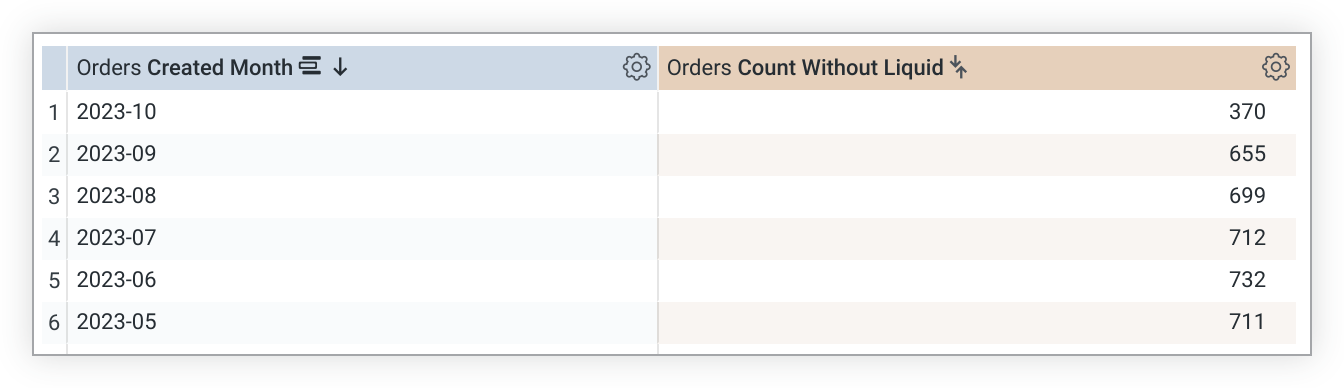
In this case, the query returns a single count for each month. The SQL that is generated for the previous results is shown next:
```sql
SELECT
TO_CHAR(DATE_TRUNC('month', order_items.created_at ), 'YYYY-MM') AS "order_items.created_month",
COUNT(*) AS "order_items.count_without_liquid"
FROM order_items AS order_items
GROUP BY DATE_TRUNC('month', order_items.created_at )
ORDER BY 1 DESC
LIMIT 500
```
However, when you generate a query using the `count_with_liquid` measure, you get the following results:
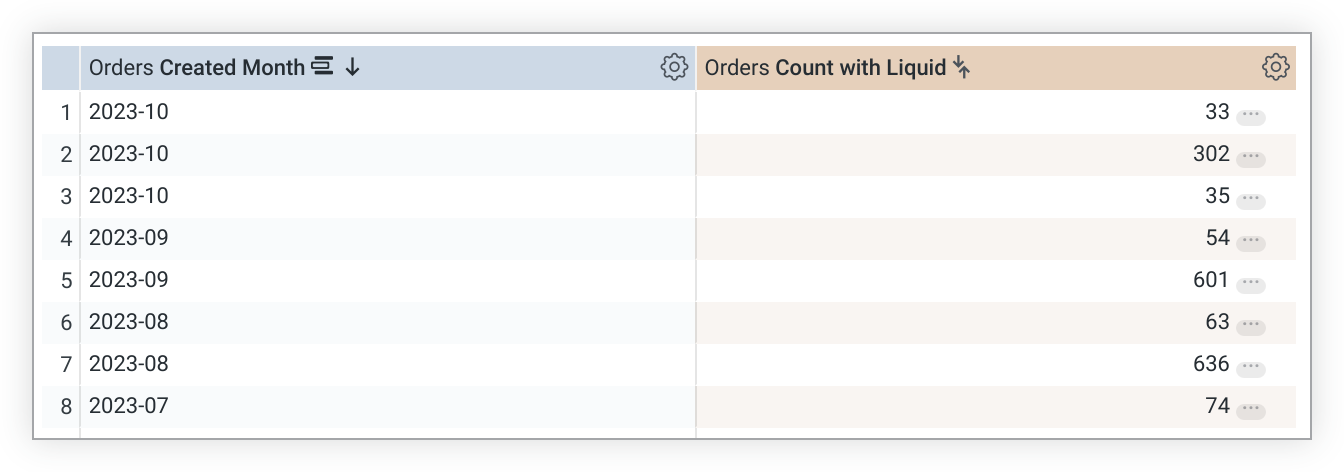
This example shows that, instead of a count for each month in the query, you receive a count for each month and for each status. That is because, in the generated SQL, the `status` field was added to the query so that its value could be retrieved. And, because it was added to the query, it was also added to the `GROUP BY` clause:
```sql
SELECT
TO_CHAR(DATE_TRUNC('month', order_items.created_at ), 'YYYY-MM') AS "order_items.created_month",
order_items.status AS "order_items.status",
COUNT(*) AS "order_items.count_without_liquid"
FROM order_items AS order_items
GROUP BY DATE_TRUNC('month', order_items.created_at ),2
ORDER BY 1 DESC
LIMIT 500
```
One option to stop this from happening is to use the `row[]` function with the Liquid variable, which pulls its value from the rendered results in the browser and therefore does not add the referenced field into the SQL query:
link: {
label: "{% if row['view_name.field_name'] %} some_label {% endif %}"
url: "https://www.google.com/search?q={{ row['view_name.field_name'] }}"
}
When you're using this syntax, note that the `link` parameter works only if the field is selected or included in the query by some other means.
To sum up, the use of the `row[]` syntax won't cause the field to be added to the query like `{{ field_name._value }}` does. The dynamic label will cause the link to have no label if the field is not available, which causes the link to disappear from the link menu.