> [!WARNING]
>
> **Preview**
>
>
> This feature is
>
> subject to the "Pre-GA Offerings Terms" in the General Service Terms section of the
> [Service Specific
> Terms](https://docs.cloud.google.com/terms/service-terms#1).
>
> Pre-GA features are available "as is" and might have limited support.
>
> For more information, see the
> [launch stage descriptions](https://cloud.google.com/products/#product-launch-stages).
> [!NOTE]
> Premium and Enterprise (Deprecated) [service tiers](https://docs.cloud.google.com/security-command-center/docs/service-tiers) (requires [organization-level activation](https://docs.cloud.google.com/security-command-center/docs/activate-scc-overview#overview_of_organization-level_activation))
> [!CAUTION]
> The Security Command Center Enterprise service tier will shut down on May 21, 2027. If your organization uses the Enterprise service tier, then the organization will automatically move to the Premium service tier on or after May 21, 2027. Contact your account representative or a [Google Cloud sales specialist](https://cloud.google.com/contact) if you have questions.
The Security Command Center *security graph* is a relationship-aware database that maps
cloud resources, their configurations, and associated risk indicators such as
vulnerabilities, access permissions, data sensitivity, and network exposure. The
graph provides a comprehensive view of your cloud assets and their
relationships.
This document explains *graph search*, a feature that lets you
explore the security graph by creating custom queries to help pinpoint potential
security concerns in your environment.
> [!NOTE]
> **Note:** You must select an organization to use security graph search and custom graph queries. If you're viewing the page with a folder or project scope, select an organization in the scope picker.
Graph search is not available with project-level activations. For more
information, see
[Feature availability with project-level activations](https://docs.cloud.google.com/security-command-center/docs/activate-scc-project-level-limitations).
## Query components
Security graph queries consist of three main component types:
- [Node](https://docs.cloud.google.com/security-command-center/docs/graph-search#node): a security finding or a cloud resource.
- [Where clause (filter)](https://docs.cloud.google.com/security-command-center/docs/graph-search#filter): a filter that's applied to a node to refine the query based on the specific properties of the node.
- [Connection](https://docs.cloud.google.com/security-command-center/docs/graph-search#connection): a directional relationship between two nodes.
The following is an example of a query as seen in the Google Cloud console, using
these components.
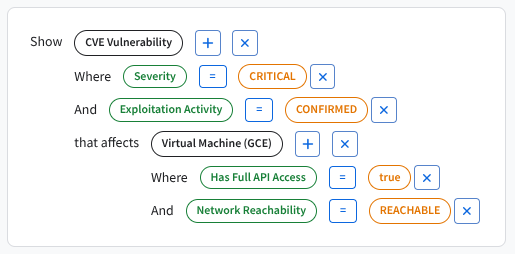 Security Command Center Graph query example using a variety of components
This example query structure identifies a relationship between security entities
to help pinpoint risk. First, the query establishes the key subjects, or
[nodes](https://docs.cloud.google.com/security-command-center/docs/graph-search#node), of the investigation: the **CVE Vulnerability** and the
**Virtual Machine (GCE)** . The [connection](https://docs.cloud.google.com/security-command-center/docs/graph-search#connection), identified by the
phrase **that affects** , explicitly links these two nodes. Finally, the query is
finely tuned using multiple attributes, known as [where clauses or
filters](https://docs.cloud.google.com/security-command-center/docs/graph-search#filter), on each node. The filters that are used here include the
vulnerability's severity and the VM's network reachability. Together, these
components help identify potential risks in an environment.
#### Node
A node represents a security finding or a cloud resource.
Some examples of a node in the Google Cloud console include the following:
- **CVE Vulnerability**: a Common Vulnerabilities and Exposures vulnerability defined by The MITRE Corporation.
- **Virtual Machine (GCE)** : a [Compute Engine](https://docs.cloud.google.com/compute/docs/overview) instance.
- **GKE Deployment** : a [Google Kubernetes Engine](https://docs.cloud.google.com/kubernetes-engine/docs/concepts/kubernetes-engine-overview) resource.
- **IAM Service Account** : an Identity and Access Management (IAM) [service
account](https://docs.cloud.google.com/iam/docs/service-account-overview).
- **BigQuery Dataset** : a container of data in BigQuery. For more information, see [Introduction to datasets](https://docs.cloud.google.com/bigquery/docs/datasets-intro).
Nodes are grouped by categories such as Compute, Kubernetes, Identity, and
Databases. You can browse or search all available node types in the
Google Cloud console when constructing your query.
#### Where clause (filter)
A where clause is a filter that's applied to a node to refine the query based on
the specific properties associated with the node.
The following are some examples of filters:
- **Severity = Critical**: an item of critical severity, for example, a CVE.
- **Has Full API Access = True**: indicates that a node is configured with full access to all Google Cloud APIs.
- **Exploitation Activity = Confirmed**: indicates known, reported, or anticipated instances of a vulnerability being exploited in the wild.
Filters shown in the Google Cloud console are context-aware and depend on
the type of node that you have selected.
#### Connection
A connection is a directional relationship between two nodes.
The following are examples of connections:
- **that affects**: defines the relationship between two selected nodes---for example, a CVE Vulnerability in relation to a Compute Engine virtual machine.
- **that uses**: defines the relationship between two selected nodes---for example, a Compute Engine virtual machine in relation to an IAM service account.
Connections are context-aware, and only valid relationships are shown for the
selected node type.
## Build a query
You can query the security graph to explore your cloud environment based on
criteria that are important to you. Performing and refining queries on the graph
can help you identify specific security weaknesses that you want to monitor.
1. In the Google Cloud console, go to the Security Command Center **Graph search** page.
[Go to Graph search](https://console.cloud.google.com/security/command-center/query-editor)
2. Use the query editor to build your query. Choose one of the following
options:
- [Create your own custom query](https://docs.cloud.google.com/security-command-center/docs/graph-search#create-custom-queries).
- Select a [predefined search suggestion](https://docs.cloud.google.com/security-command-center/docs/graph-search#search-suggestion) and use it as-is.
- Modify a predefined search suggestion to fit your needs.
3. Run your query.
4. Review the query results in the table. You can customize the results
view by selecting what columns to display. You can also sort each column
in ascending or descending order.
5. Optional: To export query results as a CSV file, click **Download CSV**.
> [!NOTE]
> **Note:** Exports are limited to 1,000 rows.
### Create custom queries
You can define custom queries to identify security vulnerabilities specific to
your environment.
To create a custom query, either start a new query or [customize an existing
search suggestion](https://docs.cloud.google.com/security-command-center/docs/graph-search#search-suggestion) using the following steps:
1. In the Google Cloud console, go to the Security Command Center
**Graph search** page.
[Go to Graph search](https://console.cloud.google.com/security/command-center/query-editor)
2. In the **Show** field, click **Add**
and select a resource or finding as the primary node for your query, and
then click
**Continue**. A dialog appears for the selected node.
3. To refine your query, do any of the following:
- To filter by one of the node's properties, click the **Where** toggle for that property. In the **Filter value** field that appears, enter or select a value that the property must contain.
- To filter by the node's connections to other nodes, click the toggle next to a connection type, like **that affects** or **that uses**, to enable it.
> [!NOTE]
> **Note:** The query editor shows only the filters and connections that are valid for the selected node type.
4. To modify your query, do any of the following:
- To add components to your query, click **Add** next to a node or connection.
- To remove a component from your query, click **Close**.
5. Select **Run query**.
The available nodes, filters, and connections are updated in
the Google Cloud console.
### Use or customize a search suggestion
Several search suggestions are provided as starting points. You can use these
suggestions as-is or customize them to fit your specific requirements.
1. In the Google Cloud console, go to the Security Command Center
**Graph search** page.
[Go to Graph search](https://console.cloud.google.com/security/command-center/query-editor)
2. Select a **Search suggestion** to see more detailed information about
the query.
3. Click **Use suggestion**.
4. Optional: Modify the query details in the editor to suit your needs. For
more information, see [Create custom queries](https://docs.cloud.google.com/security-command-center/docs/graph-search#create-custom-queries).
5. Click **Run query**.
## Troubleshoot queries that return no results
If your query returns no results, try the following steps to troubleshoot and
adjust.
### Use a predefined search suggestion
The predefined [search suggestions](https://docs.cloud.google.com/security-command-center/docs/graph-search#search-suggestion) provided are examples
designed to return results relevant to a variety of environments. You can modify
search suggestions to suit your specific needs.
### Simplify or adjust your query
- Remove or reduce filters to broaden the scope of your query.
- Try querying a single asset type or property to validate that data is being
returned.
- Avoid combining too many constraints. Doing so could unintentionally exclude
results.
### Verify access permissions
Make sure that you have the necessary permissions to view the data you're
querying. Without the correct access, some assets or relationships might be
hidden or excluded from results.
### Allow time for data sync
Recently created or updated resources might take a few minutes or hours to
appear in the graph. For example, delays can occur if you've just added a
resource or updated IAM policies. If you've just made changes to
your cloud environment, try running the query again after some time.
### Graph coverage
Some data types or relationships might not be available in the security graph,
depending on your environment and the supported data types. If you're not seeing
expected data, it might not be available in the graph.
### Additional help
If you've tried the preceding steps and still aren't seeing the expected
results, contact your project administrator or see [Getting support](https://docs.cloud.google.com/security-command-center/docs/getting-support)
for assistance reviewing your query configuration and permissions.
## What's next
- Learn more about [Security Command Center
issues](https://docs.cloud.google.com/security-command-center/docs/issues-overview).
- [Manage and remediate issues](https://docs.cloud.google.com/security-command-center/docs/issues-manage-remediate)