This page describes how to export Spanner databases with the
Google Cloud console.
To export a Spanner database using the REST API
or the Google Cloud CLI, complete the steps in the
[Before you begin](https://docs.cloud.google.com/spanner/docs/export#before-you-begin) section on this page, and then see the
detailed instructions in [Spanner to Cloud Storage Avro](https://docs.cloud.google.com/dataflow/docs/guides/templates/provided-batch#cloudspannertogcsavro) in the
Dataflow documentation.
The export process uses [Dataflow](https://docs.cloud.google.com/dataflow) and writes data to a folder in a
[Cloud Storage](https://docs.cloud.google.com/storage) bucket. The resulting folder contains a set of
[Avro files](https://en.wikipedia.org/wiki/Apache_Avro) and JSON manifest files.
## Before you begin
To export a Spanner database,
first you need to enable the Spanner, Cloud Storage,
Compute Engine, and Dataflow APIs:
**Roles required to enable APIs**
To enable APIs, you need the `serviceusage.services.enable` permission. If you
created the project, then you likely already have this permission through the
Owner role (`roles/owner`). Otherwise, you can get this permission through the
Service Usage Admin role (`roles/serviceusage.serviceUsageAdmin`).
[Learn how to grant roles](https://docs.cloud.google.com/iam/docs/granting-changing-revoking-access).
[Enable the APIs](https://console.cloud.google.com/apis/enableflow?apiid=spanner.googleapis.com,storage_component,compute,dataflow)
You also need enough quota and the required IAM permissions.
### Quota requirements
The quota requirements for export jobs are as follows:
- **Spanner** : No additional compute capacity is required to export a database, though you might need to add more compute capacity so that your job finishes in a reasonable amount of time. See [Optimize jobs](https://docs.cloud.google.com/spanner/docs/export#optimize-slow) for more details.
- **Cloud Storage**: To export, you must create a bucket for your exported files if you don't already have one. You can do this in the Google Cloud console, either through the Cloud Storage page or while creating your export through the Spanner page. You don't need to set a size for your bucket.
- **Dataflow** : Export jobs are subject to the same CPU, disk usage, and IP address [Compute Engine quotas](https://docs.cloud.google.com/dataflow/quotas#compute-engine-quotas) as other Dataflow jobs.
- **Compute Engine** : Before running your export job, you must [set up
initial quotas](https://support.google.com/cloud/answer/6075746) for
Compute Engine, which Dataflow uses. These quotas
represent the *maximum* number of resources that you allow
Dataflow to use for your job. Recommended starting values are:
- **CPUs**: 200
- **In-use IP addresses**: 200
- **Standard persistent disk**: 50 TB
Generally, you don't have to make any other adjustments.
Dataflow provides autoscaling so that you only pay for the
actual resources used during the export. If your job can make use of
more resources, the Dataflow UI displays a warning icon. The
job should finish even if there is a warning icon.
### Required roles
To get the permissions that
you need to export a database,
ask your administrator to grant you the
following IAM roles on your Dataflow worker service account:
- [Cloud Spanner Viewer](https://docs.cloud.google.com/iam/docs/roles-permissions/spanner#spanner.viewer) (`roles/spanner.viewer`)
- [Dataflow Worker](https://docs.cloud.google.com/iam/docs/roles-permissions/dataflow#dataflow.worker) (`roles/dataflow.worker`)
- [Storage Admin](https://docs.cloud.google.com/iam/docs/roles-permissions/storage#storage.admin) (`roles/storage.admin`)
- [Spanner Database Reader](https://docs.cloud.google.com/iam/docs/roles-permissions/spanner#spanner.databaseReader) (`roles/spanner.databaseReader`)
- [Database Admin](https://docs.cloud.google.com/iam/docs/roles-permissions/spanner#spanner.databaseAdmin) (`roles/spanner.databaseAdmin`)
> [!NOTE]
> **Note:** The Spanner Database Admin role is only required for import jobs.
To use the independent compute resources of Spanner Data Boost during an export,
you also need the `spanner.databases.useDataBoost` Identity and Access Management (IAM)
permission. For more information, see
[Data Boost overview](https://docs.cloud.google.com/spanner/docs/databoost/databoost-overview).
## Export a database
After you satisfy the quota and IAM requirements described
previously, you can export an existing Spanner database.
> [!NOTE]
> **Note:** It is safe to export a database that is in use. However, any changes you make after Dataflow creates a Spanner transaction aren't captured by the export, because all of the exported data is from the same database snapshot.
To export your Spanner database to a Cloud Storage
bucket, follow these steps:
1. Go to the Spanner **Instances** page.
[Go to Instances](https://console.cloud.google.com/spanner/instances)
2. Click the name of the instance that contains your database.
3. Click the **Import/Export** menu item in the left pane and then click the
**Export** button.
4. Under **Choose where to store your export** , click **Browse**.
5. If you don't already have a Cloud Storage bucket for your export:
1. Click **New bucket** .
2. Enter a name for your bucket. Bucket names [must be unique](https://docs.cloud.google.com/storage/docs/buckets#naming) across Cloud Storage.
3. Select a default storage class and location, then click **Create**.
4. Click your bucket to select it.
If you already have a bucket, either select the bucket from the initial list
or click **Search** 
to filter the list, then click your bucket to select it.
6. Click **Select**.
7. Select the database that you want to export in the **Choose a database to
export** drop-down menu.
8. Optional: To export your database from an earlier point in time, check the
box and enter a timestamp.
9. Select a region in the **Choose a region for the export job** drop-down
menu.
> [!NOTE]
> **Note:** To avoid [data transfer charges](https://docs.cloud.google.com/spanner/pricing#network), choose a region that overlaps with your instance's configuration. For more information, see [Choose a region](https://docs.cloud.google.com/spanner/docs/export#choose-region).
10. Optional: To encrypt the Dataflow pipeline state with a
[customer-managed encryption key](https://docs.cloud.google.com/dataflow/docs/guides/customer-managed-encryption-keys):
1. Click **Show encryption options**.
2. Select **Use a customer-managed encryption key (CMEK)**.
3. Select your key from the drop-down list.
This option does not affect the destination Cloud Storage bucket-level
encryption. To enable CMEK for your Cloud Storage bucket, refer to
[Use CMEK with Cloud Storage](https://docs.cloud.google.com/storage/docs/encryption/using-customer-managed-keys).
11. Optional: To export using Data Boost, select the
**Use Spanner Data Boost** checkbox. For more information, see
[Data Boost overview](https://docs.cloud.google.com/spanner/docs/databoost/databoost-overview).
12. Select the checkbox under **Confirm charges** to acknowledge that there are
charges in addition to those incurred by your existing Spanner instance.
13. Click **Export**.
The Google Cloud console displays the **Database Import/Export** page,
which now shows a line item for your export job in the Import/Export jobs
list, including the job's elapsed time:
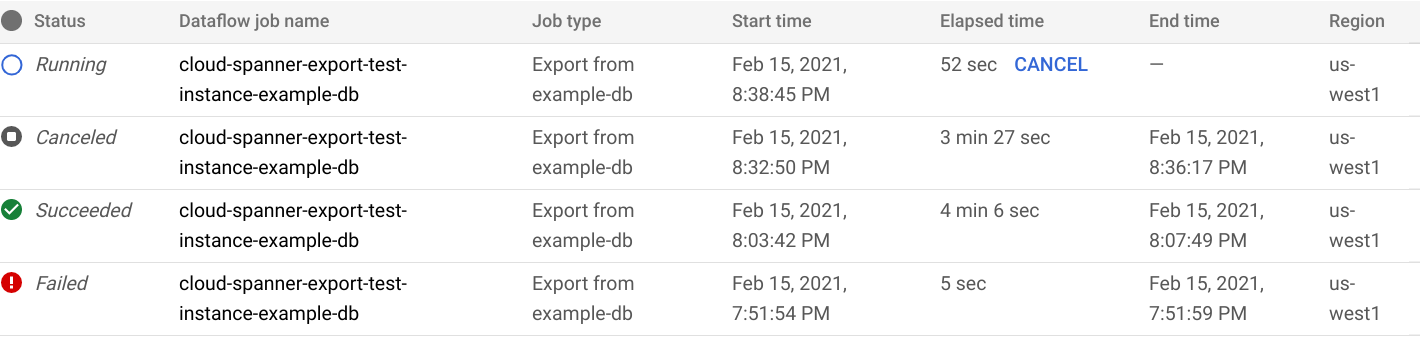
When the job finishes or terminates, the status is updated in the Import/Export
list. If the job succeeded, the status **Succeeded** is displayed:

If the job failed, the status **Failed** is displayed:

To view the details of the Dataflow operation for your job, click
the job's name in the **Dataflow job name** column.
If your job fails, [check the job's Dataflow logs](https://docs.cloud.google.com/spanner/docs/export#dataflow-job-logs) for error
details.
To avoid Cloud Storage charges for files your
failed export job created, delete the folder and its files. See [View your
export](https://docs.cloud.google.com/spanner/docs/export#view-in-gcs) for information on how to find the folder.
### A note on exporting generated columns and change streams
The values in a stored [generated column](https://docs.cloud.google.com/spanner/docs/generated-column/how-to) are not exported. The column
definition is exported to the Avro schema as a null-type record field, with the
column definition as custom properties of the field. Until the backfill
operation of a newly added generated column completes, the generated column is
ignored as if it doesn't exist in the schema.
Change streams exported as Avro files contain only the schema of the
change streams, and not any data change records.
### A note on exporting sequences
Sequences ([GoogleSQL](https://docs.cloud.google.com/spanner/docs/reference/standard-sql/data-definition-language#sequence_statements),
[PostgreSQL](https://docs.cloud.google.com/spanner/docs/reference/postgresql/data-definition-language#sequence_statements))
are schema objects that you use to generate unique integer values.
Spanner exports each of the schema object to the Avro schema as a
record field, with its sequence kind, skipped range, and counter as properties
of the field. Note that to prevent a sequence from being reset and generating
duplicate values after import, during schema export, the
`GET_INTERNAL_SEQUENCE_STATE()` ([GoogleSQL](https://docs.cloud.google.com/spanner/docs/reference/standard-sql/sequence_functions#get_internal_sequence_state),
[PostgreSQL](https://docs.cloud.google.com/spanner/docs/reference/postgresql/functions-and-operators#sequence))
function captures the sequence counter. Spanner adds a buffer of
1000 to the counter, and writes the new counter value to the record field. This
approach avoids duplicate value errors that might happen after import.
If there are more writes to the source database during data export, you should
adjust the actual sequence counter by using the `ALTER SEQUENCE`
([GoogleSQL](https://docs.cloud.google.com/spanner/docs/reference/standard-sql/data-definition-language#alter-sequence),
[PostgreSQL](https://docs.cloud.google.com/spanner/docs/reference/postgresql/data-definition-language#alter_sequence))
statement.
At import, the sequence starts from this new counter instead of the counter
found in the schema. Alternatively, you can use the `ALTER SEQUENCE`
([GoogleSQL](https://docs.cloud.google.com/spanner/docs/reference/standard-sql/data-definition-language#alter-sequence),
[PostgreSQL](https://docs.cloud.google.com/spanner/docs/reference/postgresql/data-definition-language#alter_sequence))
statement to update the sequence with a new counter.
### View your export in Cloud Storage
To view the folder that contains your exported database in the
Google Cloud console, navigate to the Cloud Storage browser and
choose the bucket you selected previously:
[Go to Storage browser](https://console.cloud.google.com/storage/browser)
The bucket now contains a folder with the exported database inside. The folder
name begins with your instance's ID, database name, and the timestamp of your
export job. The folder contains:
- A `spanner-export.json` file
- A `TableName-manifest.json` file for each table in the database you exported.
- One or more `TableName.avro-#####-of-#####`
files. The first number in the extension
`.avro-#####-of-#####` represents the index
of the Avro file, starting at zero, and the second represents the number of
Avro files generated for each table.
For example, `Songs.avro-00001-of-00002` is the second of two files that
contain the data for the `Songs` table.
- A `ChangeStreamName-manifest.json` file for each
[change stream](https://docs.cloud.google.com/spanner/docs/change-streams) in the database you
exported.
- A `ChangeStreamName.avro-00000-of-00001`
file for each change stream. This file contains empty data
with only the Avro schema of the change stream.
## Choose a region for your import job
You might want to choose a different region based on the location of your
Cloud Storage bucket. To avoid
[outbound data transfer charges](https://docs.cloud.google.com/storage/pricing#network-pricing), choose a region that
matches your Cloud Storage bucket's location.
- If your Cloud Storage bucket location is a [region](https://docs.cloud.google.com/storage/docs/bucket-locations#location-r), you
can take advantage of [free network usage](https://docs.cloud.google.com/storage/pricing#network-buckets) by choosing the
same region for your import job, assuming that region is available.
- If your Cloud Storage bucket location is a [dual-region](https://docs.cloud.google.com/storage/docs/bucket-locations#location-dr),
you can take advantage of [free network usage](https://docs.cloud.google.com/storage/pricing#network-buckets) by choosing
one of the two regions that make up the dual-region for your import job,
assuming one of the regions is available.
- If a co-located region is not available for your import job, or if your Cloud Storage bucket location is a [multi-region](https://docs.cloud.google.com/storage/docs/bucket-locations#location-mr), outbound data transfer charges apply. Refer to Cloud Storage [data transfer](https://docs.cloud.google.com/storage/pricing#network-pricing) pricing to choose a region that incurs the lowest data transfer charges.
## Export a subset of tables
If you want to export only the data from certain tables, and not the
entire database, then you can specify those tables during export. In
this case, Spanner exports the database's entire schema, including
the data of tables you specify, and leaving all other tables present but
empty in the exported file.
You can specify a subset of tables to export using either the
Dataflow page in the Google Cloud console or the
gcloud CLI. (The Spanner page doesn't provide this action.)
If you export the data of a table that is the child of another table, then you
should export its [parent](https://docs.cloud.google.com/spanner/docs/schema-and-data-model#parent-child_table_relationships)
table's data as well. If parents are not exported, then the export job fails.
To export a subset of tables, start the export using Dataflow's
[Spanner to Cloud Storage Avro template](https://docs.cloud.google.com/dataflow/docs/guides/templates/provided-batch#cloud_spanner_to_gcs_avro), and
specify the tables using either the Dataflow page in
the Google Cloud console or using the gcloud CLI, as described:
### Console
If you are using the Dataflow page in Google Cloud console, the
**Cloud Spanner Table name(s)** parameter is located in the
**Optional parameters** section of the **Create job from template** page.
Multiple tables can be specified in a comma-separated format.
[Go to Dataflow](https://console.cloud.google.com/dataflow)
### gcloud
Run the [`gcloud dataflow jobs run`](https://docs.cloud.google.com/sdk/gcloud/reference/dataflow/jobs/run)
command, and specify the `tableNames` argument. For example:
gcloud dataflow jobs run my-export-job \
--gcs-location='gs://dataflow-templates/latest/Cloud_Spanner_to_GCS_Avro' \
--region=us-central1 \
--parameters='instanceId=test-instance,databaseId=example-db,tableNames=table1,outputDir=gs://my-gcs-bucket' \
--max-workers=10 \
--network=network-123
Specifying multiple tables in gcloud requires
[dictionary-type argument escaping](https://docs.cloud.google.com/sdk/gcloud/reference/topic/escaping).
The following example uses '`|`' as the escape character:
gcloud dataflow jobs run my-export-job \
--gcs-location='gs://dataflow-templates/latest/Cloud_Spanner_to_GCS_Avro' \
--region=us-central1 \
--parameters='^|^instanceId=test-instance|databaseId=example-db|tableNames=table1,table2|outputDir=gs://my-gcs-bucket' \
--max-workers=10 \
--network=network-123
The `shouldExportRelatedTables` parameter is a convenient option to
automatically export all [parent tables](https://docs.cloud.google.com/spanner/docs/schema-and-data-model#parent-child_table_relationships)
of the chosen tables. For example, in this [schema hierarchy](https://docs.cloud.google.com/spanner/docs/schema-and-data-model#creating_a_hierarchy_of_interleaved_tables)
with tables `Singers`, `Albums` and `Songs`, you only need to specify
`Songs`. The `shouldExportRelatedTables` option will also export `Singers`
and `Albums` because `Songs` is a descendant of both.
gcloud dataflow jobs run my-export-job \
--gcs-location='gs://dataflow-templates/latest/Cloud_Spanner_to_GCS_Avro' \
--region=us-central1 \
--parameters='instanceId=test-instance,databaseId=example-db,tableNames=Songs,shouldExportRelatedTables=true,outputDir=gs://my-gcs-bucket' \
--max-workers=10 \
--network=network-123
## View or troubleshoot jobs in the Dataflow UI
After you start an export job, you can view details of the job, including
logs, in the Dataflow section of the Google Cloud console.
### View Dataflow job details
To see details for any import or export jobs that you ran within the last week,
including any jobs that are running now:
1. Navigate to the **Database overview** page for the database.
2. Click the **Import/Export** left pane menu item. The database **Import/Export** page displays a list of recent jobs.
3. In the database **Import/Export** page, click the job name in the
**Dataflow job name** column:

The Google Cloud console displays details of the Dataflow
job.
To view a job that you ran more than one week ago:
1. Go to the Dataflow jobs page in the Google Cloud console.
[Go to Jobs](https://console.cloud.google.com/dataflow)
2. Find your job in the list, then click its name.
The Google Cloud console displays details of the Dataflow
job.
> [!NOTE]
> **Note:** Jobs of the same type for the same database have the same name. You can tell jobs apart by the values in their **Start time** or **End time** columns.
### View Dataflow logs for your job
To view a Dataflow job's logs, navigate to the job's details
page, then click **Logs** to the right of the job's name.
If a job fails, look for errors in the logs. If there are errors, the error
count displays next to **Logs**:

To view job errors:
1. Click the error count next to **Logs**.
The Google Cloud console displays the job's logs. You may need to
scroll to see the errors.
2. Locate entries with the error icon .
3. Click an individual log entry to expand its contents.
For more information about troubleshooting Dataflow jobs, see
[Troubleshoot your pipeline](https://docs.cloud.google.com/dataflow/pipelines/troubleshooting-your-pipeline#basic-troubleshooting-workflow).
### Troubleshoot failed export jobs
If you see the following errors in your job logs:
```
com.google.cloud.spanner.SpannerException: NOT_FOUND: Session not found
--or--
com.google.cloud.spanner.SpannerException: DEADLINE_EXCEEDED: Deadline expired before operation could complete.
```
Check the *99% Read latency* in the
**Monitoring** tab of your Spanner database in the
Google Cloud console. If it is showing high (multiple second) values, then
it indicates that the instance is overloaded, causing reads to
timeout and fail.
One cause of high latency is that the Dataflow job is running
using too many workers, putting too much load on the Spanner
instance.
To specify a limit on the number of Dataflow workers, instead of using the Import/Export tab in the instance details page of your Spanner database in the Google Cloud console, you must start the export using the Dataflow [Spanner to Cloud Storage Avro template](https://docs.cloud.google.com/dataflow/docs/guides/templates/provided-batch#cloud_spanner_to_gcs_avro) and specify the maximum number of workers as described:
### Console
If you are using the Dataflow console, the **Max workers**
parameter is located in the **Optional parameters** section of the
**Create job from template** page.
[Go to Dataflow](https://console.cloud.google.com/dataflow)
### gcloud
Run the [`gcloud dataflow jobs run`](https://docs.cloud.google.com/sdk/gcloud/reference/dataflow/jobs/run)
command, and specify the `max-workers` argument. For example:
gcloud dataflow jobs run my-export-job \
--gcs-location='gs://dataflow-templates/latest/Cloud_Spanner_to_GCS_Avro' \
--region=us-central1 \
--parameters='instanceId=test-instance,databaseId=example-db,outputDir=gs://my-gcs-bucket' \
--max-workers=10 \
--network=network-123
### Troubleshoot network error
The following error might occur when you export your Spanner
databases:
```
Workflow failed. Causes: Error: Message: Invalid value for field
'resource.properties.networkInterfaces[0].subnetwork': ''. Network interface
must specify a subnet if the network resource is in custom subnet mode.
HTTP Code: 400
```
This error occurs because Spanner assumes that you intend to use
an auto mode VPC network named `default` in the same project as the
Dataflow job. If you don't have a default VPC network in the
project, or if your VPC network is in a custom mode VPC network, then you must
create a Dataflow job and
[specify an alternate network or subnetwork](https://docs.cloud.google.com/dataflow/docs/guides/specifying-networks).
## Optimize slow running export jobs
If you have followed the suggestions in [initial settings](https://docs.cloud.google.com/spanner/docs/export#quota), you should
generally not have to make any other adjustments. If your job is running slowly,
there are a few other optimizations you can try:
- **Optimize the job and data location** : Run your Dataflow job
[in the same region](https://docs.cloud.google.com/spanner/docs/export#choose-region) where your Spanner instance and
Cloud Storage bucket are located.
- **Ensure sufficient Dataflow resources** : If the
[relevant Compute Engine quotas](https://docs.cloud.google.com/dataflow/quotas#compute-engine-quotas)
limit your Dataflow job's resources, the job's
[Dataflow page](https://docs.cloud.google.com/spanner/docs/export#dataflow-job-details) in the Google Cloud console
displays a warning icon
 and log
messages:

In this situation,
[increasing the quotas](https://support.google.com/cloud/answer/6075746) for
CPUs, in-use IP addresses, and standard persistent disk might shorten the
run time of the job, but you might incur more Compute Engine
charges.
- **Check the Spanner CPU utilization** : If you see that the CPU
utilization for the instance is over 65%, you can
increase the [compute capacity](https://docs.cloud.google.com/spanner/docs/compute-capacity) in that instance. The capacity adds more
Spanner resources and the job should speed up, but you incur more
Spanner charges.
## Factors affecting export job performance
Several factors influence the time it takes to complete an export job.
- **Spanner database size**: Processing more data takes more time
and resources.
- **Spanner database schema**, including:
- The number of tables
- The size of the rows
- The number of secondary indexes
- The number of foreign keys
- The number of change streams
- **Data location**: Data is transferred between Spanner and
Cloud Storage using Dataflow. Ideally all three
components are located in the same region. If the components are not in the same
region, moving the data across regions slows the job down.
- **Number of Dataflow workers**: Optimal Dataflow
workers are necessary for good performance. By using autoscaling,
Dataflow chooses the number of workers for
the job depending on the amount of work that needs to be done. The number of
workers will, however, be capped by the quotas for CPUs, in-use IP addresses,
and standard persistent disk. The Dataflow UI displays a warning
icon if it encounters quota caps. In this situation, progress is slower, but the
job should still complete.
- **Existing load on Spanner**:
An export job typically adds a light load on a Spanner
instance.
If the instance already has a substantial existing load, then the job runs more
slowly.
- **Amount of Spanner compute capacity**: If the CPU utilization for the instance
is over 65%, then the job runs more slowly.