> [!NOTE]
> If you are detecting text in scanned documents, try [Document AI](https://docs.cloud.google.com/document-ai/docs/overview) for optical character recognition, structured form parsing, and entity extraction. You can use the [Document AI Toolbox](https://docs.cloud.google.com/document-ai/docs/handle-response#toolbox) to convert output from the Document AI format to the Cloud Vision format.
## Audience
The goal of this tutorial is to help you develop applications using Google
Cloud Vision API Document Text Detection. It
assumes you are familiar with basic programming constructs and techniques, but
even if you are a beginning programmer, you should be able to follow along and
run this tutorial without difficulty, then use the
[Vision API reference documentation](https://docs.cloud.google.com/vision/reference/rest)
to create basic applications.
## Prerequisites
- [Set up a Vision API project](https://docs.cloud.google.com/vision/docs/getting-started#set_up_a_google_cloud_vision_api_project) in the Google Cloud console.
- Set up your environment for using
[Application Default Credentials](https://docs.cloud.google.com/vision/docs/authentication).
### Python
- Install [Python](https://www.python.org/).
- [Install pip](https://pip.pypa.io/en/latest/installing/).
- Install the [Google Cloud Client Library](https://docs.cloud.google.com/vision/docs/reference/libraries#installing_the_client_library) and the [Python Imaging Library](https://python-pillow.github.io/).
## Annotating an image using Document Text OCR
This tutorial walks you through a basic Cloud Vision API application that makes a
`DOCUMENT_TEXT_DETECTION` *request* , then processes the `fullTextAnnotation`
*response*.
Note that both standard `TEXT_DETECTION` and `DOCUMENT_TEXT_DETECTION` return `fullTextAnnotation`s, as described in the following information. However, there is no input character limit on the premium `DOCUMENT_TEXT_DETECTION` feature. Also, if both `TEXT_DETECTION` and `DOCUMENT_TEXT_DETECTION` are specified in a Cloud Vision request, `DOCUMENT_TEXT_DETECTION` will take precedence.
A `fullTextAnnotation` is a structured hierarchical response for the UTF-8 text
extracted from the image, organized as
Pages→Blocks→Paragraphs→Words→Symbols:
- `Page` is a collection of blocks, plus meta-information about the page:
sizes, resolutions (X resolution and Y resolution may differ).
- `Block` represents one "logical" element of the page---for example, an
area covered by text, or a picture or separator between columns. The text
and table blocks contain the main information needed to extract the text.
- `Paragraph` is a structural unit of text representing an ordered sequence
of words. By default, words are considered to be separated by word breaks.
- `Word` is the smallest unit of text. It is represented as an array of
Symbols.
- `Symbol` represents a character or a punctuation mark.
The `fullTextAnnotation` also can provide URLs to Web images that partially or
fully match the image in the request.
> [!NOTE]
> The previous `textAnnotations` OCR output will continue to be supported, and is available in the JSON Response as `textAnnotations`.
## Complete code listing
As you read the code, we recommend that you follow along by referring to the
[Vision API Python reference](https://docs.cloud.google.com/python/docs/reference/vision/latest).
import argparse
from enum import Enum
from google.cloud import vision
from PIL import https://docs.cloud.google.com/python/docs/reference/vision/latest/google.cloud.vision_v1.types.Image.html, ImageDraw
class FeatureType(Enum):
PAGE = 1
BLOCK = 2
PARA = 3
WORD = 4
SYMBOL = 5
def draw_boxes(image, bounds, color):
"""Draws a border around the image using the hints in the vector list.
Args:
image: the input image object.
bounds: list of coordinates for the boxes.
color: the color of the box.
Returns:
An image with colored bounds added.
"""
draw = ImageDraw.Draw(image)
for bound in bounds:
draw.polygon(
[
bound.vertices[0].x,
bound.vertices[0].y,
bound.vertices[1].x,
bound.vertices[1].y,
bound.vertices[2].x,
bound.vertices[2].y,
bound.vertices[3].x,
bound.vertices[3].y,
],
None,
color,
)
return image
def get_document_bounds(image_file, feature):
"""Finds the document bounds given an image and feature type.
Args:
image_file: path to the image file.
feature: feature type to detect.
Returns:
List of coordinates for the corresponding feature type.
"""
client = vision.https://docs.cloud.google.com/python/docs/reference/vision/latest/google.cloud.vision_v1.services.image_annotator.ImageAnnotatorClient.html()
bounds = []
with open(image_file, "rb") as image_file:
content = image_file.read()
image = vision.https://docs.cloud.google.com/python/docs/reference/vision/latest/google.cloud.vision_v1.types.Image.html(content=content)
response = client.document_text_detection(image=image)
document = response.full_text_annotation
# Collect specified feature bounds by enumerating all document features
for page in document.pages:
for block in page.blocks:
for paragraph in block.paragraphs:
for word in paragraph.words:
for symbol in word.symbols:
if feature == FeatureType.SYMBOL:
bounds.append(symbol.bounding_box)
if feature == FeatureType.WORD:
bounds.append(word.bounding_box)
if feature == FeatureType.PARA:
bounds.append(paragraph.bounding_box)
if feature == FeatureType.BLOCK:
bounds.append(block.bounding_box)
# The list `bounds` contains the coordinates of the bounding boxes.
return bounds
def render_doc_text(filein, fileout):
"""Outlines document features (blocks, paragraphs and words) given an image.
Args:
filein: path to the input image.
fileout: path to the output image.
"""
image = https://docs.cloud.google.com/python/docs/reference/vision/latest/google.cloud.vision_v1.types.Image.html.open(filein)
bounds = get_document_bounds(filein, FeatureType.BLOCK)
draw_boxes(image, bounds, "blue")
bounds = get_document_bounds(filein, FeatureType.PARA)
draw_boxes(image, bounds, "red")
bounds = get_document_bounds(filein, FeatureType.WORD)
draw_boxes(image, bounds, "yellow")
if fileout != 0:
image.save(fileout)
else:
image.show()
if __name__ == "__main__":
parser = argparse.ArgumentParser()
parser.add_argument("detect_file", help="The image for text detection.")
parser.add_argument("-out_file", help="Optional output file", default=0)
args = parser.parse_args()
render_doc_text(args.detect_file, args.out_file)
This application performs the following tasks:
- Imports the libraries necessary to run the application
- Takes three arguments passes it to the `main()`function:
- `image_file`--- the input image file to be annotated
- `output_file`---the output filename into which Cloud Vision will generate an output image with polyboxes drawn
- Creates an `ImageAnnotatorClient` instance to interact with the service
- Sends the request and returns a response
- Creates an output image with boxes drawn around the text
## A closer look at the code
The following sections examine the key components of the sample application in
detail.
### Importing libraries
import argparse
from enum import Enum
from google.cloud import vision
from PIL import https://docs.cloud.google.com/python/docs/reference/vision/latest/google.cloud.vision_v1.types.Image.html, ImageDraw
We import standard libraries:
- `argparse` to allow the application to accept input file names as arguments
- `enum` for the `FeatureType` enumeration
- `io` for File I/O
Other imports:
- The `ImageAnnotatorClient` class within the `google.cloud.vision` library for accessing the Cloud Vision API.
- The `types` module within the `google.cloud.vision` library for constructing requests.
- The `Image` and `ImageDraw` libraries from the `PIL` library are used to create the output image with boxes drawn on the input image.
### Running the application
parser = argparse.ArgumentParser()
parser.add_argument("detect_file", help="The image for text detection.")
parser.add_argument("-out_file", help="Optional output file", default=0)
args = parser.parse_args()
render_doc_text(args.detect_file, args.out_file)
Here, we parse the passed-in arguments and pass it to the `render_doc_text()`
function.
### Authenticating to the API
Before communicating with the Cloud Vision API service, you must
authenticate your service using previously acquired credentials. Within an
application, the simplest way to obtain credentials is to use
[Application Default Credentials](https://docs.cloud.google.com/vision/docs/setup)
(ADC). By default, the Cloud Client Libraries will attempt to
obtain credentials from the `GOOGLE_APPLICATION_CREDENTIALS`
environment variable, which should be set to point to your service account's
JSON key file (see
[Setting Up a Service Account](https://docs.cloud.google.com/vision/docs/setup)
for more information).
### Making the API request and reading text bounds from the response
Now that our Cloud Vision API service is ready, we can access the service
by calling the `document_text_detection` method of the `ImageAnnotatorClient`
instance.
The client library encapsulates the details for requests and responses to the
API. See the [Cloud Vision API Reference](https://docs.cloud.google.com/vision/reference/rest) for
complete information on the structure of a request.
def get_document_bounds(image_file, feature):
"""Finds the document bounds given an image and feature type.
Args:
image_file: path to the image file.
feature: feature type to detect.
Returns:
List of coordinates for the corresponding feature type.
"""
client = vision.ImageAnnotatorClient()
bounds = []
with open(image_file, "rb") as image_file:
content = image_file.read()
image = vision.Image(content=content)
response = client.document_text_detection(image=image)
document = response.full_text_annotation
# Collect specified feature bounds by enumerating all document features
for page in document.pages:
for block in page.blocks:
for paragraph in block.paragraphs:
for word in paragraph.words:
for symbol in word.symbols:
if feature == FeatureType.SYMBOL:
bounds.append(symbol.bounding_box)
if feature == FeatureType.WORD:
bounds.append(word.bounding_box)
if feature == FeatureType.PARA:
bounds.append(paragraph.bounding_box)
if feature == FeatureType.BLOCK:
bounds.append(block.bounding_box)
# The list `bounds` contains the coordinates of the bounding boxes.
return bounds
After the client library has handled the request, our response will contain an
[AnnotateImageResponse](https://docs.cloud.google.com/vision/reference/rest/v1/images/annotate#AnnotateImageResponse),
which consists of a list of Image Annotation results, one for each image sent in
the request. Because we sent only one image in the request, we walk through
the [full TextAnnotation](https://docs.cloud.google.com/vision/reference/rest/v1/images/annotate#TextAnnotation),
and collect the boundaries for the specified document feature.
### Running the application
To run the application, you can
[download this `receipt.jpg` file](https://docs.cloud.google.com/static/vision/docs/images/receipt.jpg)
(you may need to right-click the link),
then pass the location where you downloaded the file on your local machine
to the tutorial application (`doctext.py`).
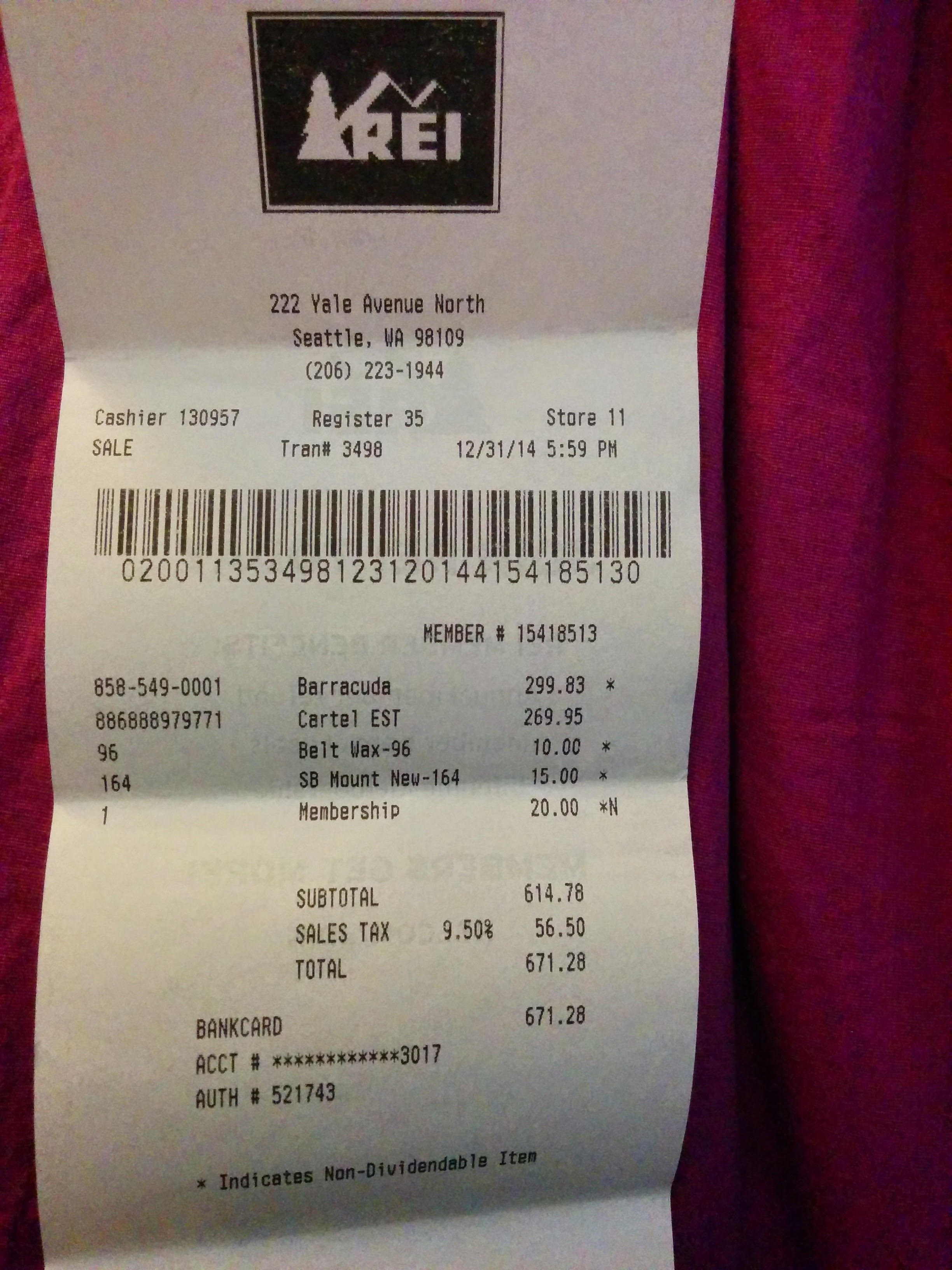
Here is the Python command, followed by the Text Annotation output images.
```sh
$ python doctext.py receipt.jpg -out_file out.jpg
```
The following image shows words in yellow boxes and sentences in red.
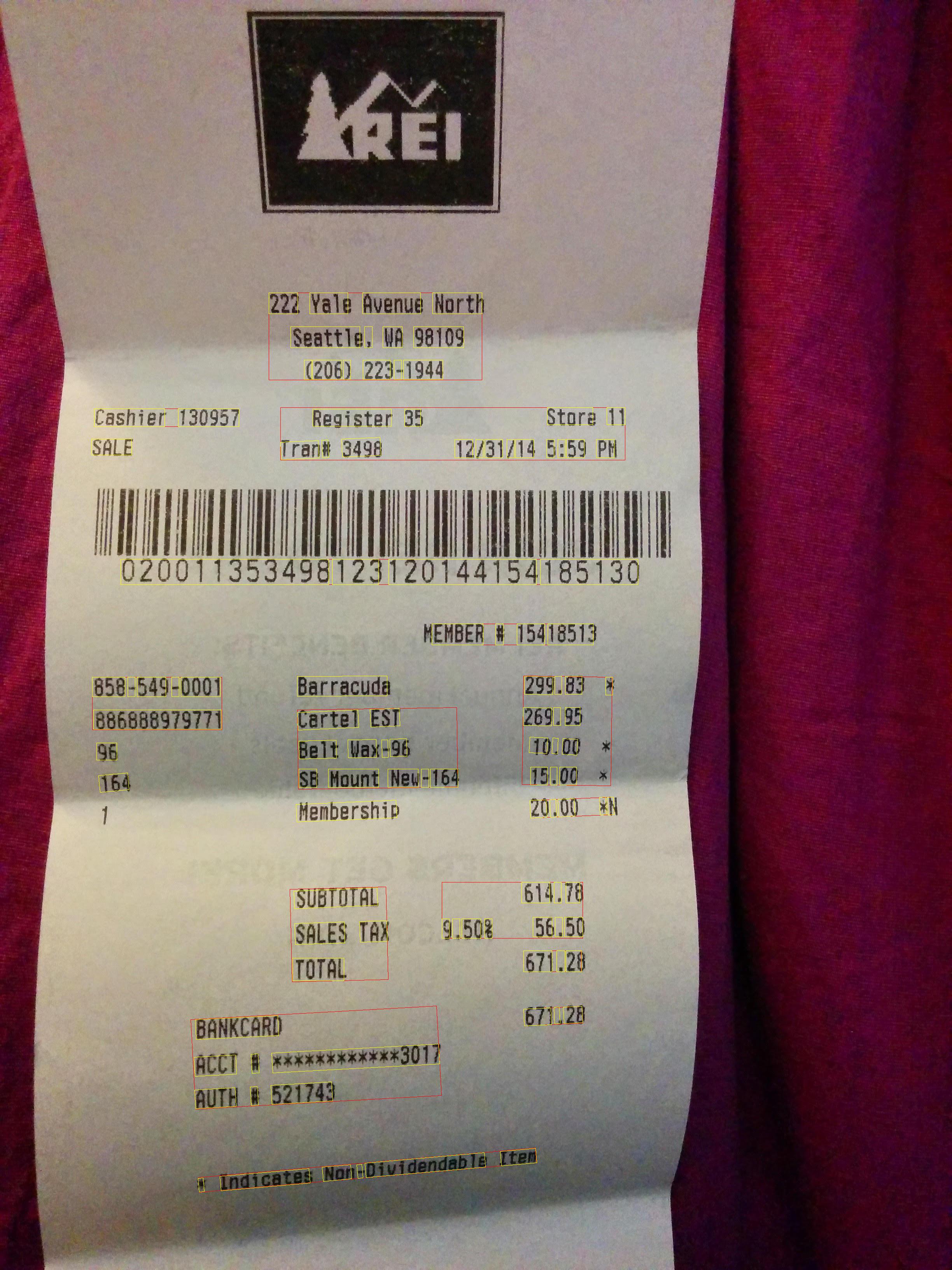
Congratulations! You've performed Text Detection using Cloud Vision
Full Text Annotations!