> [!NOTE]
> If you are detecting text in scanned documents, try [Document AI](https://docs.cloud.google.com/document-ai/docs/overview) for optical character recognition, structured form parsing, and entity extraction. You can use the [Document AI Toolbox](https://docs.cloud.google.com/document-ai/docs/handle-response#toolbox) to convert output from the Document AI format to the Cloud Vision format.
> [!NOTE]
> **Note:**
>
> - Using this API in a mobile device app? Try [Firebase Machine Learning](https://firebase.google.com/docs/ml) and [ML Kit](https://developers.google.com/ml-kit), which provide platform-specific Android and iOS SDKs for using Cloud Vision services, as well as on-device ML Vision APIs and on-device inference using custom ML models.
> - The Vision API now supports **online (synchronous) small batch annotation
> (PDF/TIFF/GIF)** for all features. This synchronous request performs detection and annotation for a batch of files. For more information about this feature, refer to the [Online small batch file annotation](https://docs.cloud.google.com/vision/docs/file-small-batch) page.
> [!CAUTION]
> - Pricing for PDF/TIFF document text detection is at the `DOCUMENT_TEXT_DETECTION` or `TEXT_DETECTION` rate. Please see the [Pricing](https://cloud.google.com/vision/pricing) page for details.
> - Currently `DOCUMENT_TEXT_DETECTION` and `TEXT_DETECTION` are the only [feature types](https://docs.cloud.google.com/vision/docs/features-list) available for offline (asynchronous) large batch file (PDF/TIFF) annotation.
The Vision API can detect and transcribe text from PDF and TIFF files stored
in Cloud Storage.
Document text detection from PDF and TIFF must be requested using the
`files:asyncBatchAnnotate` function, which performs an offline (asynchronous)
request and provides its status using the `operations` resources.
Output from a PDF/TIFF request is written to a JSON file created in the
specified Cloud Storage bucket.
## Limitations
The Vision API accepts PDF/TIFF files up to 2000 pages. Larger files will
return
an error.
## Authentication
API keys are not supported for `files:asyncBatchAnnotate` requests. See
[Using a service account](https://docs.cloud.google.com/vision/docs/auth#using_a_service_account) for
instructions on authenticating with a service account.
The account used for authentication must have access to the Cloud Storage
bucket that you specify for the output (`roles/editor` or
`roles/storage.objectCreator` or above).
You **can** use an API key to query the status of the operation; see
[Using an API key](https://docs.cloud.google.com/vision/docs/auth#using_an_api_key) for instructions.
## Document text detection requests
Currently PDF/TIFF document detection is only available for files stored in
Cloud Storage buckets. Response JSON files are similarly saved to a
Cloud Storage bucket.
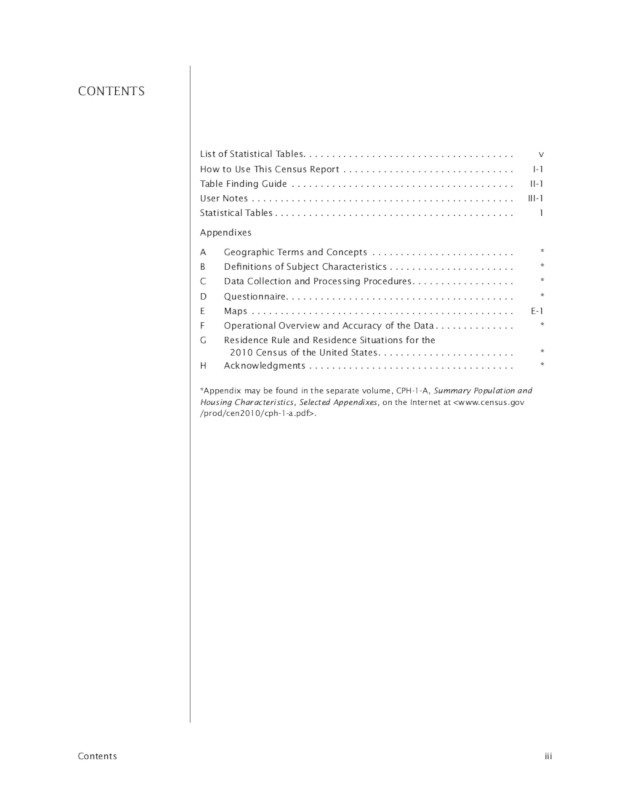 `gs://cloud-samples-data/vision/pdf_tiff/census2010.pdf`, ***Source*** : [United States
Census Bureau](https://www.census.gov/data.html).
> [!NOTE]
> **Note:** This feature returns results with `https://docs.cloud.google.com/vision/docs/reference/rest/v1/projects.locations.products.referenceImages#normalizedvertex` \[0,1\] and not real pixel values (`https://docs.cloud.google.com/vision/docs/reference/rest/v1/projects.locations.products.referenceImages#vertex`).
### REST
Before using any of the request data,
make the following replacements:
- CLOUD_STORAGE_BUCKET: A Cloud Storage bucket/directory to save output files to, expressed in the following form:
- `gs://bucket/directory/`
The requesting user must have write permission to the bucket.
- CLOUD_STORAGE_FILE_URI: the path to a valid file (PDF/TIFF) in a Cloud Storage bucket. You must at least have read privileges to the file. Example:
-
```restructuredtext
gs://cloud-samples-data/vision/pdf_tiff/census2010.pdf
```
- FEATURE_TYPE: A valid feature type. For `files:asyncBatchAnnotate` requests you can use the following feature types:
- `DOCUMENT_TEXT_DETECTION`
- `TEXT_DETECTION`
- PROJECT_ID: Your Google Cloud project ID.
**Field-specific considerations:**
- `inputConfig` - replaces the `image` field used in other Vision API requests. It contains two child fields:
- `gcsSource.uri` - the Google Cloud Storage URI of the PDF or TIFF file (accessible to the user or service account making the request).
- `mimeType` - one of the accepted file types: `application/pdf` or `image/tiff`.
- `outputConfig` - specifies output details. It contains two child field:
- `gcsDestination.uri` - a valid Google Cloud Storage URI. The bucket must be writeable by the user or service account making the request. The filename will be `output-x-to-y`, where `x` and `y` represent the PDF/TIFF page numbers included in that output file. If the file exists, its contents will be overwritten.
- `batchSize` - specifies how many pages of output should be included in each output JSON file.
HTTP method and URL:
```
POST https://vision.googleapis.com/v1/files:asyncBatchAnnotate
```
Request JSON body:
```
{
"requests":[
{
"inputConfig": {
"gcsSource": {
"uri": "CLOUD_STORAGE_FILE_URI"
},
"mimeType": "application/pdf"
},
"features": [
{
"type": "FEATURE_TYPE"
}
],
"outputConfig": {
"gcsDestination": {
"uri": "CLOUD_STORAGE_BUCKET"
},
"batchSize": 1
}
}
]
}
```
To send your request, choose one of these options:
#### curl
> [!NOTE]
> **Note:** The following command assumes that you have logged in to the `gcloud` CLI with your user account by running [`gcloud init`](https://docs.cloud.google.com/sdk/gcloud/reference/init) or [`gcloud auth login`](https://docs.cloud.google.com/sdk/gcloud/reference/auth/login) , or by using [Cloud Shell](https://docs.cloud.google.com/shell/docs), which automatically logs you into the `gcloud` CLI . You can check the currently active account by running [`gcloud auth list`](https://docs.cloud.google.com/sdk/gcloud/reference/auth/list).
Save the request body in a file named `request.json`,
and execute the following command:
```
curl -X POST \
-H "Authorization: Bearer $(gcloud auth print-access-token)" \
-H "x-goog-user-project: PROJECT_ID" \
-H "Content-Type: application/json; charset=utf-8" \
-d @request.json \
"https://vision.googleapis.com/v1/files:asyncBatchAnnotate"
```
#### PowerShell
> [!NOTE]
> **Note:** The following command assumes that you have logged in to the `gcloud` CLI with your user account by running [`gcloud init`](https://docs.cloud.google.com/sdk/gcloud/reference/init) or [`gcloud auth login`](https://docs.cloud.google.com/sdk/gcloud/reference/auth/login) . You can check the currently active account by running [`gcloud auth list`](https://docs.cloud.google.com/sdk/gcloud/reference/auth/list).
Save the request body in a file named `request.json`,
and execute the following command:
```
$cred = gcloud auth print-access-token
$headers = @{ "Authorization" = "Bearer $cred"; "x-goog-user-project" = "PROJECT_ID" }
Invoke-WebRequest `
-Method POST `
-Headers $headers `
-ContentType: "application/json; charset=utf-8" `
-InFile request.json `
-Uri "https://vision.googleapis.com/v1/files:asyncBatchAnnotate" | Select-Object -Expand Content
```
**Response:**
A successful `asyncBatchAnnotate` request returns a response with a single name
field:
```json
{
"name": "projects/usable-auth-library/operations/1efec2285bd442df"
}
```
This name represents a long-running operation with an associated ID
(for example, `1efec2285bd442df`), which can be queried using the
`v1.operations` API.
To retrieve your Vision annotation response, send a GET request to the
`v1.operations` endpoint, passing the operation ID in the URL:
```bash
GET https://vision.googleapis.com/v1/operations/operation-id
```
For example:
```bash
curl -X GET -H "Authorization: Bearer $(gcloud auth application-default print-access-token)" \
-H "Content-Type: application/json" \
https://vision.googleapis.com/v1/projects/project-id/locations/location-id/operations/1efec2285bd442df
```
If the operation is in progress:
```json
{
"name": "operations/1efec2285bd442df",
"metadata": {
"@type": "type.googleapis.com/google.cloud.vision.v1.OperationMetadata",
"state": "RUNNING",
"createTime": "2019-05-15T21:10:08.401917049Z",
"updateTime": "2019-05-15T21:10:33.700763554Z"
}
}
```
Once the operation has completed, the `state` shows as `DONE` and your
results are written to the Google Cloud Storage file you specified:
```json
{
"name": "operations/1efec2285bd442df",
"metadata": {
"@type": "type.googleapis.com/google.cloud.vision.v1.OperationMetadata",
"state": "DONE",
"createTime": "2019-05-15T20:56:30.622473785Z",
"updateTime": "2019-05-15T20:56:41.666379749Z"
},
"done": true,
"response": {
"@type": "type.googleapis.com/google.cloud.vision.v1.AsyncBatchAnnotateFilesResponse",
"responses": [
{
"outputConfig": {
"gcsDestination": {
"uri": "gs://your-bucket-name/folder/"
},
"batchSize": 1
}
}
]
}
}
```
The JSON in your output file is similar to that of an image's
\[document text detection request\](/vision/docs/ocr), with the addition of a
`context` field showing the location of the PDF or TIFF that was specified and
the number of pages in the file:
`output-1-to-1.json`
**Full file**
> [!NOTE]
> **Note: Zero coordinate values omitted.** When the API detects a coordinate ("x" or "y") value of 0, ***that coordinate is omitted in the JSON response*** . Thus, a response with a bounding poly around the entire image would be
> **\[{},{"x": 1},{"x": 1,"y": 1},{"y": 1}\]** . For more information, see the [API Reference documentation](https://cloud.google.com/vision/docs/reference/rest/v1/images/annotate#boundingpoly).
```
{
"inputConfig": {
"gcsSource": {
"uri": "gs://cloud-samples-data/vision/pdf_tiff/census2010.pdf"
},
"mimeType": "application/pdf"
},
"responses": [
{
"fullTextAnnotation": {
"pages": [
{
"property": {
"detectedLanguages": [
{
"languageCode": "en",
"confidence": 0.94
}
]
},
"width": 612,
"height": 792,
"blocks": [
{
"boundingBox": {
"normalizedVertices": [
{
"x": 0.12908497,
"y": 0.10479798
},
...
{
"x": 0.12908497,
"y": 0.1199495
}
]
},
"paragraphs": [
{
...
},
"words": [
{
...
},
"symbols": [
{
...
"text": "C",
"confidence": 0.99
},
{
"property": {
"detectedLanguages": [
{
"languageCode": "en"
}
]
},
"text": "O",
"confidence": 0.99
},
...
}
]
}
],
"text": "CONTENTS\n.\n1-1\nII-1\nIII-1\nList of Statistical Tables...
\nHow to Use This Census Report ..\nTable Finding Guide .\nUser
Notes .......\nStatistical Tables.........\nAppendixes
\nA Geographic Terms and Concepts .........\nB Definitions of
Subject Characteristics.\nData Collection and Processing Procedures...
\nQuestionnaire. ........\nE Maps .................\nF Operational
Overview and accuracy of the Data.......\nG Residence Rule and
Residence Situations for the \n2010 Census of the United States...
\nH Acknowledgments .....\nE\n*Appendix may be found in the separate
volume, CPH-1-A, Summary Population and\nHousing Characteristics,
Selected Appendixes, on the Internet at
.\nContents\n"
},
"context": {
"uri": "gs://cloud-samples-data/vision/pdf_tiff/census2010.pdf",
"pageNumber": 1
}
}
]
}
```
### Go
Before trying this sample, follow the Go setup instructions in the
[Vision quickstart using
client libraries](https://docs.cloud.google.com/vision/docs/quickstart-client-libraries).
For more information, see the
[Vision Go API
reference documentation](https://godoc.org/cloud.google.com/go/vision/apiv1).
To authenticate to Vision, set up Application Default Credentials.
For more information, see
[Set up authentication for a local development environment](https://docs.cloud.google.com/docs/authentication/set-up-adc-local-dev-environment).
// detectAsyncDocumentURI performs Optical Character Recognition (OCR) on a
// PDF file stored in GCS.
func detectAsyncDocumentURI(w io.Writer, gcsSourceURI, gcsDestinationURI string) error {
ctx := context.Background()
client, err := vision.NewImageAnnotatorClient(ctx)
if err != nil {
return err
}
request := &visionpb.AsyncBatchAnnotateFilesRequest{
Requests: []*visionpb.AsyncAnnotateFileRequest{
{
Features: []*visionpb.Feature{
{
Type: visionpb.Feature_DOCUMENT_TEXT_DETECTION,
},
},
InputConfig: &visionpb.InputConfig{
GcsSource: &visionpb.GcsSource{Uri: gcsSourceURI},
// Supported MimeTypes are: "application/pdf" and "image/tiff".
MimeType: "application/pdf",
},
OutputConfig: &visionpb.OutputConfig{
GcsDestination: &visionpb.GcsDestination{Uri: gcsDestinationURI},
// How many pages should be grouped into each json output file.
BatchSize: 2,
},
},
},
}
operation, err := client.AsyncBatchAnnotateFiles(ctx, request)
if err != nil {
return err
}
fmt.Fprintf(w, "Waiting for the operation to finish.")
resp, err := operation.Wait(ctx)
if err != nil {
return err
}
fmt.Fprintf(w, "%v", resp)
return nil
}
### Java
Before trying this sample, follow the Java setup instructions in the
[Vision API Quickstart
Using Client Libraries](https://docs.cloud.google.com/vision/docs/detect-labels-image-client-libraries). For more information, see the
[Vision API Java reference documentation](https://cloud.google.com/java/docs/reference/google-cloud-vision/latest/overview).
> [!NOTE]
> **Note:** For Java **Spring framework** users, [Spring Cloud Google Cloud](https://docs.cloud.google.com/vision/docs/adding-spring) offers a way to automatically configure authentication settings and client objects to use Vision API.
/**
* Performs document text OCR with PDF/TIFF as source files on Google Cloud Storage.
*
* @param gcsSourcePath The path to the remote file on Google Cloud Storage to detect document
* text on.
* @param gcsDestinationPath The path to the remote file on Google Cloud Storage to store the
* results on.
* @throws Exception on errors while closing the client.
*/
public static void detectDocumentsGcs(String gcsSourcePath, String gcsDestinationPath)
throws Exception {
// Initialize client that will be used to send requests. This client only needs to be created
// once, and can be reused for multiple requests. After completing all of your requests, call
// the "close" method on the client to safely clean up any remaining background resources.
try (ImageAnnotatorClient client = ImageAnnotatorClient.create()) {
List requests = new ArrayList<>();
// Set the GCS source path for the remote file.
GcsSource gcsSource = GcsSource.newBuilder().setUri(gcsSourcePath).build();
// Create the configuration with the specified MIME (Multipurpose Internet Mail Extensions)
// types
InputConfig inputConfig =
InputConfig.newBuilder()
.setMimeType(
"application/pdf") // Supported MimeTypes: "application/pdf", "image/tiff"
.setGcsSource(gcsSource)
.build();
// Set the GCS destination path for where to save the results.
GcsDestination gcsDestination =
GcsDestination.newBuilder().setUri(gcsDestinationPath).build();
// Create the configuration for the System.output with the batch size.
// The batch size sets how many pages should be grouped into each json System.output file.
OutputConfig outputConfig =
OutputConfig.newBuilder().setBatchSize(2).setGcsDestination(gcsDestination).build();
// Select the Feature required by the vision API
Feature feature = Feature.newBuilder().setType(Feature.Type.DOCUMENT_TEXT_DETECTION).build();
// Build the OCR request
AsyncAnnotateFileRequest request =
AsyncAnnotateFileRequest.newBuilder()
.addFeatures(feature)
.setInputConfig(inputConfig)
.setOutputConfig(outputConfig)
.build();
requests.add(request);
// Perform the OCR request
OperationFuture response =
client.asyncBatchAnnotateFilesAsync(requests);
System.out.println("Waiting for the operation to finish.");
// Wait for the request to finish. (The result is not used, since the API saves the result to
// the specified location on GCS.)
List result =
response.get(180, TimeUnit.SECONDS).getResponsesList();
// Once the request has completed and the System.output has been
// written to GCS, we can list all the System.output files.
Storage storage = StorageOptions.getDefaultInstance().getService();
// Get the destination location from the gcsDestinationPath
Pattern pattern = Pattern.compile("gs://([^/]+)/(.+)");
Matcher matcher = pattern.matcher(gcsDestinationPath);
if (matcher.find()) {
String bucketName = matcher.group(1);
String prefix = matcher.group(2);
// Get the list of objects with the given prefix from the GCS bucket
Bucket bucket = storage.get(bucketName);
com.google.api.gax.paging.Page pageList = bucket.list(BlobListOption.prefix(prefix));
Blob firstOutputFile = null;
// List objects with the given prefix.
System.out.println("Output files:");
for (Blob blob : pageList.iterateAll()) {
System.out.println(blob.getName());
// Process the first System.output file from GCS.
// Since we specified batch size = 2, the first response contains
// the first two pages of the input file.
if (firstOutputFile == null) {
firstOutputFile = blob;
}
}
// Get the contents of the file and convert the JSON contents to an AnnotateFileResponse
// object. If the Blob is small read all its content in one request
// (Note: the file is a .json file)
// Storage guide: https://cloud.google.com/storage/docs/downloading-objects
String jsonContents = new String(firstOutputFile.getContent());
Builder builder = AnnotateFileResponse.newBuilder();
JsonFormat.parser().merge(jsonContents, builder);
// Build the AnnotateFileResponse object
AnnotateFileResponse annotateFileResponse = builder.build();
// Parse through the object to get the actual response for the first page of the input file.
AnnotateImageResponse annotateImageResponse = annotateFileResponse.getResponses(0);
// Here we print the full text from the first page.
// The response contains more information:
// annotation/pages/blocks/paragraphs/words/symbols
// including confidence score and bounding boxes
System.out.format("%nText: %s%n", annotateImageResponse.getFullTextAnnotation().getText());
} else {
System.out.println("No MATCH");
}
}
}
### Node.js
Before trying this sample, follow the Node.js setup instructions in the
[Vision quickstart using
client libraries](https://docs.cloud.google.com/vision/docs/quickstart-client-libraries).
For more information, see the
[Vision Node.js API
reference documentation](https://googleapis.dev/nodejs/vision/latest).
To authenticate to Vision, set up Application Default Credentials.
For more information, see
[Set up authentication for a local development environment](https://docs.cloud.google.com/docs/authentication/set-up-adc-local-dev-environment).
// Imports the Google Cloud client libraries
const vision = require('https://docs.cloud.google.com/nodejs/docs/reference/vision/latest/overview.html').v1;
// Creates a client
const client = new vision.https://docs.cloud.google.com/nodejs/docs/reference/vision/latest/overview.html();
/**
* TODO(developer): Uncomment the following lines before running the sample.
*/
// Bucket where the file resides
// const bucketName = 'my-bucket';
// Path to PDF file within bucket
// const fileName = 'path/to/document.pdf';
// The folder to store the results
// const outputPrefix = 'results'
const gcsSourceUri = `gs://${bucketName}/${fileName}`;
const gcsDestinationUri = `gs://${bucketName}/${outputPrefix}/`;
const inputConfig = {
// Supported mime_types are: 'application/pdf' and 'image/tiff'
mimeType: 'application/pdf',
gcsSource: {
uri: gcsSourceUri,
},
};
const outputConfig = {
gcsDestination: {
uri: gcsDestinationUri,
},
};
const features = [{type: 'DOCUMENT_TEXT_DETECTION'}];
const request = {
requests: [
{
inputConfig: inputConfig,
features: features,
outputConfig: outputConfig,
},
],
};
const [operation] = await client.asyncBatchAnnotateFiles(request);
const [filesResponse] = await operation.promise();
const destinationUri =
filesResponse.responses[0].outputConfig.gcsDestination.uri;
console.log('Json saved to: ' + destinationUri);
### Python
Before trying this sample, follow the Python setup instructions in the
[Vision quickstart using
client libraries](https://docs.cloud.google.com/vision/docs/quickstart-client-libraries).
For more information, see the
[Vision Python API
reference documentation](https://docs.cloud.google.com/python/docs/reference/vision/latest).
To authenticate to Vision, set up Application Default Credentials.
For more information, see
[Set up authentication for a local development environment](https://docs.cloud.google.com/docs/authentication/set-up-adc-local-dev-environment).
def async_detect_document(gcs_source_uri, gcs_destination_uri):
"""OCR with PDF/TIFF as source files on GCS"""
import json
import re
from google.cloud import vision
from google.cloud import https://docs.cloud.google.com/python/docs/reference/storage/latest
# Supported mime_types are: 'application/pdf' and 'image/tiff'
mime_type = "application/pdf"
# How many pages should be grouped into each json output file.
batch_size = 2
client = vision.https://docs.cloud.google.com/python/docs/reference/vision/latest/google.cloud.vision_v1.services.image_annotator.ImageAnnotatorClient.html()
feature = vision.https://docs.cloud.google.com/python/docs/reference/vision/latest/google.cloud.vision_v1.types.Feature.html(type_=vision.https://docs.cloud.google.com/python/docs/reference/vision/latest/google.cloud.vision_v1.types.Feature.html.Type.DOCUMENT_TEXT_DETECTION)
gcs_source = vision.https://docs.cloud.google.com/python/docs/reference/vision/latest/google.cloud.vision_v1.types.GcsSource.html(uri=gcs_source_uri)
input_config = vision.https://docs.cloud.google.com/python/docs/reference/vision/latest/google.cloud.vision_v1.types.InputConfig.html(gcs_source=gcs_source, mime_type=mime_type)
gcs_destination = vision.https://docs.cloud.google.com/python/docs/reference/vision/latest/google.cloud.vision_v1.types.GcsDestination.html(uri=gcs_destination_uri)
output_config = vision.https://docs.cloud.google.com/python/docs/reference/vision/latest/google.cloud.vision_v1.types.OutputConfig.html(
gcs_destination=gcs_destination, batch_size=batch_size
)
async_request = vision.https://docs.cloud.google.com/python/docs/reference/vision/latest/google.cloud.vision_v1.types.AsyncAnnotateFileRequest.html(
features=[feature], input_config=input_config, output_config=output_config
)
operation = client.https://docs.cloud.google.com/python/docs/reference/vision/latest/google.cloud.vision_v1.services.image_annotator.ImageAnnotatorClient.html#google_cloud_vision_v1_services_image_annotator_ImageAnnotatorClient_async_batch_annotate_files(requests=[async_request])
print("Waiting for the operation to finish.")
operation.result(timeout=420)
# Once the request has completed and the output has been
# written to GCS, we can list all the output files.
storage_client = https://docs.cloud.google.com/python/docs/reference/storage/latest.https://docs.cloud.google.com/python/docs/reference/storage/latest/google.cloud.storage.client.Client.html()
match = re.match(r"gs://([^/]+)/(.+)", gcs_destination_uri)
bucket_name = match.https://docs.cloud.google.com/python/docs/reference/storage/latest/google.cloud.storage.acl.ACL.html#google_cloud_storage_acl_ACL_group(1)
prefix = match.https://docs.cloud.google.com/python/docs/reference/storage/latest/google.cloud.storage.acl.ACL.html#google_cloud_storage_acl_ACL_group(2)
bucket = storage_client.https://docs.cloud.google.com/python/docs/reference/storage/latest/google.cloud.storage.client.Client.html#google_cloud_storage_client_Client_get_bucket(bucket_name)
# List objects with the given prefix, filtering out folders.
blob_list = [
blob
for blob in list(bucket.list_blobs(prefix=prefix))
if not blob.name.endswith("/")
]
print("Output files:")
for blob in blob_list:
print(blob.name)
# Process the first output file from GCS.
# Since we specified batch_size=2, the first response contains
# the first two pages of the input file.
output = blob_list[0]
json_string = output.https://docs.cloud.google.com/python/docs/reference/storage/latest/google.cloud.storage.blob.Blob.html#google_cloud_storage_blob_Blob_download_as_bytes().decode("utf-8")
response = json.loads(json_string)
# The actual response for the first page of the input file.
first_page_response = response["responses"][0]
annotation = first_page_response["fullTextAnnotation"]
# Here we print the full text from the first page.
# The response contains more information:
# annotation/pages/blocks/paragraphs/words/symbols
# including confidence scores and bounding boxes
print("Full text:\n")
print(annotation["text"])
### gcloud
The `gcloud` command you use depend on the file type.
- To perform **PDF** text detection, use the
[`gcloud ml vision detect-text-pdf`](https://docs.cloud.google.com/sdk/gcloud/reference/ml/vision/detect-text-pdf)
command as shown in the following example:
```
gcloud ml vision detect-text-pdf gs://my_bucket/input_file gs://my_bucket/out_put_prefix
```
- To perform **TIFF** text detection, use the
[`gcloud ml vision detect-text-tiff`](https://docs.cloud.google.com/sdk/gcloud/reference/ml/vision/detect-text-tiff)
command as shown in the following example:
```
gcloud ml vision detect-text-tiff gs://my_bucket/input_file gs://my_bucket/out_put_prefix
```
### Additional languages
**C#** :
Please follow the
[C# setup instructions](https://docs.cloud.google.com/vision/docs/libraries)
on the client libraries page
and then visit the
[Vision reference documentation for .NET.](https://googleapis.dev/dotnet/Google.Apis.Vision.v1/latest/api/Google.Apis.Vision.v1.html)
**PHP** :
Please follow the
[PHP setup instructions](https://docs.cloud.google.com/vision/docs/libraries)
on the client libraries page
and then visit the
[Vision reference documentation for PHP.](https://docs.cloud.google.com/php/docs/reference/cloud-vision/latest)
**Ruby** :
Please follow the
[Ruby setup instructions](https://docs.cloud.google.com/vision/docs/libraries)
on the client libraries page
and then visit the
[Vision reference documentation for Ruby.](https://googleapis.dev/ruby/google-cloud-vision/latest/Google/Cloud/Vision.html)
## Multi-regional support
> [!NOTE]
> This functionality currently only applies to the OCR feature (types `TEXT_DETECTION` or `DOCUMENT_TEXT_DETECTION`).
You can now specify continent-level data storage and OCR processing. The following regions
are currently supported:
- `us`: USA country only
- `eu`: The European Union
### Locations
Cloud Vision offers you some control over where the resources for your project
are stored and processed. In particular, you can configure
Cloud Vision to store and process your data only in the European Union.
By default Cloud Vision stores and processes resources in a **Global** location,
which means that Cloud Vision doesn't guarantee that your resources will remain
within a particular location or region. If you choose the **European Union** location,
Google will store your data and process it only in the European Union.
You and your users can access the data from any location.
### Setting the location using the API
The Vision API supports a global API endpoint (`vision.googleapis.com`) and also
two region-based endpoints: a European Union endpoint
(`eu-vision.googleapis.com`) and United States
endpoint (`us-vision.googleapis.com`). Use these endpoints for region-specific
processing. For example, to store and process your data in the European Union only, use the
URI `eu-vision.googleapis.com` in place of `vision.googleapis.com`
for your REST API calls:
- https://**eu-** vision.googleapis.com/v1/projects/PROJECT_ID/locations/**eu**/images:annotate
- https://**eu-** vision.googleapis.com/v1/projects/PROJECT_ID/locations/**eu**/images:asyncBatchAnnotate
- https://**eu-** vision.googleapis.com/v1/projects/PROJECT_ID/locations/**eu**/files:annotate
- https://**eu-** vision.googleapis.com/v1/projects/PROJECT_ID/locations/**eu**/files:asyncBatchAnnotate
To store and process your data in the United States only, use the US endpoint
(`us-vision.googleapis.com`) with the preceding methods.
### Setting the location using the client libraries
The Vision API client libraries accesses the global API endpoint
(`vision.googleapis.com`) by default. To store and process your data in the
European Union only, you need to explicitly set the endpoint
(`eu-vision.googleapis.com`). The following code samples show how to configure
this setting.
> [!NOTE]
> **Note:** This feature returns results with `https://docs.cloud.google.com/vision/docs/reference/rest/v1/projects.locations.products.referenceImages#normalizedvertex` \[0,1\] and not real pixel values (`https://docs.cloud.google.com/vision/docs/reference/rest/v1/projects.locations.products.referenceImages#vertex`).
### REST
Before using any of the request data,
make the following replacements:
- REGION_ID: One of the valid regional location identifiers:
- `us`: USA country only
- `eu`: The European Union
- CLOUD_STORAGE_IMAGE_URI: the path to a valid image file in a Cloud Storage bucket. You must at least have read privileges to the file. Example:
-
```restructuredtext
gs://cloud-samples-data/vision/pdf_tiff/census2010.pdf
```
- CLOUD_STORAGE_BUCKET: A Cloud Storage bucket/directory to save output files to, expressed in the following form:
- `gs://bucket/directory/`
The requesting user must have write permission to the bucket.
- FEATURE_TYPE: A valid feature type. For `files:asyncBatchAnnotate` requests you can use the following feature types:
- `DOCUMENT_TEXT_DETECTION`
- `TEXT_DETECTION`
- PROJECT_ID: Your Google Cloud project ID.
**Field-specific considerations:**
- `inputConfig` - replaces the `image` field used in other Vision API requests. It contains two child fields:
- `gcsSource.uri` - the Google Cloud Storage URI of the PDF or TIFF file (accessible to the user or service account making the request).
- `mimeType` - one of the accepted file types: `application/pdf` or `image/tiff`.
- `outputConfig` - specifies output details. It contains two child field:
- `gcsDestination.uri` - a valid Google Cloud Storage URI. The bucket must be writeable by the user or service account making the request. The filename will be `output-x-to-y`, where `x` and `y` represent the PDF/TIFF page numbers included in that output file. If the file exists, its contents will be overwritten.
- `batchSize` - specifies how many pages of output should be included in each output JSON file.
HTTP method and URL:
```
POST https://REGION_ID-vision.googleapis.com/v1/projects/PROJECT_ID/locations/REGION_ID/files:asyncBatchAnnotate
```
Request JSON body:
```
{
"requests":[
{
"inputConfig": {
"gcsSource": {
"uri": "CLOUD_STORAGE_IMAGE_URI"
},
"mimeType": "application/pdf"
},
"features": [
{
"type": "FEATURE_TYPE"
}
],
"outputConfig": {
"gcsDestination": {
"uri": "CLOUD_STORAGE_BUCKET"
},
"batchSize": 1
}
}
]
}
```
To send your request, choose one of these options:
#### curl
> [!NOTE]
> **Note:** The following command assumes that you have logged in to the `gcloud` CLI with your user account by running [`gcloud init`](https://docs.cloud.google.com/sdk/gcloud/reference/init) or [`gcloud auth login`](https://docs.cloud.google.com/sdk/gcloud/reference/auth/login) , or by using [Cloud Shell](https://docs.cloud.google.com/shell/docs), which automatically logs you into the `gcloud` CLI . You can check the currently active account by running [`gcloud auth list`](https://docs.cloud.google.com/sdk/gcloud/reference/auth/list).
Save the request body in a file named `request.json`,
and execute the following command:
```
curl -X POST \
-H "Authorization: Bearer $(gcloud auth print-access-token)" \
-H "x-goog-user-project: PROJECT_ID" \
-H "Content-Type: application/json; charset=utf-8" \
-d @request.json \
"https://REGION_ID-vision.googleapis.com/v1/projects/PROJECT_ID/locations/REGION_ID/files:asyncBatchAnnotate"
```
#### PowerShell
> [!NOTE]
> **Note:** The following command assumes that you have logged in to the `gcloud` CLI with your user account by running [`gcloud init`](https://docs.cloud.google.com/sdk/gcloud/reference/init) or [`gcloud auth login`](https://docs.cloud.google.com/sdk/gcloud/reference/auth/login) . You can check the currently active account by running [`gcloud auth list`](https://docs.cloud.google.com/sdk/gcloud/reference/auth/list).
Save the request body in a file named `request.json`,
and execute the following command:
```
$cred = gcloud auth print-access-token
$headers = @{ "Authorization" = "Bearer $cred"; "x-goog-user-project" = "PROJECT_ID" }
Invoke-WebRequest `
-Method POST `
-Headers $headers `
-ContentType: "application/json; charset=utf-8" `
-InFile request.json `
-Uri "https://REGION_ID-vision.googleapis.com/v1/projects/PROJECT_ID/locations/REGION_ID/files:asyncBatchAnnotate" | Select-Object -Expand Content
```
**Response:**
A successful `asyncBatchAnnotate` request returns a response with a single name
field:
```json
{
"name": "projects/usable-auth-library/operations/1efec2285bd442df"
}
```
This name represents a long-running operation with an associated ID
(for example, `1efec2285bd442df`), which can be queried using the
`v1.operations` API.
To retrieve your Vision annotation response, send a GET request to the
`v1.operations` endpoint, passing the operation ID in the URL:
```bash
GET https://vision.googleapis.com/v1/operations/operation-id
```
For example:
```bash
curl -X GET -H "Authorization: Bearer $(gcloud auth application-default print-access-token)" \
-H "Content-Type: application/json" \
https://vision.googleapis.com/v1/projects/project-id/locations/location-id/operations/1efec2285bd442df
```
If the operation is in progress:
```json
{
"name": "operations/1efec2285bd442df",
"metadata": {
"@type": "type.googleapis.com/google.cloud.vision.v1.OperationMetadata",
"state": "RUNNING",
"createTime": "2019-05-15T21:10:08.401917049Z",
"updateTime": "2019-05-15T21:10:33.700763554Z"
}
}
```
Once the operation has completed, the `state` shows as `DONE` and your
results are written to the Google Cloud Storage file you specified:
```json
{
"name": "operations/1efec2285bd442df",
"metadata": {
"@type": "type.googleapis.com/google.cloud.vision.v1.OperationMetadata",
"state": "DONE",
"createTime": "2019-05-15T20:56:30.622473785Z",
"updateTime": "2019-05-15T20:56:41.666379749Z"
},
"done": true,
"response": {
"@type": "type.googleapis.com/google.cloud.vision.v1.AsyncBatchAnnotateFilesResponse",
"responses": [
{
"outputConfig": {
"gcsDestination": {
"uri": "gs://your-bucket-name/folder/"
},
"batchSize": 1
}
}
]
}
}
```
The JSON in your output file is similar to that of an image's
[document text detection](https://docs.cloud.google.com/vision/docs/handwriting#detect_document_text_in_a_remote_image)
response if you used the `DOCUMENT_TEXT_DETECTION` feature, or
[text detection](https://docs.cloud.google.com/vision/docs/ocr#detect_text_in_a_remote_image) response
if you used the `TEXT_DETECTION` feature. The output will have an additional
`context` field showing the location of the PDF or TIFF that was specified and
the number of pages in the file:
`output-1-to-1.json`
**Full file**
> [!NOTE]
> **Note: Zero coordinate values omitted.** When the API detects a coordinate ("x" or "y") value of 0, ***that coordinate is omitted in the JSON response*** . Thus, a response with a bounding poly around the entire image would be
> **\[{},{"x": 1},{"x": 1,"y": 1},{"y": 1}\]** . For more information, see the [API Reference documentation](https://cloud.google.com/vision/docs/reference/rest/v1/images/annotate#boundingpoly).
```
{
"inputConfig": {
"gcsSource": {
"uri": "gs://cloud-samples-data/vision/pdf_tiff/census2010.pdf"
},
"mimeType": "application/pdf"
},
"responses": [
{
"fullTextAnnotation": {
"pages": [
{
"property": {
"detectedLanguages": [
{
"languageCode": "en",
"confidence": 0.94
}
]
},
"width": 612,
"height": 792,
"blocks": [
{
"boundingBox": {
"normalizedVertices": [
{
"x": 0.12908497,
"y": 0.10479798
},
...
{
"x": 0.12908497,
"y": 0.1199495
}
]
},
"paragraphs": [
{
...
},
"words": [
{
...
},
"symbols": [
{
...
"text": "C",
"confidence": 0.99
},
{
"property": {
"detectedLanguages": [
{
"languageCode": "en"
}
]
},
"text": "O",
"confidence": 0.99
},
...
}
]
}
],
"text": "CONTENTS\n.\n1-1\nII-1\nIII-1\nList of Statistical Tables...
\nHow to Use This Census Report ..\nTable Finding Guide .\nUser
Notes .......\nStatistical Tables.........\nAppendixes
\nA Geographic Terms and Concepts .........\nB Definitions of
Subject Characteristics.\nData Collection and Processing Procedures...
\nQuestionnaire. ........\nE Maps .................\nF Operational
Overview and accuracy of the Data.......\nG Residence Rule and
Residence Situations for the \n2010 Census of the United States...
\nH Acknowledgments .....\nE\n*Appendix may be found in the separate
volume, CPH-1-A, Summary Population and\nHousing Characteristics,
Selected Appendixes, on the Internet at
.\nContents\n"
},
"context": {
"uri": "gs://cloud-samples-data/vision/pdf_tiff/census2010.pdf",
"pageNumber": 1
}
}
]
}
```
### Go
Before trying this sample, follow the Go setup instructions in the
[Vision quickstart using
client libraries](https://docs.cloud.google.com/vision/docs/quickstart-client-libraries).
For more information, see the
[Vision Go API
reference documentation](https://godoc.org/cloud.google.com/go/vision/apiv1).
To authenticate to Vision, set up Application Default Credentials.
For more information, see
[Set up authentication for a local development environment](https://docs.cloud.google.com/docs/authentication/set-up-adc-local-dev-environment).
import (
"context"
"fmt"
vision "cloud.google.com/go/vision/apiv1"
"google.golang.org/api/option"
)
// setEndpoint changes your endpoint.
func setEndpoint(endpoint string) error {
// endpoint := "eu-vision.googleapis.com:443"
ctx := context.Background()
client, err := vision.https://docs.cloud.google.com/go/docs/reference/cloud.google.com/go/vision/latest/apiv1.html#cloud_google_com_go_vision_apiv1_ImageAnnotatorClient_NewImageAnnotatorClient(ctx, option.WithEndpoint(endpoint))
if err != nil {
return fmt.Errorf("NewImageAnnotatorClient: %w", err)
}
defer client.Close()
return nil
}
### Java
Before trying this sample, follow the Java setup instructions in the
[Vision API Quickstart
Using Client Libraries](https://docs.cloud.google.com/vision/docs/detect-labels-image-client-libraries). For more information, see the
[Vision API Java reference documentation](https://cloud.google.com/java/docs/reference/google-cloud-vision/latest/overview).
> [!NOTE]
> **Note:** For Java **Spring framework** users, [Spring Cloud Google Cloud](https://docs.cloud.google.com/vision/docs/adding-spring) offers a way to automatically configure authentication settings and client objects to use Vision API.
ImageAnnotatorSettings settings =
ImageAnnotatorSettings.newBuilder().setEndpoint("eu-vision.googleapis.com:443").build();
// Initialize client that will be used to send requests. This client only needs to be created
// once, and can be reused for multiple requests. After completing all of your requests, call
// the "close" method on the client to safely clean up any remaining background resources.
ImageAnnotatorClient client = ImageAnnotatorClient.create(settings);
### Node.js
Before trying this sample, follow the Node.js setup instructions in the
[Vision quickstart using
client libraries](https://docs.cloud.google.com/vision/docs/quickstart-client-libraries).
For more information, see the
[Vision Node.js API
reference documentation](https://googleapis.dev/nodejs/vision/latest).
To authenticate to Vision, set up Application Default Credentials.
For more information, see
[Set up authentication for a local development environment](https://docs.cloud.google.com/docs/authentication/set-up-adc-local-dev-environment).
// Imports the Google Cloud client library
const vision = require('https://docs.cloud.google.com/nodejs/docs/reference/vision/latest/overview.html');
async function setEndpoint() {
// Specifies the location of the api endpoint
const clientOptions = {apiEndpoint: 'eu-vision.googleapis.com'};
// Creates a client
const client = new vision.https://docs.cloud.google.com/nodejs/docs/reference/vision/latest/overview.html(clientOptions);
// Performs text detection on the image file
const [result] = await client.textDetection('./resources/wakeupcat.jpg');
const labels = result.textAnnotations;
console.log('Text:');
labels.forEach(label => console.log(label.description));
}
setEndpoint();
### Python
Before trying this sample, follow the Python setup instructions in the
[Vision quickstart using
client libraries](https://docs.cloud.google.com/vision/docs/quickstart-client-libraries).
For more information, see the
[Vision Python API
reference documentation](https://docs.cloud.google.com/python/docs/reference/vision/latest).
To authenticate to Vision, set up Application Default Credentials.
For more information, see
[Set up authentication for a local development environment](https://docs.cloud.google.com/docs/authentication/set-up-adc-local-dev-environment).
from google.cloud import vision
client_options = {"api_endpoint": "eu-vision.googleapis.com"}
client = vision.https://docs.cloud.google.com/python/docs/reference/vision/latest/google.cloud.vision_v1.services.image_annotator.ImageAnnotatorClient.html(client_options=client_options)